---
title: Assigning a Default Channel/Contact
description: Assigning a Default Channel/Contact
---
[Skip to content](https://support.zello.com/zc/assigning-a-default-channel/contact#main-content)
English
Show submenu for translations

Open main navigation
Close main navigation
- English
Show submenu for translations
- Contact us
Contact us
How can we help you?
- There are no suggestions because the search field is empty.
1. [Zello F&F](https://support.zello.com/zc?hsLang=en)
2. [Using Zello Friends & Family](https://support.zello.com/zc/using-zello-friends-family?hsLang=en)
3. [Features](https://support.zello.com/zc/using-zello-friends-family?hsLang=en#features)
March 13, 2026
# Assigning a Default Channel/Contact
### Assigning a Default Channel/Contact
- Updated August 06, 2024 20:44
This article is written for: Zello Work Zello Friends & Family.
**For help assigning default channels/contacts on Zello Work, please reference this [support article](https://paidsupport.zello.com/hc/en-us/articles/26955544185613-Default-Channel-or-Contact-An-Overview).**
Assigning a default channel or contact pins it to the top of the list for easier access. It may be useful if you primarily interact with a single channel or contact or if you’re using Zello on a screenless network radio.
You can only assign one default channel or contact at a time.
### **What does assigning a default channel/contact do?**
If you have a default channel or contact assigned, that talk screen will appear automatically when you open Zello.
After twenty seconds of inactivity with a different channel or contact, you will automatically be switched back to the default channel or contact. A notification will play when this occurs.
### **How does a default channel/contact appear?**
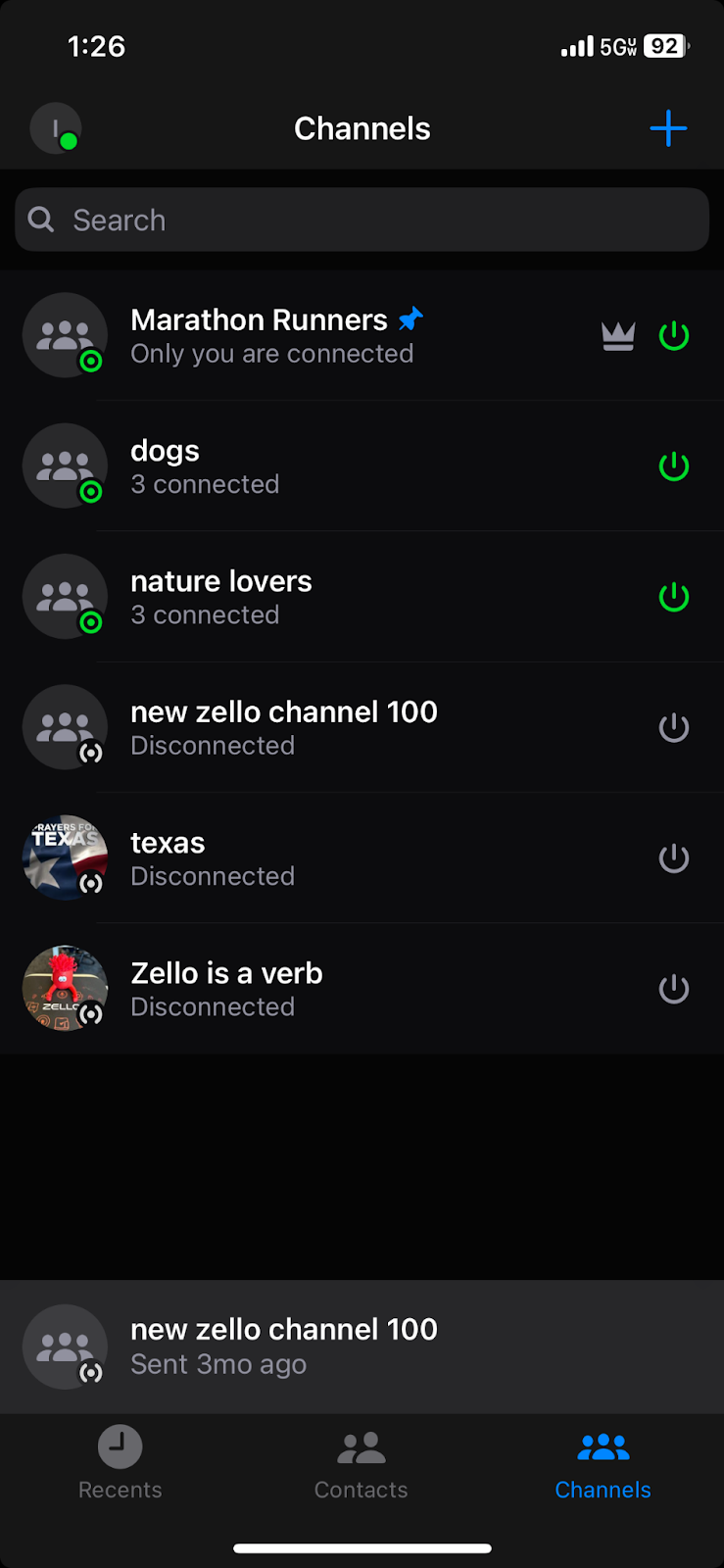
The channel or contact will appear with a pin icon at the top of the channels or contacts list.
### **How do I assign a default channel/contact?**
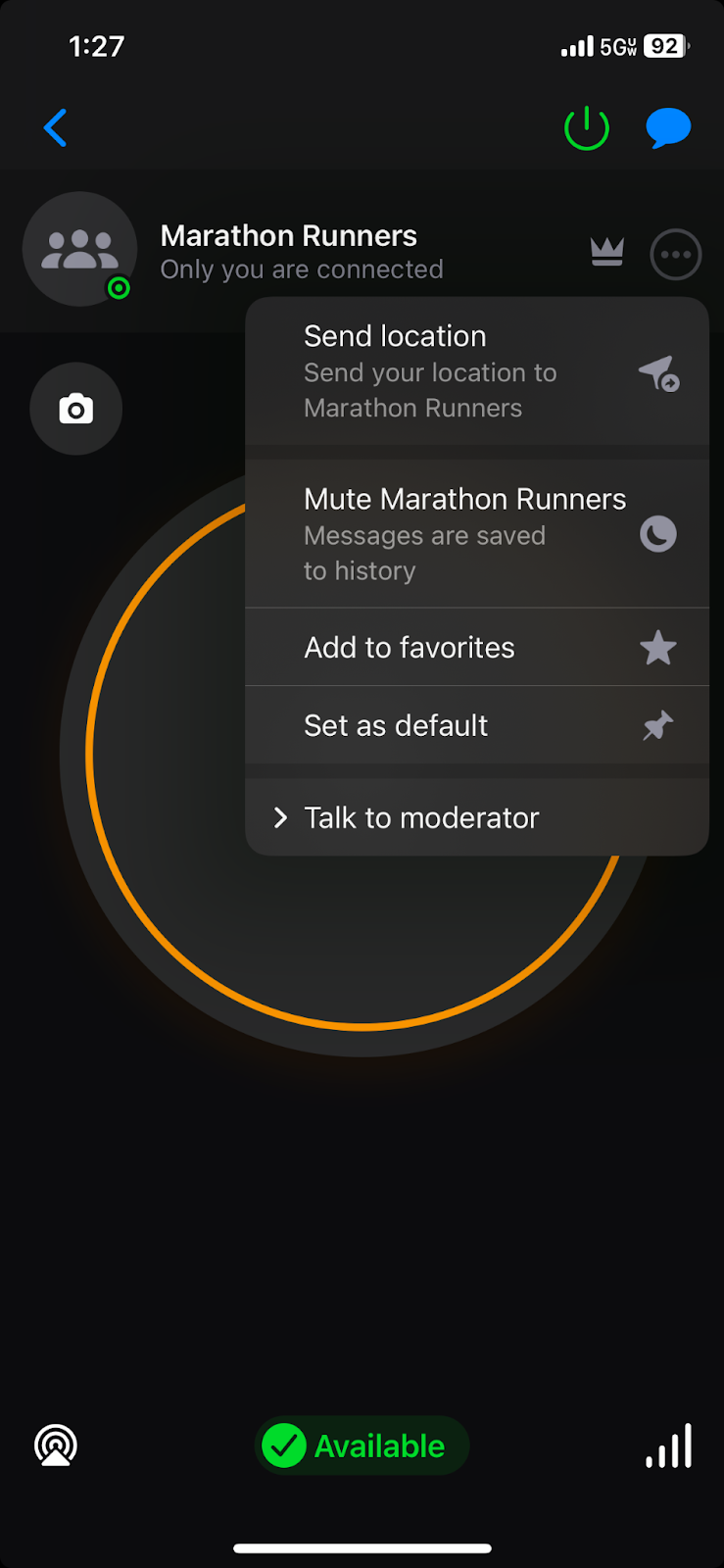
From the channel or contact talk screen, select the menu icon in the upper right corner (drop-down on Android, three dots on iOS). Select **Set as default.**
On Android devices, you can also press and hold on the channel or contact name from the list and select **Set as default.**
On iOS devices, you can swipe left on the channel or contact name and select the **blue pin** icon.
- [Getting started](https://support.zello.com/zc/getting-started?hsLang=en#main-content)
- [New users](https://support.zello.com/zc/getting-started?hsLang=en#new-users)
- [General information](https://support.zello.com/zc/getting-started?hsLang=en#general-information)
- [Using Zello Friends & Family](https://support.zello.com/zc/using-zello-friends-family?hsLang=en#main-content)
- [Android](https://support.zello.com/zc/using-zello-friends-family?hsLang=en#android)
- [iOS](https://support.zello.com/zc/using-zello-friends-family?hsLang=en#ios)
- [Features](https://support.zello.com/zc/using-zello-friends-family?hsLang=en#features)
- [Channels](https://support.zello.com/zc/using-zello-friends-family?hsLang=en#channels)
- [Contacts](https://support.zello.com/zc/using-zello-friends-family?hsLang=en#contacts)
- [Hardware and accessories](https://support.zello.com/zc/using-zello-friends-family?hsLang=en#hardware-and-accessories)
- [Profile Preferences and Settings](https://support.zello.com/zc/profile-preferences-and-settings?hsLang=en#main-content)
- [Manage account](https://support.zello.com/zc/profile-preferences-and-settings?hsLang=en#manage-account)
- [Zello statuses](https://support.zello.com/zc/profile-preferences-and-settings?hsLang=en#zello-statuses)
- [Settings](https://support.zello.com/zc/profile-preferences-and-settings?hsLang=en#settings)
- [Safety and Privacy](https://support.zello.com/zc/safety-and-privacy?hsLang=en#main-content)
- [Blocking, reporting, and channel moderation](https://support.zello.com/zc/safety-and-privacy?hsLang=en#blocking-reporting-and-channel-moderation)
- [Legal](https://support.zello.com/zc/safety-and-privacy?hsLang=en#legal)
- [Channel blocks and account bans](https://support.zello.com/zc/safety-and-privacy?hsLang=en#channel-blocks-and-account-bans)
- [Account security](https://support.zello.com/zc/safety-and-privacy?hsLang=en#account-security)
- [Privacy](https://support.zello.com/zc/safety-and-privacy?hsLang=en#privacy)
- [Mobile and Desktop Apps](https://support.zello.com/zc/mobile-and-desktop-apps?hsLang=en#main-content)
- [Zello Bridge](https://support.zello.com/zc/mobile-and-desktop-apps?hsLang=en#zello-bridge)
[](https://zello.com)
[mailto:email@email.com](mailto:email@email.com)
Copyright © 2026, Zello