---
title: Assigning an External PTT Button (iOS)
description: This article only applies to iOS users.
---
[Skip to content](https://support.zello.com/zc/assigning-an-external-ptt-button-ios#main-content)
English
Show submenu for translations

Open main navigation
Close main navigation
- English
Show submenu for translations
- Contact us
Contact us
How can we help you?
- There are no suggestions because the search field is empty.
1. [Zello F&F](https://support.zello.com/zc?hsLang=en)
2. [Using Zello Friends & Family](https://support.zello.com/zc/using-zello-friends-family?hsLang=en)
3. [iOS](https://support.zello.com/zc/using-zello-friends-family?hsLang=en#ios)
July 6, 2026
# Assigning an External PTT Button (iOS)
This article is written for: ❌ Zello Work ✅ Zello Friends & Family
**This article only applies to iOS users.**
**For help mapping an external PTT button on Zello Work, please reference this [support article](https://paidsupport.zello.com/hc/en-us/articles/26910196112525-Mapping-an-External-PTT-Button-iOS-Android).**
[Compatible Bluetooth and wired accessories](https://zello.com/hardware/) can be assigned to replace the default push-to-talk (PTT) button that appears on the talk screen. Using an external push-to-talk (PTT) button allows you to continue using Zello while it runs in the background.
### Wired Accessories
1. Connect the wired accessory to your iOS device.
2. Tap your **profile picture** in the top left corner.
3. Select **Settings**.
4. Select **Push-to-talk buttons**.
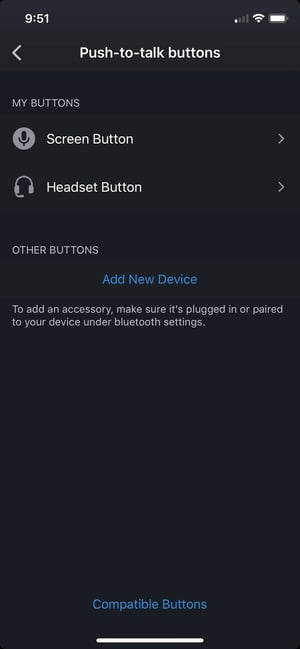
5. Select **Add New Device** to display **Headset Button.**
6. Select **Headset Button**.
### Bluetooth Accessories
1. Following the device manufacturer's instructions, pair your Bluetooth accessory to your iOS device.
2. Tap your **profile picture** in the top left corner.
3. Select **Settings**.
4. Select **Push-to-talk buttons**.
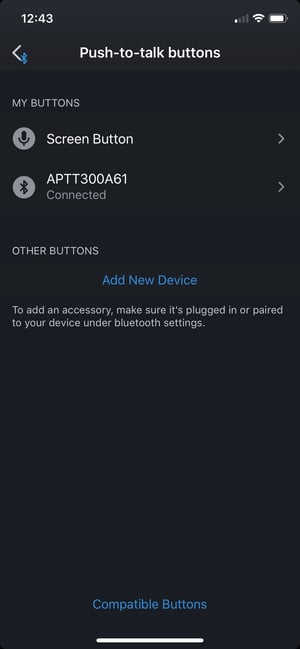
5. Select **Add New Device** to display the name of your accessory.
6. Press the PTT button on your accessory to add the new button to your list.
### Mapping a PTT Button to a Contact or Channel
Once a PTT button is added, you can map a specific contact or channel to it. When a PTT button is mapped, it will automatically send messages to the assigned contact or channel.
The number of PTT buttons that can be mapped will depend on your accessory's specifications.
1. Tap your **profile picture** in the top left corner.
2. Select **Settings**.
3. Select **Push-to-talk buttons**.
4. Select an accessory button from the list.
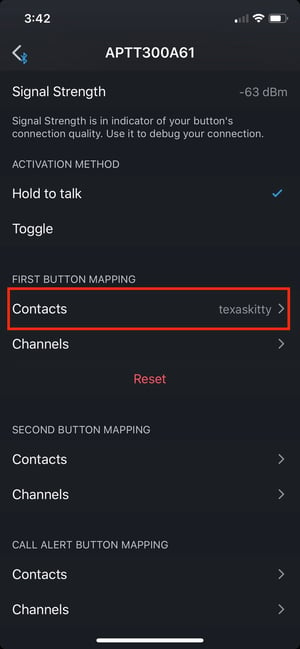
5. Tap either **Contacts** or **Channels** under the button mapping section to display your contacts or channels list.
6. Select the contact or channel you wish to map.
7. To clear your mapping selections, tap the red **Reset**.
- [Getting started](https://support.zello.com/zc/getting-started?hsLang=en#main-content)
- [New users](https://support.zello.com/zc/getting-started?hsLang=en#new-users)
- [General information](https://support.zello.com/zc/getting-started?hsLang=en#general-information)
- [Using Zello Friends & Family](https://support.zello.com/zc/using-zello-friends-family?hsLang=en#main-content)
- [Android](https://support.zello.com/zc/using-zello-friends-family?hsLang=en#android)
- [iOS](https://support.zello.com/zc/using-zello-friends-family?hsLang=en#ios)
- [Features](https://support.zello.com/zc/using-zello-friends-family?hsLang=en#features)
- [Channels](https://support.zello.com/zc/using-zello-friends-family?hsLang=en#channels)
- [Contacts](https://support.zello.com/zc/using-zello-friends-family?hsLang=en#contacts)
- [Hardware and accessories](https://support.zello.com/zc/using-zello-friends-family?hsLang=en#hardware-and-accessories)
- [Profile Preferences and Settings](https://support.zello.com/zc/profile-preferences-and-settings?hsLang=en#main-content)
- [Manage account](https://support.zello.com/zc/profile-preferences-and-settings?hsLang=en#manage-account)
- [Zello statuses](https://support.zello.com/zc/profile-preferences-and-settings?hsLang=en#zello-statuses)
- [Settings](https://support.zello.com/zc/profile-preferences-and-settings?hsLang=en#settings)
- [Safety and Privacy](https://support.zello.com/zc/safety-and-privacy?hsLang=en#main-content)
- [Blocking, reporting, and channel moderation](https://support.zello.com/zc/safety-and-privacy?hsLang=en#blocking-reporting-and-channel-moderation)
- [Legal](https://support.zello.com/zc/safety-and-privacy?hsLang=en#legal)
- [Channel blocks and account bans](https://support.zello.com/zc/safety-and-privacy?hsLang=en#channel-blocks-and-account-bans)
- [Account security](https://support.zello.com/zc/safety-and-privacy?hsLang=en#account-security)
- [Privacy](https://support.zello.com/zc/safety-and-privacy?hsLang=en#privacy)
- [Mobile and Desktop Apps](https://support.zello.com/zc/mobile-and-desktop-apps?hsLang=en#main-content)
- [Zello Bridge](https://support.zello.com/zc/mobile-and-desktop-apps?hsLang=en#zello-bridge)
[](https://zello.com)
[mailto:email@email.com](mailto:email@email.com)
Copyright © 2026, Zello