---
title: Changing Your Status
description: Statuses allow you to customize how you receive messages on Zello and whether you hear them in real-time or not. You can choose from the following statuses:...
---
[Skip to content](https://support.zello.com/zc/changing-your-status#main-content)
English
Show submenu for translations

Open main navigation
Close main navigation
- English
Show submenu for translations
- Contact us
Contact us
How can we help you?
- There are no suggestions because the search field is empty.
1. [Zello F&F](https://support.zello.com/zc?hsLang=en)
2. [Profile Preferences and Settings](https://support.zello.com/zc/profile-preferences-and-settings?hsLang=en)
3. [Zello statuses](https://support.zello.com/zc/profile-preferences-and-settings?hsLang=en#zello-statuses)
July 6, 2026
# Changing Your Status
This article is written for: ❌ Zello Work ✅ Zello Friends & Family
Statuses allow you to customize how you receive messages on Zello and whether you hear them in real-time or not. You can choose from the following statuses: **Available**, **Busy**, **Solo,** and **Offline** (**Standby**).
For a detailed overview of what each status means, reference this [support article](https://support.zello.com/hc/en-us/articles/18198375207821-Understanding-Statuses?hsLang=en).
### How do I change my status?
To change your status, follow the steps below for the type of device you're using.
#### Android
1. Tap the **vertical dots icon** in the top right corner of the screen.
2. Select **Status**.
3. Choose your preferred status. You can also set a status message for other users to see if you wish.
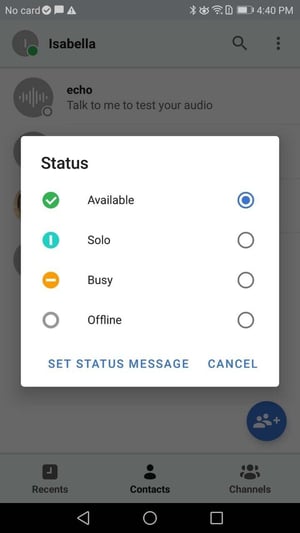
You can also set your status to automatically change to Busy when your phone is in silent mode or to automatically change to Available when you press the talk button. For more information, check out this [support article](https://support.zello.com/hc/en-us/articles/230749107-Android-Options-Guide?hsLang=en).
#### iOS
1. Tap your **profile picture** in the top left corner of the screen.
2. Select **Status**.
3. Choose your preferred status. You can also enable your status to automatically change to Available when the talk button is pressed.
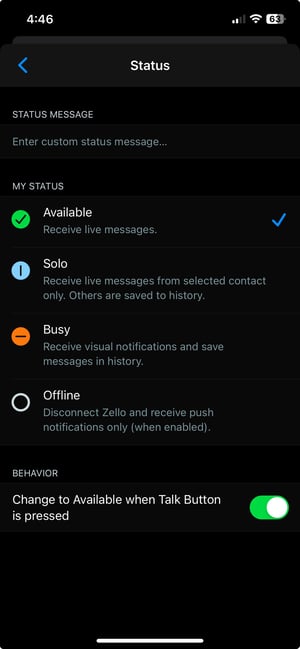
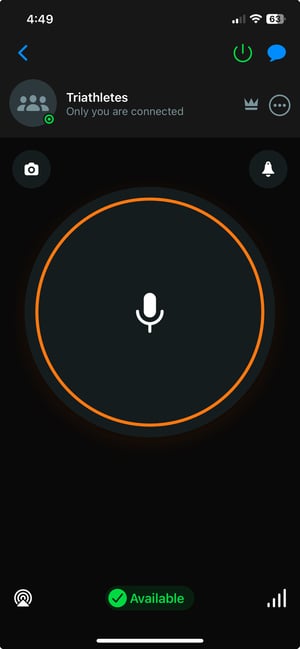
You can also change your status from the talk screen of a contact or channel by tapping the **status icon** at the bottom of the screen. Each tap toggles to a different status.
- [Getting started](https://support.zello.com/zc/getting-started?hsLang=en#main-content)
- [New users](https://support.zello.com/zc/getting-started?hsLang=en#new-users)
- [General information](https://support.zello.com/zc/getting-started?hsLang=en#general-information)
- [Using Zello Friends & Family](https://support.zello.com/zc/using-zello-friends-family?hsLang=en#main-content)
- [Android](https://support.zello.com/zc/using-zello-friends-family?hsLang=en#android)
- [iOS](https://support.zello.com/zc/using-zello-friends-family?hsLang=en#ios)
- [Features](https://support.zello.com/zc/using-zello-friends-family?hsLang=en#features)
- [Channels](https://support.zello.com/zc/using-zello-friends-family?hsLang=en#channels)
- [Contacts](https://support.zello.com/zc/using-zello-friends-family?hsLang=en#contacts)
- [Hardware and accessories](https://support.zello.com/zc/using-zello-friends-family?hsLang=en#hardware-and-accessories)
- [Profile Preferences and Settings](https://support.zello.com/zc/profile-preferences-and-settings?hsLang=en#main-content)
- [Manage account](https://support.zello.com/zc/profile-preferences-and-settings?hsLang=en#manage-account)
- [Zello statuses](https://support.zello.com/zc/profile-preferences-and-settings?hsLang=en#zello-statuses)
- [Settings](https://support.zello.com/zc/profile-preferences-and-settings?hsLang=en#settings)
- [Safety and Privacy](https://support.zello.com/zc/safety-and-privacy?hsLang=en#main-content)
- [Blocking, reporting, and channel moderation](https://support.zello.com/zc/safety-and-privacy?hsLang=en#blocking-reporting-and-channel-moderation)
- [Legal](https://support.zello.com/zc/safety-and-privacy?hsLang=en#legal)
- [Channel blocks and account bans](https://support.zello.com/zc/safety-and-privacy?hsLang=en#channel-blocks-and-account-bans)
- [Account security](https://support.zello.com/zc/safety-and-privacy?hsLang=en#account-security)
- [Privacy](https://support.zello.com/zc/safety-and-privacy?hsLang=en#privacy)
- [Mobile and Desktop Apps](https://support.zello.com/zc/mobile-and-desktop-apps?hsLang=en#main-content)
- [Zello Bridge](https://support.zello.com/zc/mobile-and-desktop-apps?hsLang=en#zello-bridge)
[](https://zello.com)
[mailto:email@email.com](mailto:email@email.com)
Copyright © 2026, Zello