---
title: Configuring the Telo TE390
description: For help setting up Zello Work on the Telo TE390, please reference this support article.
---
[Skip to content](https://support.zello.com/zc/configuring-the-telo-te390#main-content)
English
Show submenu for translations

Open main navigation
Close main navigation
- English
Show submenu for translations
- Contact us
Contact us
How can we help you?
- There are no suggestions because the search field is empty.
1. [Zello F&F](https://support.zello.com/zc?hsLang=en)
2. [Using Zello Friends & Family](https://support.zello.com/zc/using-zello-friends-family?hsLang=en)
3. [Hardware and accessories](https://support.zello.com/zc/using-zello-friends-family?hsLang=en#hardware-and-accessories)
July 6, 2026
# Configuring the Telo TE390
This article is written for: ❌ Zello Work ✅ Zello Friends & Family
**For help setting up Zello Work on the Telo TE390, please reference this [support article](https://paidsupport.zello.com/hc/en-us/articles/26789235249165-Configuring-the-Telo-TE390-for-Zello).**
Beginning with version 4.66, the Zello Android app will support the TE390 network radio. To set up and configure Zello for the TE390, follow these steps.
### Configure your device settings
Before installing Zello, use the knob on top to change your device Settings if needed. Go to **SETTINGS**, then press down and turn the selector knob to see each setting option. When done, long press to return to the **SETTINGS** screen**.**
### Installing the Zello app and creating an account
Since the device doesn't have a screen, you'll need to use a computer to configure it.
1. Download an Android remote control application to your computer. For example, [Vysor](https://vysor.io/) is one such app that works on both Mac and Windows PCs. **NOTE**: Zello is not affiliated with, or endorsing, Vysor
2. Connect the TE390 to your computer using a USB cable
3. Use Vysor to configure the device and download Zello for Android from the [Zello website](https://zello.com/android/)
4. You may be prompted to allow apps from unknown sources to be installed. Tap **SETTINGS\>OK** and turn on the **Unknown sources** setting to allow the installation to proceed.
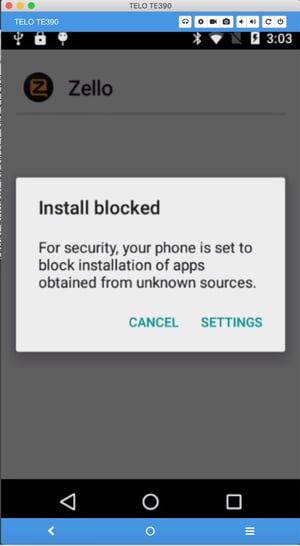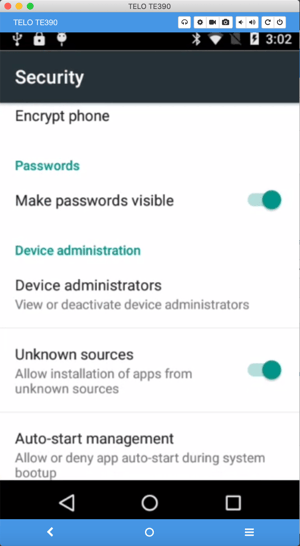
5. On the homescreen, go to **File Manager**, locate the Zello .apk file, and click on it to install Zello
6. Tap **OPEN** to open Zello in Vysor
7. If you do not have a Zello account, create one now. If you already have an account, log in with the account username
8. You should see **RECENTS** in the OLED screen on top.
### Creating Zello channels and contacts
For the free app, use steps in the [Android User's Guide](https://support.zello.com/hc/en-us/articles/230749047-Zello-Android-User-s-Guide-?hsLang=en) to add the channels and contacts that you will use with the selector knob. If you already have existing channels and contacts, you can skip this task.
### Mapping the push-to-talk button and secondary buttons
The Telo TE390 is pre-mapped for Zello PTT and ZelloWork Emergency Alerts. No additional mapping is required.
### Using Zello with the selector knob
The TE390 radio includes a knob (with no stop or markings) that allows you to switch through all your contacts and channels. There is no limit on the number of contacts or channels you can access on the selector knob.
To switch between different Zello screens (RECENTS, CHANNEL, CONTACTS), push the knob down. Turn the knob to scroll down through your recents/channels/contacts. When done, push down to cycle through your screens again.
- [Getting started](https://support.zello.com/zc/getting-started?hsLang=en#main-content)
- [New users](https://support.zello.com/zc/getting-started?hsLang=en#new-users)
- [General information](https://support.zello.com/zc/getting-started?hsLang=en#general-information)
- [Using Zello Friends & Family](https://support.zello.com/zc/using-zello-friends-family?hsLang=en#main-content)
- [Android](https://support.zello.com/zc/using-zello-friends-family?hsLang=en#android)
- [iOS](https://support.zello.com/zc/using-zello-friends-family?hsLang=en#ios)
- [Features](https://support.zello.com/zc/using-zello-friends-family?hsLang=en#features)
- [Channels](https://support.zello.com/zc/using-zello-friends-family?hsLang=en#channels)
- [Contacts](https://support.zello.com/zc/using-zello-friends-family?hsLang=en#contacts)
- [Hardware and accessories](https://support.zello.com/zc/using-zello-friends-family?hsLang=en#hardware-and-accessories)
- [Profile Preferences and Settings](https://support.zello.com/zc/profile-preferences-and-settings?hsLang=en#main-content)
- [Manage account](https://support.zello.com/zc/profile-preferences-and-settings?hsLang=en#manage-account)
- [Zello statuses](https://support.zello.com/zc/profile-preferences-and-settings?hsLang=en#zello-statuses)
- [Settings](https://support.zello.com/zc/profile-preferences-and-settings?hsLang=en#settings)
- [Safety and Privacy](https://support.zello.com/zc/safety-and-privacy?hsLang=en#main-content)
- [Blocking, reporting, and channel moderation](https://support.zello.com/zc/safety-and-privacy?hsLang=en#blocking-reporting-and-channel-moderation)
- [Legal](https://support.zello.com/zc/safety-and-privacy?hsLang=en#legal)
- [Channel blocks and account bans](https://support.zello.com/zc/safety-and-privacy?hsLang=en#channel-blocks-and-account-bans)
- [Account security](https://support.zello.com/zc/safety-and-privacy?hsLang=en#account-security)
- [Privacy](https://support.zello.com/zc/safety-and-privacy?hsLang=en#privacy)
- [Mobile and Desktop Apps](https://support.zello.com/zc/mobile-and-desktop-apps?hsLang=en#main-content)
- [Zello Bridge](https://support.zello.com/zc/mobile-and-desktop-apps?hsLang=en#zello-bridge)
[](https://zello.com)
[mailto:email@email.com](mailto:email@email.com)
Copyright © 2026, Zello