---
title: Using Overlay (aka. Floating) Buttons on Android
description: This feature is only available on Android.
---
[Skip to content](https://support.zello.com/zc/using-overlay-aka.-floating-buttons-on-android#main-content)
English
Show submenu for translations

Open main navigation
Close main navigation
- English
Show submenu for translations
- Contact us
Contact us
How can we help you?
- There are no suggestions because the search field is empty.
1. [Zello F&F](https://support.zello.com/zc?hsLang=en)
2. [Using Zello Friends & Family](https://support.zello.com/zc/using-zello-friends-family?hsLang=en)
3. [Android](https://support.zello.com/zc/using-zello-friends-family?hsLang=en#android)
March 12, 2026
# Using Overlay (aka. Floating) Buttons on Android
This article is written for: ❌ Zello Work ✅ Zello Friends & Family
**This feature is only available on Android.**
**For help using overlay (aka. floating) buttons on Zello Work, please reference this [support article](https://paidsupport.zello.com/hc/en-us/articles/26957780169101-Using-Zello-Overlay-Buttons-on-Android).**
Floating buttons enable you to add a PTT button that appears within other apps so you can continue conversations without keeping Zello open.
### Enabling Floating Buttons
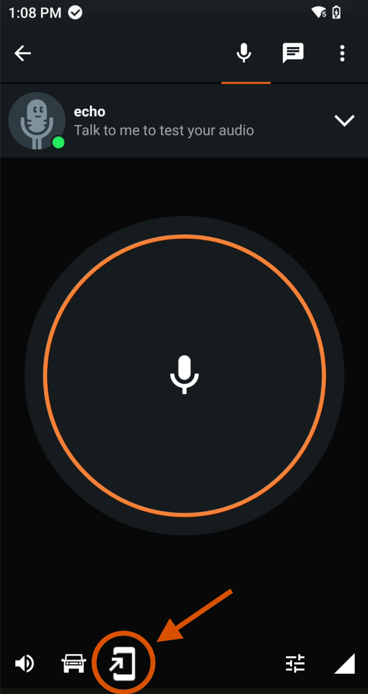
Open any contact or channel talk screen and tap the **floating button icon** in the bottom of the screen to create a button for this contact or channel.
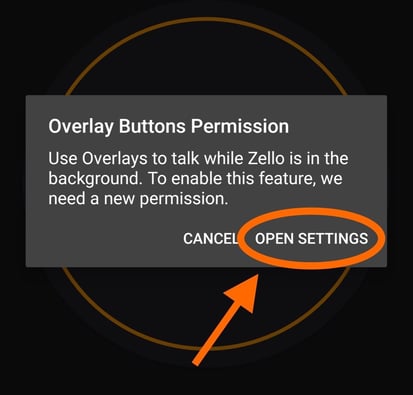
You may see a menu pop up from your device requiring you to enable permissions for floating buttons to appear on other apps. If this occurs, select **Open Settings** and allow Zello to **display over other apps** in your device's settings.
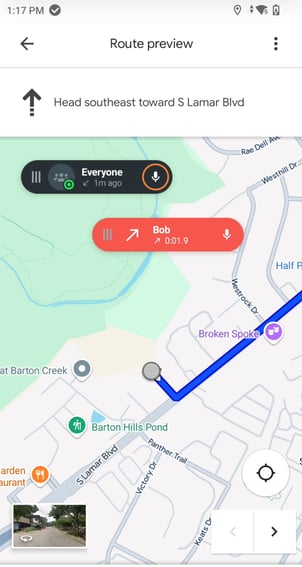
Once permissions have been enabled, you can start using floating buttons to keep your Zello conversations going while using other apps.
### Tips and tricks
### Updated Behavior (Version 6.8 and Newer)
Starting with Zello version 6.8, floating buttons will automatically match the setting you've chosen for your main talk screen. This means if your talk screen is set to "hold to talk" your floating buttons will work the same way.
### How to Change Your Talk Style
You are always in control of your button preference. If you prefer to tap the button once to talk and tap again to stop (toggle mode), you can set this for both your talk screen and floating buttons.
1. Navigate to **Settings** \> **Push-to-talk buttons.**
2. Select **Screen button**.
3. Choose **Toggle** from the options.
### Managing Your Floating Buttons
- **Identify Conversations:** Each floating button displays the name of the channel, or contact you are talking to. You can open as many floating buttons as you wish.
- **Move Buttons:** To place a button anywhere on the screen, press and hold the grip icon (three lines) on the left side of the button, then drag it to your desired location.
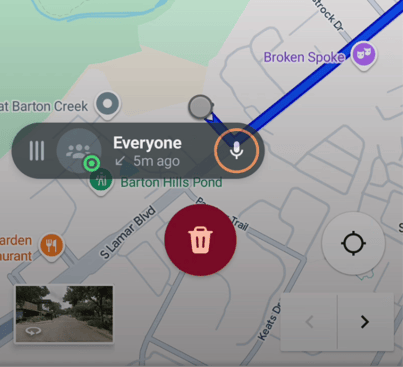
- **Delete Buttons:** To remove a floating button, simply drag it to the red trash can icon that appears at the bottom of the screen.
- [Getting started](https://support.zello.com/zc/getting-started?hsLang=en#main-content)
- [New users](https://support.zello.com/zc/getting-started?hsLang=en#new-users)
- [General information](https://support.zello.com/zc/getting-started?hsLang=en#general-information)
- [Using Zello Friends & Family](https://support.zello.com/zc/using-zello-friends-family?hsLang=en#main-content)
- [Android](https://support.zello.com/zc/using-zello-friends-family?hsLang=en#android)
- [iOS](https://support.zello.com/zc/using-zello-friends-family?hsLang=en#ios)
- [Features](https://support.zello.com/zc/using-zello-friends-family?hsLang=en#features)
- [Channels](https://support.zello.com/zc/using-zello-friends-family?hsLang=en#channels)
- [Contacts](https://support.zello.com/zc/using-zello-friends-family?hsLang=en#contacts)
- [Hardware and accessories](https://support.zello.com/zc/using-zello-friends-family?hsLang=en#hardware-and-accessories)
- [Profile Preferences and Settings](https://support.zello.com/zc/profile-preferences-and-settings?hsLang=en#main-content)
- [Manage account](https://support.zello.com/zc/profile-preferences-and-settings?hsLang=en#manage-account)
- [Zello statuses](https://support.zello.com/zc/profile-preferences-and-settings?hsLang=en#zello-statuses)
- [Settings](https://support.zello.com/zc/profile-preferences-and-settings?hsLang=en#settings)
- [Safety and Privacy](https://support.zello.com/zc/safety-and-privacy?hsLang=en#main-content)
- [Blocking, reporting, and channel moderation](https://support.zello.com/zc/safety-and-privacy?hsLang=en#blocking-reporting-and-channel-moderation)
- [Legal](https://support.zello.com/zc/safety-and-privacy?hsLang=en#legal)
- [Channel blocks and account bans](https://support.zello.com/zc/safety-and-privacy?hsLang=en#channel-blocks-and-account-bans)
- [Account security](https://support.zello.com/zc/safety-and-privacy?hsLang=en#account-security)
- [Privacy](https://support.zello.com/zc/safety-and-privacy?hsLang=en#privacy)
- [Mobile and Desktop Apps](https://support.zello.com/zc/mobile-and-desktop-apps?hsLang=en#main-content)
- [Zello Bridge](https://support.zello.com/zc/mobile-and-desktop-apps?hsLang=en#zello-bridge)
[](https://zello.com)
[mailto:email@email.com](mailto:email@email.com)
Copyright © 2026, Zello