---
title: Setting Up Zello Kiosk
description: The Zello Kiosk feature utilizes our dispatch call feature to allow your customers to request help from a store associate, without having to actually...
---
[Skip to content](https://support.zello.com/zw/setting-up-zello-kiosk#main-content)
English
Show submenu for translations
[More support](https://support.zello.com/zw/kb-tickets/new?hsLang=en)
[](https://zello.com/)
Open main navigation
Close main navigation
- English
Show submenu for translations
- [More support](https://support.zello.com/zw/kb-tickets/new)
- [Contact us](https://zello.com/contact/new-ticket/)
[Contact us](https://zello.com/contact/new-ticket/)
Hello. How can we help you?
- There are no suggestions because the search field is empty.
1. [Zello Work](https://support.zello.com/zw?hsLang=en)
2. [Using Zello](https://support.zello.com/zw/using-zello?hsLang=en)
3. [Dispatch Hub](https://support.zello.com/zw/using-zello?hsLang=en#dispatch-hub)
May 8, 2026
# Setting Up Zello Kiosk
This article is written for: ✅ Zello Work ❌ Zello Friends & Family.
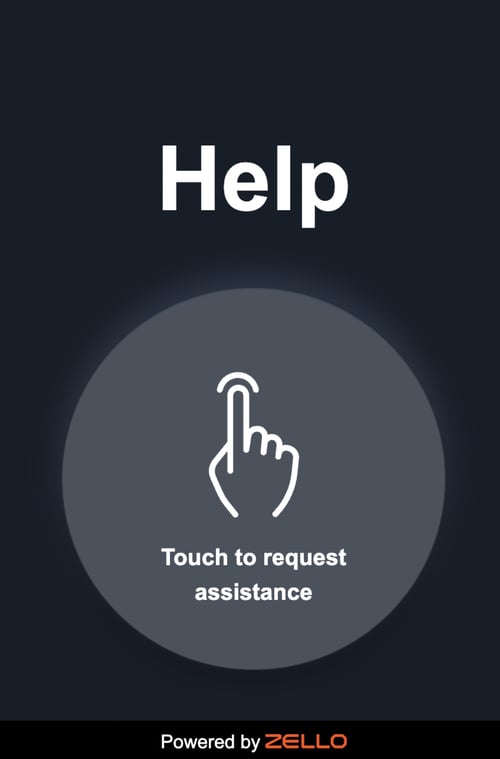
The Zello Kiosk feature utilizes our dispatch call feature to allow your customers to request help from a store associate, without having to actually track someone down themselves. This article will walk you through creating a Kiosk user account, creating a dispatch channel to use with the kiosk, and generating a link for the creation of the kiosk screen:
### Prerequisites to using Zello Kiosk
---
1. A tablet (or a phone) running Android 8 or newer, along with tablet mounting hardware (iOS functionality may be available in the future).
2. A MDM or app that supports locking the tablet to a specific web page in a kiosk mode (an example of a standalone app that can be used is [Fully Kiosk Browser & Lockdown](https://play.google.com/store/apps/details?id=de.ozerov.fully&pli=1)).
### Part One: Create Kiosk User
---
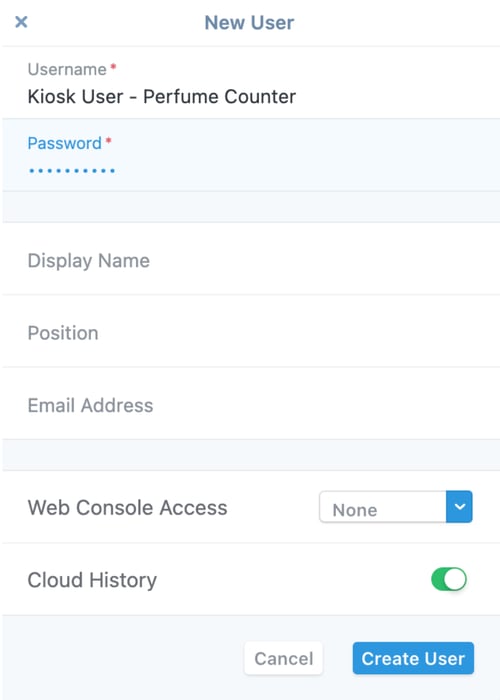
1\. In order to log in to Zello on the kiosk, the Kiosk will need its own user assigned. Create a new user for the Kiosk. If you have multiple kiosks to set up with Zello, it would be helpful to create usernames that reflect the location of each kiosk. (For full instructions on adding users, [refer to](https://support.zellowork.com/hc/en-us/articles/207382348-Adding-users-to-the-network)[this article](https://paidsupport.zello.com/hc/en-us/articles/26981814818061-Adding-users-to-the-network)[.](https://support.zellowork.com/hc/en-us/articles/207382348-Adding-users-to-the-network))
### Part Two: Create Channel for Kiosk
---
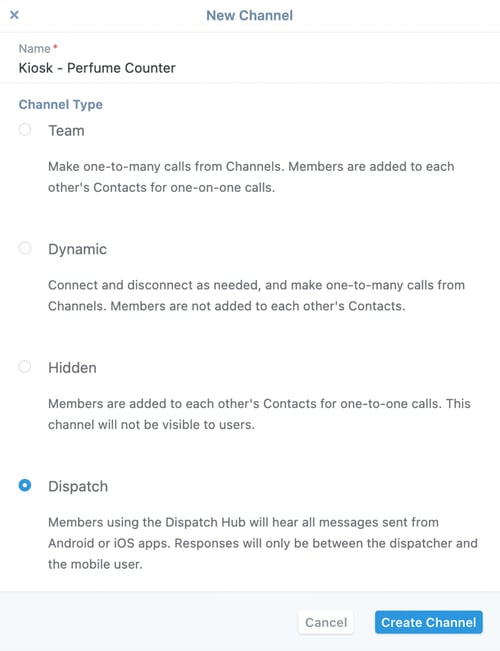
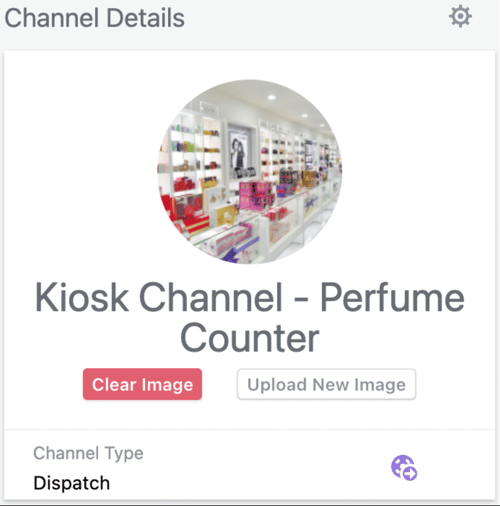
1. [Create a new channel](https://paidsupport.zello.com/hc/en-us/articles/26917918053133-Dispatch-Hub-101-part-2-Creating-Dispatch-Channels-Assigning-Users) **with channel type Dispatch** for kiosk communication and name it appropriately to reflect the purpose of the kiosk. For example, "Kiosk - Perfume Counter”.
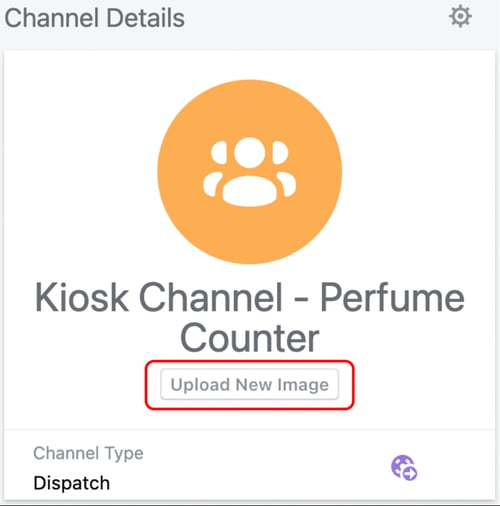
2\. Optionally, assign a profile picture to make it easier to recognize.
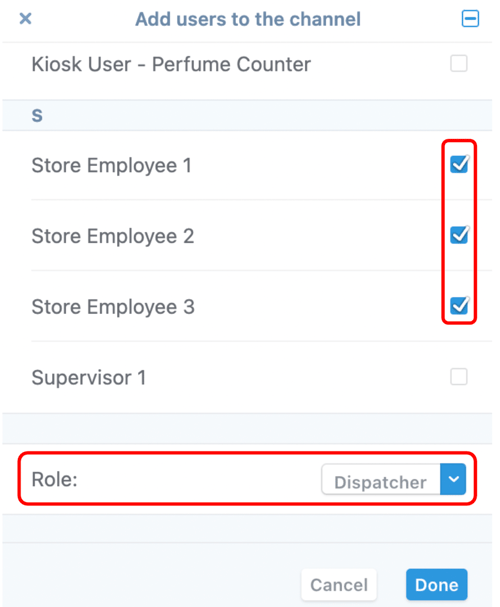
3\. Add employees who will be receiving requests from the kiosk with *Dispatcher* role to the channel.
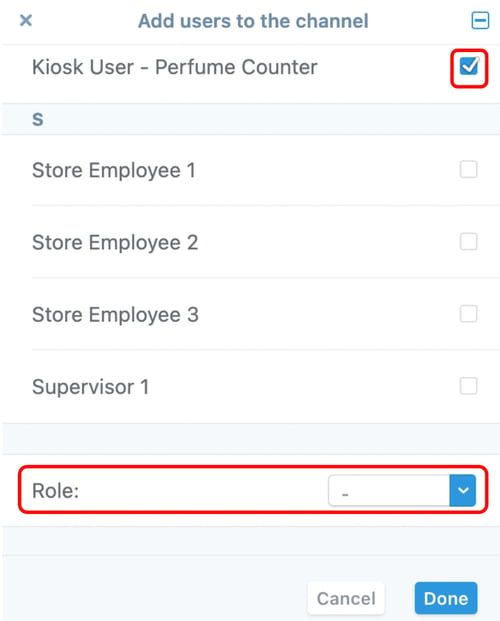
4\. Add the kiosk user account to the channel with no role assigned.
### Part Three: Generate Kiosk Link
---
1\. Navigate to the kiosk link generator page provided by your Zello account executive. Configure the following required attributes:
- **Channel name** *-* if the channel name is not provided, it is assumed that it is the same as the username.
- **Username** of kiosk user
- **Password** of kiosk user
2\. Click **Generate link** button at the bottom of the page.
3\. Click **open in new tab** to test the kiosk link. Here is an example of what this will look like:
4\. Save the link to use in MDM/kiosk app configuration, and close the tab.
5\. Following instructions specific to your MDM or Kiosk app, use the link to open the Zello Kiosk page on the tablet that you are using for the kiosk.
**Important***:* Each instance of the kiosk needs its own separate link. Opening the same link from multiple browsers (including multiple tabs in the same browser) will lead to the kiosk displaying the Out of Order error message.
### Part Four: Use by Store Associates
---
Store associates who are responsible for responding to kiosk calls should be equipped with a mobile device running the Zello application. You can see what it looks like for the store associates when they respond to a kiosk request in the following video:
### **Additional Options for Setup**
---
You can customize the kiosk behavior using the following settings:
- **Message repeat interval** -- How often the new call message is repeated until the call is accepted. It can be set to intervals between 10 seconds and 2 minutes. Set to "Never" to prevent message from repeating.
- **Maximum waiting time** -- How long the kiosk would wait for the dispatcher to accept the call before returning to the normal state. The time could be set in the range between 1 minute and 2 hours, with default being 15 minutes.
- **Enable two-way speaking** -- When enabled, the dispatcher can initiate two-way conversation by sending a voice message to the customer after accepting their request.
Additionally, all of the text labels listed on the generator page could be edited to localize the kiosk or customize the labels to match specific use cases.
### Enterprise Kiosk Setup
---
Basic kiosk setup is intended as a self-serve product. For enterprise customers, we offer a setup that involves custom branding and custom pre-recorded messages.[Please reach out to our Sales organization for inquiries.](https://zello.com/contact/talk-to-sales/?__hstc=227585922.71b6df7f716b0c25b319135e85c9a5a3.1701816989797.1718050416876.1718053552700.430&__hssc=227585922.5.1718053552700&__hsfp=1342778728&_gl=1*e1tsmh*_gcl_au*MTEyODI2MzY2NC4xNzE3NDI1MDgz*_ga*MTE5NzE4NTU2NS4xNzAxODE2OTkw*_ga_BNXNBXHVY5*MTcxODA1MzU1MC40MDkuMS4xNzE4MDU1ODYzLjYwLjAuMA..)
### Troubleshooting
---
The table below lists kiosk's possible error codes.
| 10 | Internet issue: no internet connection |
| --- | --- |
| 11 | Configuration issue: incorrect custom audio message parameter |
| 20 | Configuration issue: missing API endpoint in the kiosk link |
| 21 | Configuration issue: missing username in the kiosk link |
| 22 | Configuration issue: missing password in the kiosk link |
| 40 | Internal error: SDK initialization has failed |
| 50 | Connection error: unable to connect to the API. Double check credentials. |
| 55 | Permission error: no permission to access the microphone |
| 60 | Connection error: failed to start a call |
| 70 | Configuration issue: texting in not enabled for the channel |
| 80 | Connection error: connection interrupted |
| 90 | Connection error: the channel is offline |
- [Getting Started](https://support.zello.com/zw/getting-started?hsLang=en#main-content)
- [Trials](https://support.zello.com/zw/getting-started?hsLang=en#trials)
- [Admins](https://support.zello.com/zw/getting-started?hsLang=en#admins)
- [Users](https://support.zello.com/zw/getting-started?hsLang=en#users)
- [Dispatch Hub](https://support.zello.com/zw/getting-started?hsLang=en#dispatch-hub)
- [Intro to Zello](https://support.zello.com/zw/getting-started?hsLang=en#intro-to-zello)
- [Admins](https://support.zello.com/zw/admins?hsLang=en#main-content)
- [User Management](https://support.zello.com/zw/admins?hsLang=en#user-management)
- [Channels](https://support.zello.com/zw/admins?hsLang=en#channels)
- [Dispatch Hub](https://support.zello.com/zw/admins?hsLang=en#dispatch-hub)
- [Network Settings and Configurations](https://support.zello.com/zw/admins?hsLang=en#network-settings-and-configurations)
- [Zello Enterprise Server](https://support.zello.com/zw/admins?hsLang=en#zello-enterprise-server)
- [Payments, Subscriptions, and Billing](https://support.zello.com/zw/admins?hsLang=en#payments-subscriptions-and-billing)
- [Using Zello](https://support.zello.com/zw/using-zello?hsLang=en#main-content)
- [Dispatch Hub](https://support.zello.com/zw/using-zello?hsLang=en#dispatch-hub)
- [User Communications](https://support.zello.com/zw/using-zello?hsLang=en#user-communications)
- [Channels](https://support.zello.com/zw/using-zello?hsLang=en#channels)
- [Settings](https://support.zello.com/zw/using-zello?hsLang=en#settings)
- [Features](https://support.zello.com/zw/using-zello?hsLang=en#features)
- [Windows PC App](https://support.zello.com/zw/using-zello?hsLang=en#windows-pc-app)
- [Accessories](https://support.zello.com/zw/accessories?hsLang=en#main-content)
- [Rugged/Specialized Phones](https://support.zello.com/zw/accessories?hsLang=en#rugged-specialized-phones)
- [Network Radios](https://support.zello.com/zw/accessories?hsLang=en#network-radios)
- [Headsets](https://support.zello.com/zw/accessories?hsLang=en#headsets)
- [Speakers/Mics](https://support.zello.com/zw/accessories?hsLang=en#speakers-mics)
- [Wireless Buttons](https://support.zello.com/zw/accessories?hsLang=en#wireless-buttons)
- [Gateways](https://support.zello.com/zw/accessories?hsLang=en#gateways)
- [Partners & Developers](https://support.zello.com/zw/partners-developers?hsLang=en#main-content)
- [Partnerships](https://support.zello.com/zw/partners-developers?hsLang=en#partnerships)
- [New Mobile SDK (iOS, Android, React Native)](https://support.zello.com/zw/partners-developers?hsLang=en#new-mobile-sdk-ios-android-react-native)
- [Legacy SDK (Android-Only)](https://support.zello.com/zw/partners-developers?hsLang=en#legacy-sdk-android-only)
- [API and Integrations](https://support.zello.com/zw/partners-developers?hsLang=en#api-and-integrations)
- [FAQ](https://support.zello.com/zw/faq?hsLang=en#main-content)
- [Functionality](https://support.zello.com/zw/faq?hsLang=en#functionality)
- [Accessories](https://support.zello.com/zw/faq?hsLang=en#accessories)
- [Troubleshooting](https://support.zello.com/zw/faq?hsLang=en#troubleshooting)
- [Network](https://support.zello.com/zw/faq?hsLang=en#network)
- [Compliance](https://support.zello.com/zw/faq?hsLang=en#compliance)
- [Videos](https://support.zello.com/zw/videos?hsLang=en#main-content)
- [Android](https://support.zello.com/zw/videos?hsLang=en#android)
- [Management Console](https://support.zello.com/zw/videos?hsLang=en#management-console)
- [iOS](https://support.zello.com/zw/videos?hsLang=en#ios)
- [Channels](https://support.zello.com/zw/videos?hsLang=en#channels)
- [Dispatch Hub](https://support.zello.com/zw/videos?hsLang=en#dispatch-hub)
[](https://zello.com)
Zello Inc Help Center
Copyright © 2025, Zello