
This article is written for: ✅ Zello Work ❌ Zello Friends & Family.
Zello's AI Digests feature delivers daily summaries of conversations from up to 5 network channels, offering actionable insight into your team's communications in a clear, concise, and easily-readable format.
AI Digests are emailed to configured recipients, ensuring key stakeholders are informed of communication trends without requiring active network monitoring. They afford deeper awareness of a team's daily operations—including roadblocks, successes, and (in)efficiencies—empowering stakeholders to effectively and proactively support frontline workers.
What's included in AI Digests?
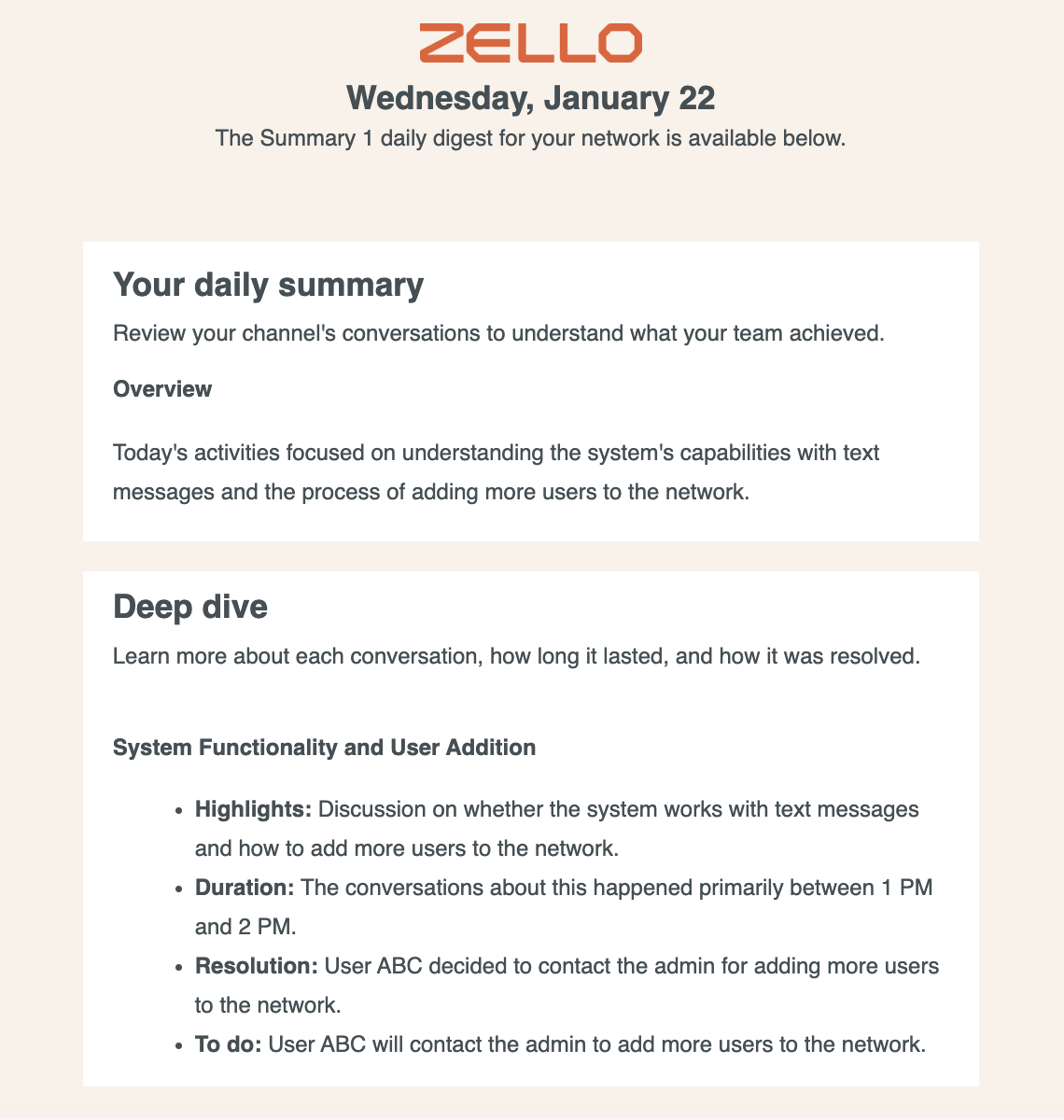
Each emailed digest includes an overview section that summarizes the day's conversations, as well as a deep-dive section that delves into discussed issues, their duration, their resolution, and any resulting to-dos.
Digests capture a configured timeframe, and they're emailed daily to assigned contacts. Currently, AI Digests follow a rule of 5:
- Each network can configure up to 5 separate digests.
- Each digest covers up to 5 channels.
- Each digest may be sent to a maximum of 20 emails.
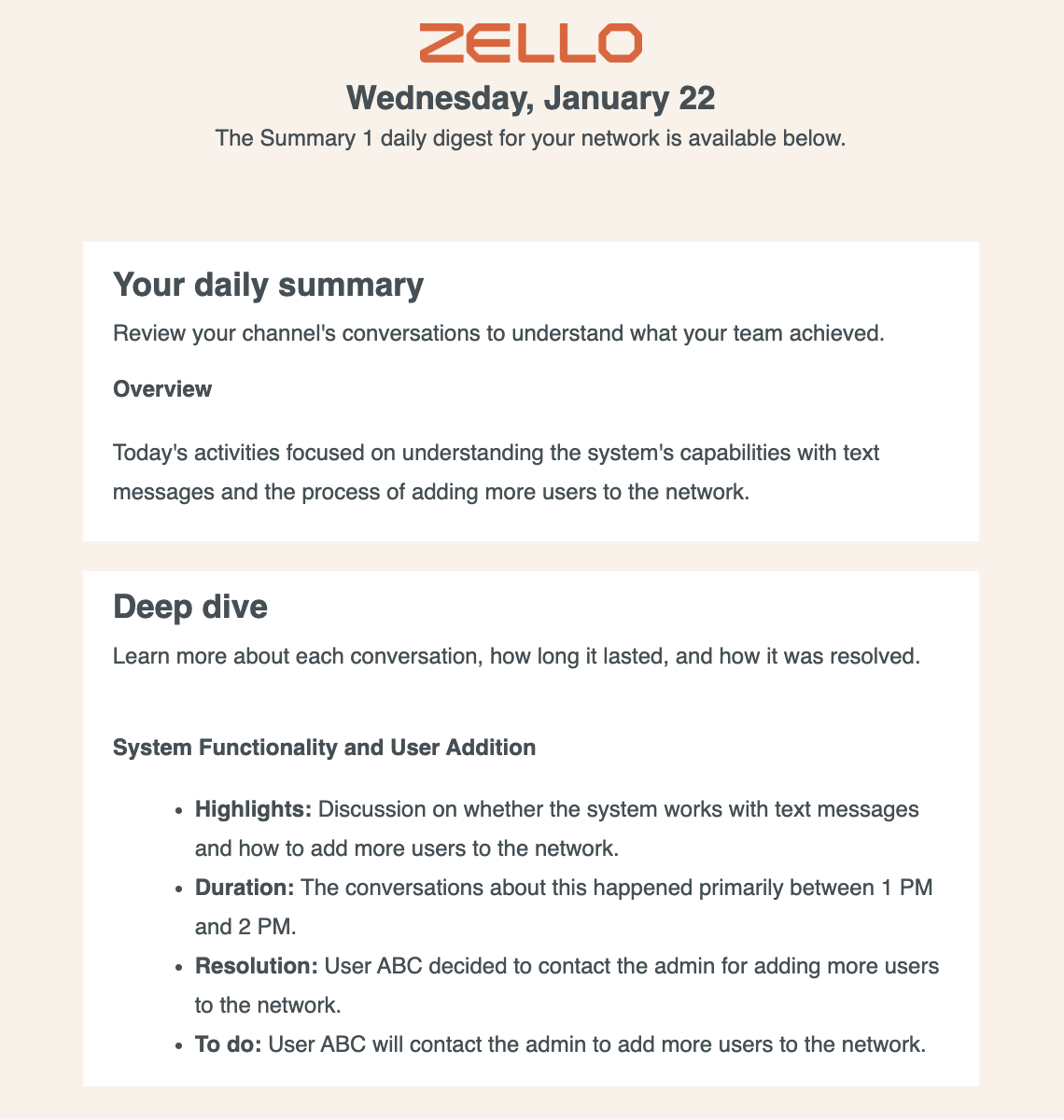
Please note that each digest summarizes communications and identifies patterns across its assigned channels. For example:
- If your Digest is assigned 5 channels, the insights will summarize topics of conversation across all 5. This may help identify any trends occurring throughout operational units.
- If you've configured your Digest to cover a single channel, your insights will focus solely on communications occurring in that channel.
A single Digest may cover between 1 and 5 channels. Consider grouping channels with similar use cases in one Digest to maximize the feature's value.
Prerequisites
AI Digests require that a network have the following Plus tier features enabled:
Enablement
- Sign in to your network's Management Console at [yournetworkname].zellowork.com.
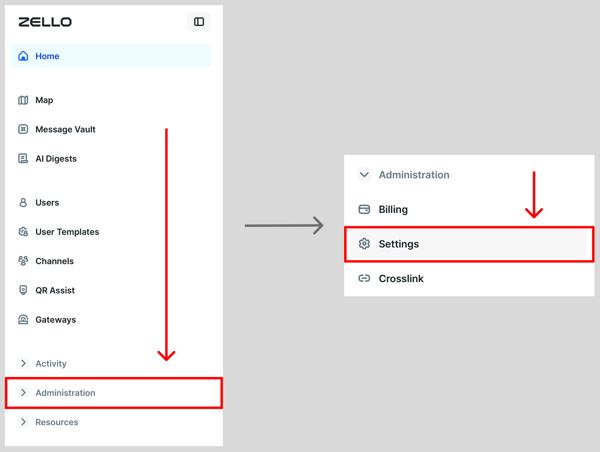
- Select Administration, then Settings.
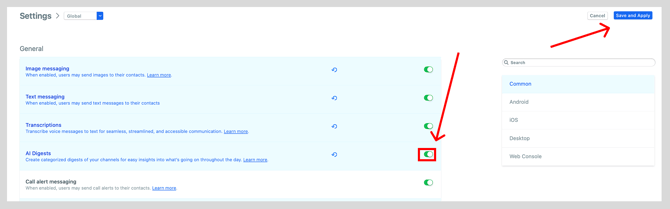
- Locate the "AI Digests" setting and use the toggle to enable it. Click Save and Apply.
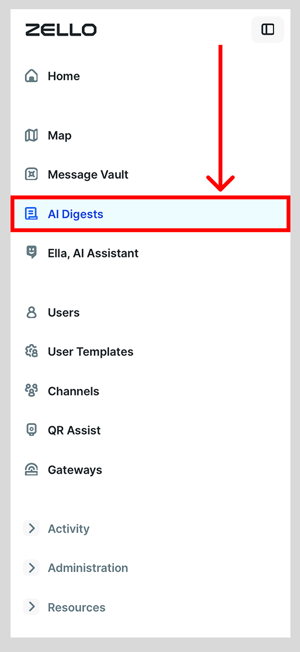
- Select AI Digests from the menu.
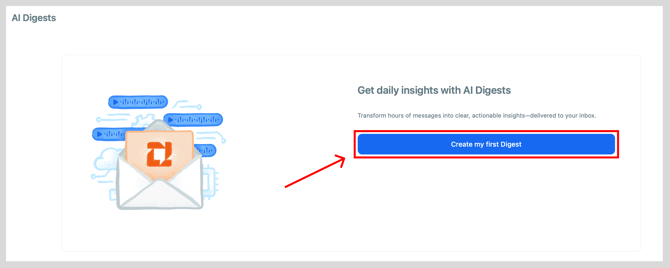
- Click Create my first Digest
- Fill in all of the fields to configure your digest and then select Next: choose channels.
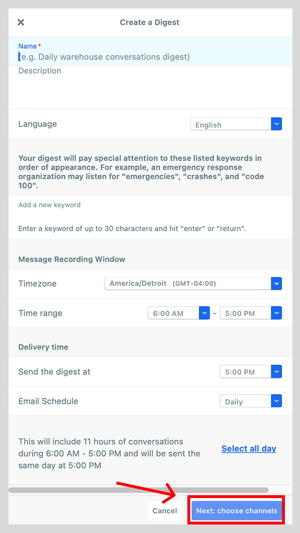
Here's what each field does:
Name: If configuring multiple digests, you'll want to ensure the name is descriptive enough that you'll understand which it applies to.
Description: What does this digest cover? Note the description will only be viewable from the Management Console.
Language: The language you'd like to receive your digest in.
Add Keywords: Add up to 30 key phrases that your digest will pay special attention to
Email Schedule: What cadence you would like your Digest to be delivered. Currently we support both daily andAdd up to 30 key phrases that your digest will pay special attention to weekly options. If Daily is selected, you will receive a digest for communications in the selected time range each day at the end of that time range. If Weekly is selected, you will receive a digest on the day of the week you select for a weeks worth of communications from the time range you selected.
Timezone: The timezone applicable to your team. Note that this informs the timeframe described below.
Time Range: The timeframe of communications you'd like captured in the digest. Communications sent outside of this timeframe won't be captured in the summary, so it's best to include your team's main operational hours.
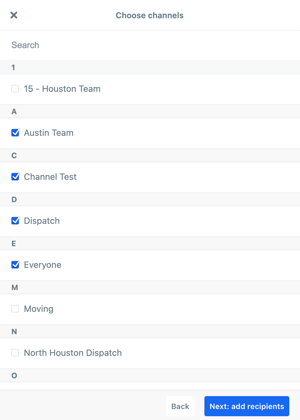
- Select the channels you'd like included in the digest. You can choose up to 5. Then click Next: add recipients.
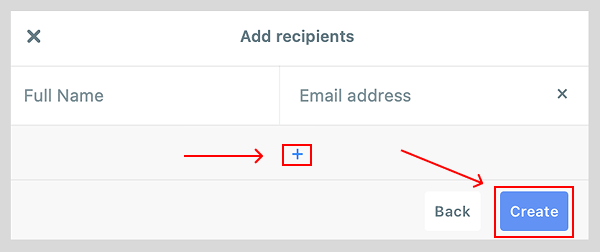
- Enter the name and email address of the summary's intended recipients (up to 20). Click the blue + icon to add additional names/emails. Then click Create.
Receiving AI Digests
Your curated summary will be sent at the end of the timeframe configured for the digest. It'll summarize the main topics discussed in your chosen channel(s)—including the conversations' highlights, duration, resolution, and any to-dos—in the digest's configured language making sure to pay special attention to any keywords you may have added.
Editing Your Digest
AI Digests can be re-configured—for example, channels changed, recipients added, or timeframe adjusted—at any point in time. To do so:
- Select AI Digests.
- Select the name of the digest that you want to reconfigure.

- Adjust the configuration as needed. The following areas can be edited:
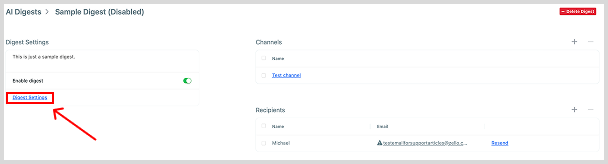
- Digest Settings: Select Digest Settings to update the fields you filled in during setup, such as name, keywords, schedule, and time range.
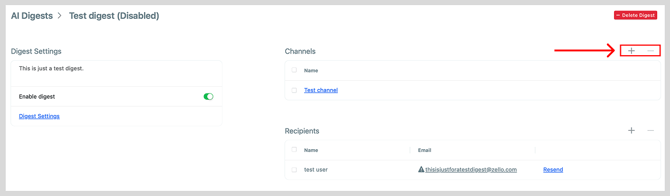
- Channels: Use the + and - symbols in the Channels section to add or remove the channels your digest draws from.
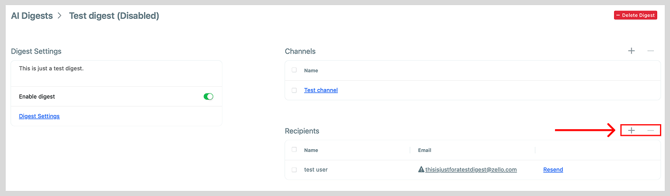
- Recipients: Use the + and - symbols in the Recipients section to add or remove the people who receive the digest.
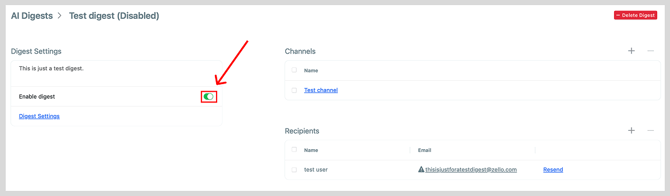
You can also delete a digest by clicking the Delete Digest button.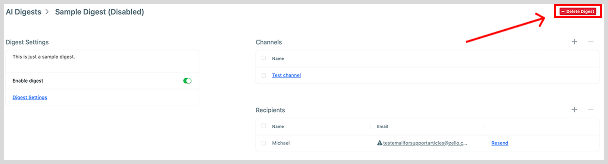
- Digest Settings: Select Digest Settings to update the fields you filled in during setup, such as name, keywords, schedule, and time range.
Keep in mind that while a Digest can be re-enabled later, deletion will erase its configuration entirely.