
This article is written for: ✅ Zello Work ❌ Zello Friends & Family.
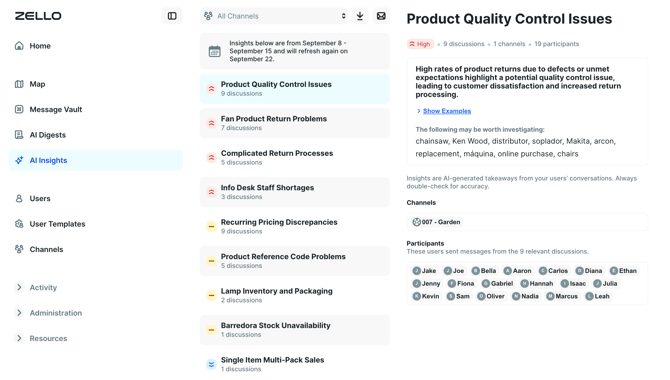
AI Insights provides AI-driven analysis of Zello conversations to surface recurring operational issues, patterns, and their impact. It is designed for managers and leaders who need quick, actionable intelligence without sifting through hours of channel conversations.
Why Use AI Insights?
AI Insights helps you:
-
Uncover recurring issues: See systemic problems (e.g., unclear return rules, mismatched stock counts) that repeatedly slow operations.
-
Prioritize actions: Focus on what matters most, with issues ranked by high, medium, or low priority.
-
Understand potential operational impact: Learn how delays, inefficiencies, or customer frustrations affect your business.
-
Improve efficiency: Address root causes faster and create better customer experiences
Prerequisites
Before you can use AI Insights, your network must:
-
Be in the New Zello Management console (from console home page, select the "New Console" link if not already in the New Console)
-
Have Transcriptions enabled.
-
Have Message Vault enabled.
-
Speak with a Zello Customer support team member to enable the setting for you
How It Works
Data Source: AI Insights reviews transcribed channel conversations from the prior completed week.
-
AI Insights will refresh every Monday and show the insights generated from the previous weeks channel discussions.
Insight Generation:
-
Produces up to 10 insights per week, sorted by priority and then number of discussions.
Insight Structure: Each insight includes:
-
Title and summary of the recurring issue.
-
Impact on operations (e.g., delays, customer complaints).
-
Priority level (High / Medium / Low).
-
Number of discussions and channels involved.
-
Top mentions (up to 10 entities such as: product names/numbers).
-
Up to 3 concise examples with contributor details.
-
Participants who sent messages in these discussions
Collaboration & Sharing:
-
Insights are visible to all users with admin console access or individually have AI Insights only access.
-
To give a user access to only view AI insights in the management console, go to that users page and under user settings Web console access, select "AI Insights"
User>User Settings>Web Console Access>AI Insights
-
-
If a user who has console access has tag based permissions, they should only be able to see insights for channels belonging to those tags.
-
Users with console access can also share insights via PDF download or email
Access & Configuration
Who Can Access: Admins and users with console access.
Configuration:
-
Default AI insights view shows all channels. A user with console access who utilizes tags, will only see Insights for channels with those tags.
Limitations:
-
Weekly-only refresh (no daily or real-time insights currently available).
-
Requires ≥150 messages to generate insights.
Privacy & Data Use
Insights are only visible to users with console access.