This article is written for: ✅ Zello Work ❌ Zello Friends & Family.
With Announcements, admins can send voice or text messages to several channels at once from the Management Console. Announcements is useful for organizations that split their teams across regional or store channels and need to reach all of them with the same message.
Setting up Announcements
In order to use Announcements to send messages to multiple channels, a network admin needs to enable it in the Management Console.
Sign in to the Management Console (yournetworkname.zellowork.com) and follow these steps:
- Select Administration, then select Settings.
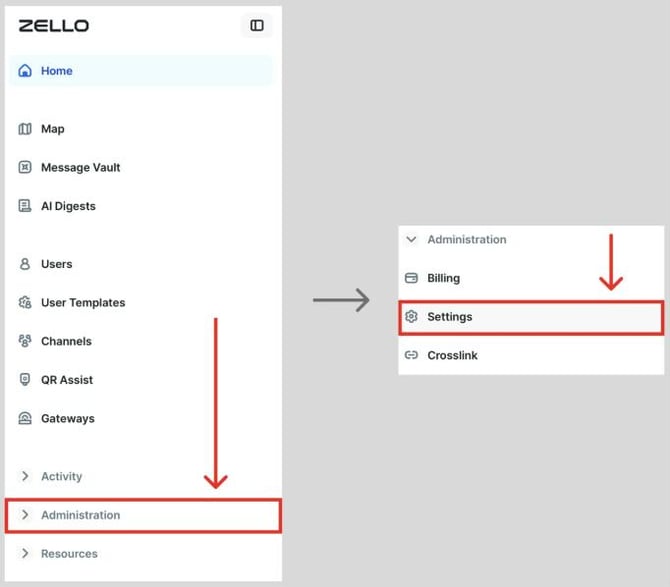
- Locate the Announcements setting.
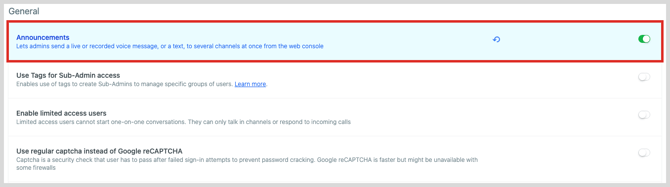
- Use the toggle to enable Announcements. Green means Announcements is enabled.

- Click Save and Apply.
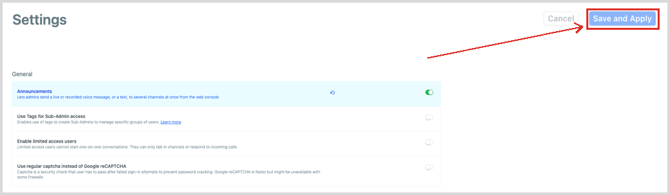
After you save, Announcements appears in the left navigation for admins on your network. Your admin account needs to be a member of each channel you want to send announcements to.
Note: Any admin on your network can send announcements except admins with limited Management Console access. To learn more about admin roles, see Admin types: primary, secondary, and sub-admin.
Sending announcements
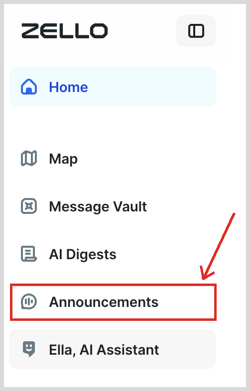
To send an announcement, select Announcements in the left navigation of the Management Console.
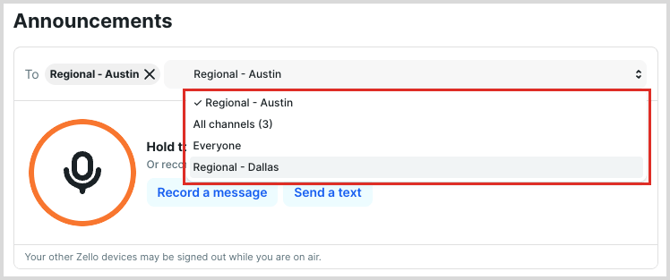
In the To field, select the channels you want to reach, or choose All channels to add up to 100 channels at once.
Note: Each selected channel gets its own copy of the announcement, so anyone who belongs to more than one of the channels you pick gets it once per channel. Pick channels that don't share members when you can.
Next, choose how to send your message. You have three options:
- Talking live. Your voice goes out to every selected channel as you speak.
- Recording a message. Record first and listen back before it goes out.
- Sending a text. Type a text message to every selected channel.
Whichever way you choose, a summary at the bottom of the page confirms which channels received the announcement.
Talking live
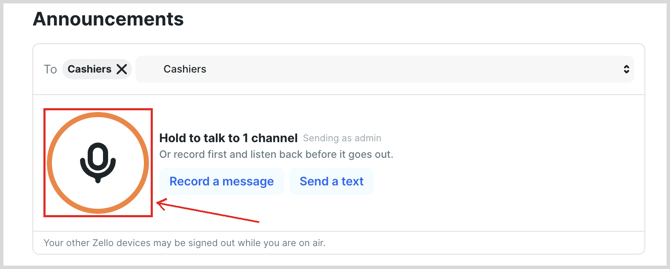
Press and hold the talk button, or hold the Space bar, and speak. Your voice goes out live to every selected channel as you talk. Release the talk button or Space bar when you're finished.
Recording a message
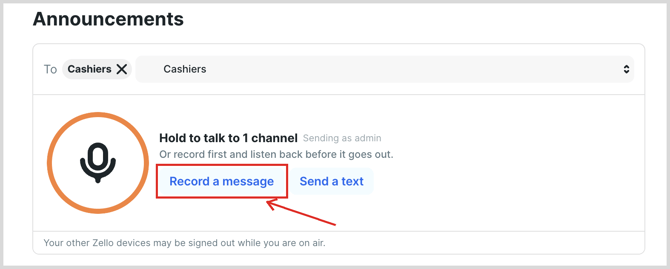
To record a message and then listen to it, select Record a message.
When you're ready, select Start recording and begin speaking. Recordings can be up to 5 minutes long.
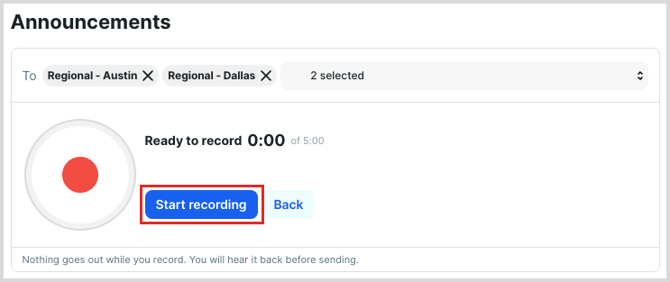
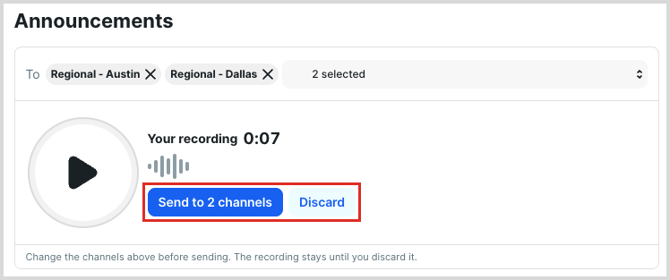
Stop the recording when you're done, then play it back. Select Send when it's ready to go, or select Discard to start over. Recordings play into each channel in real time, so a two-minute recording takes two minutes to send.
Sending a text
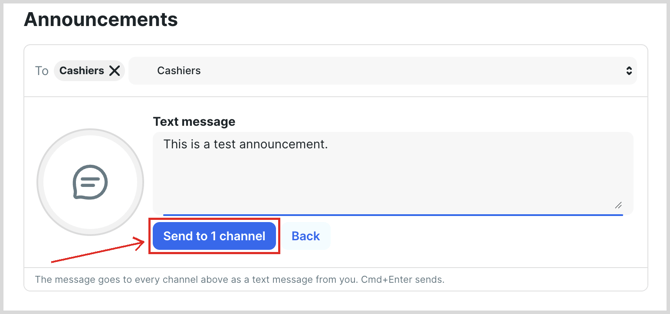
To send your announcement as a text message, select Send a text to open the text box.
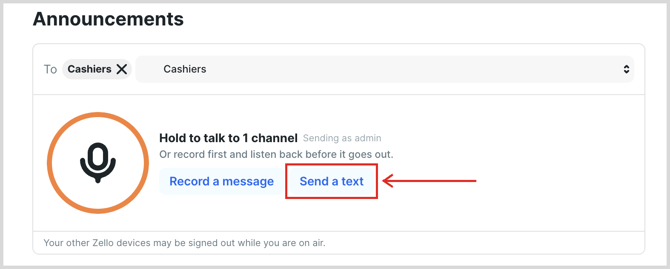
Type your message, up to 2,000 characters, then select Send.