
This article is written for: ✅ Zello Work ❌ Zello Friends & Family.
Automapping makes setting up a compatible Bluetooth PTT accessory faster. After pairing the accessory with their phone, users can start using the PTT button right away, without having to manually register it through the Zello app.
For frontline workers, Automapping removes the setup steps that used to come between pairing an accessory and using it. There's no need to dig into Zello's settings to register the button.
This article covers how admins can configure Automapping, how to use a Bluetooth PTT accessory on Android and iOS, and answers to common questions.
Setting up Automapping (for admins)
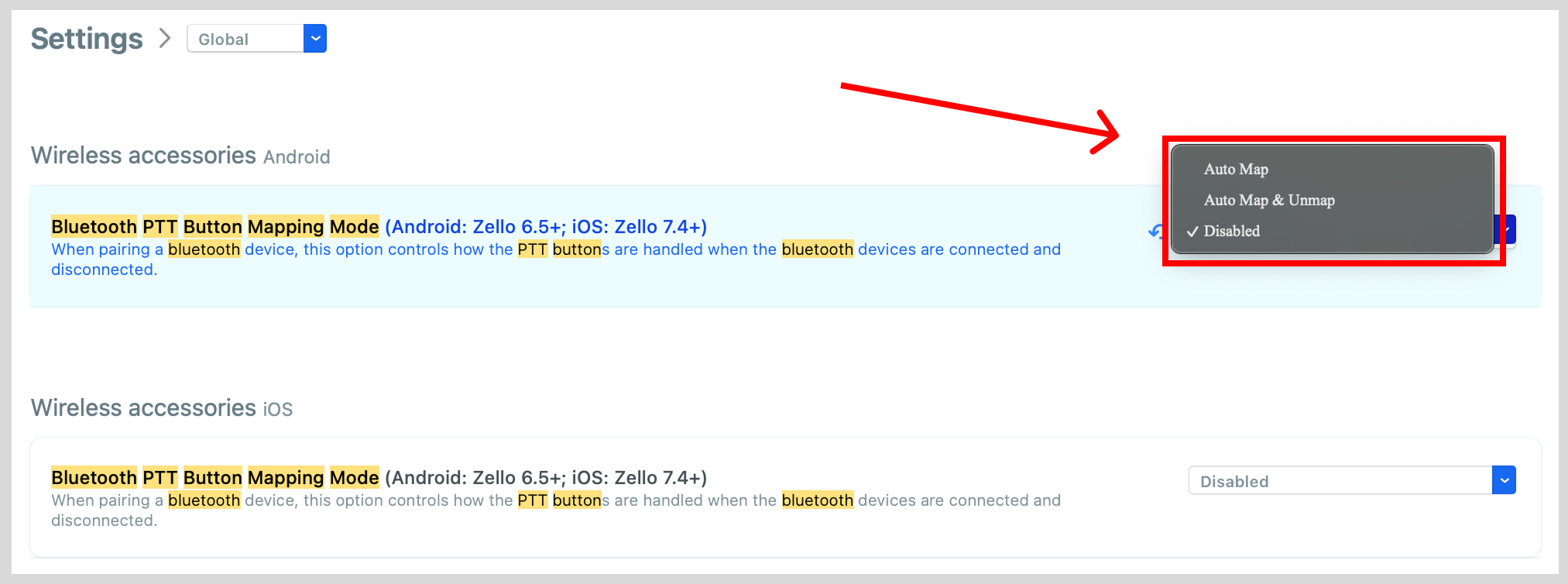
Automapping is configured per network through the management console. The Bluetooth PTT Button Mapping Mode setting has three options:
- Auto Map. PTT buttons are mapped automatically when an accessory connects. The mapping stays in place even after the accessory is disconnected. Best for users who keep their own dedicated accessory (for example, BYOD deployments).
- Auto Map & Unmap. PTT buttons are mapped on connect and unmapped on disconnect or logout. Best for shared-device deployments where different users might pick up the same phone or accessory (for example, a retail store with shared headsets).
- Disabled. Automapping is turned off. Users have to map their PTT buttons manually through the Zello app.
Note that the default for each platform behaves differently depending on when your network was created:
- For Android: Networks created on or after May 2025 default to Auto Map. Networks created before that default to Disabled.
- For iOS: Networks created on or after March 2026 default to Auto Map. Networks created before that default to Disabled.
If your network defaults to Disabled and you want to enable Automapping, you'll need to change the setting.
To configure Automapping for your network:
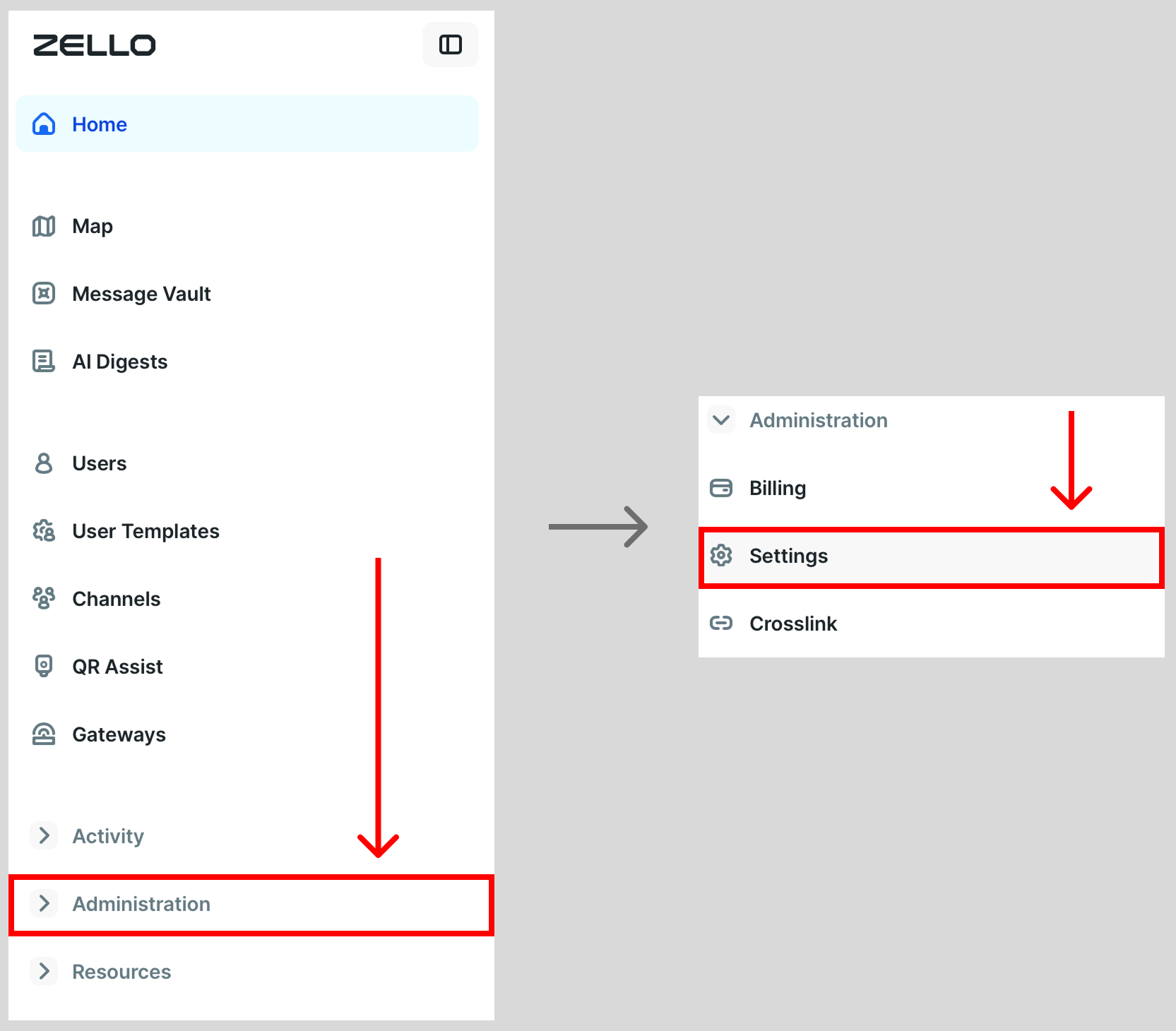
- Log in to your network at [yournetworkname].zellowork.com.
- Choose Administration, then Settings.
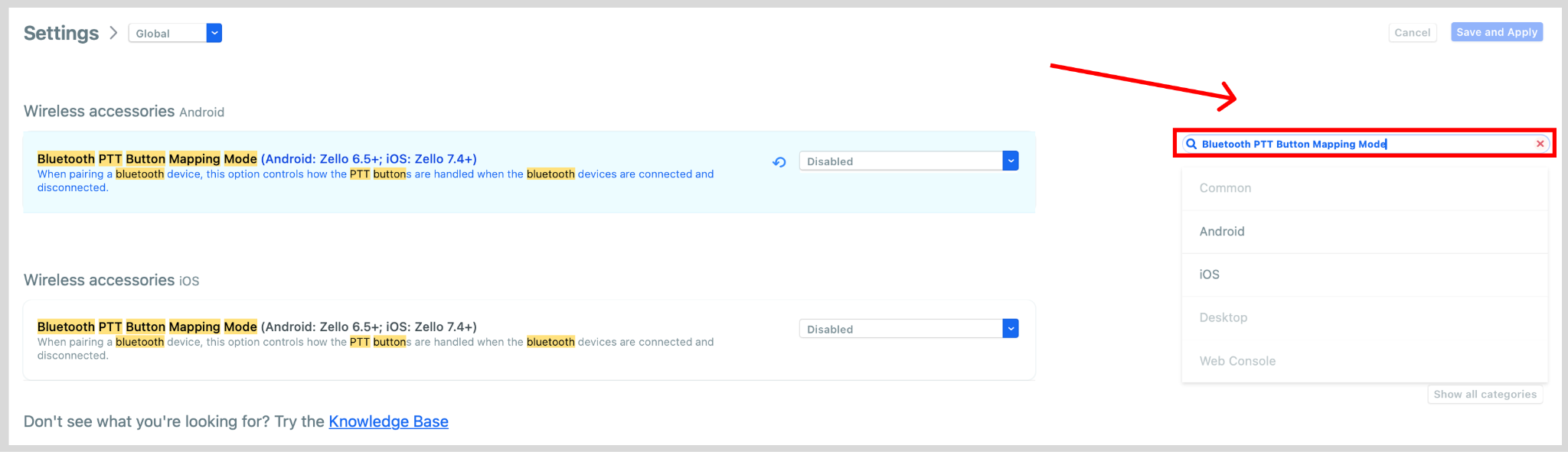
- In the search bar on the Settings page, search for Bluetooth PTT Button Mapping Mode. Both the Android and iOS settings will appear on the same screen.
- For each platform you want to configure (Android, iOS, or both), choose Disabled, Auto Map, or Auto Map & Unmap.
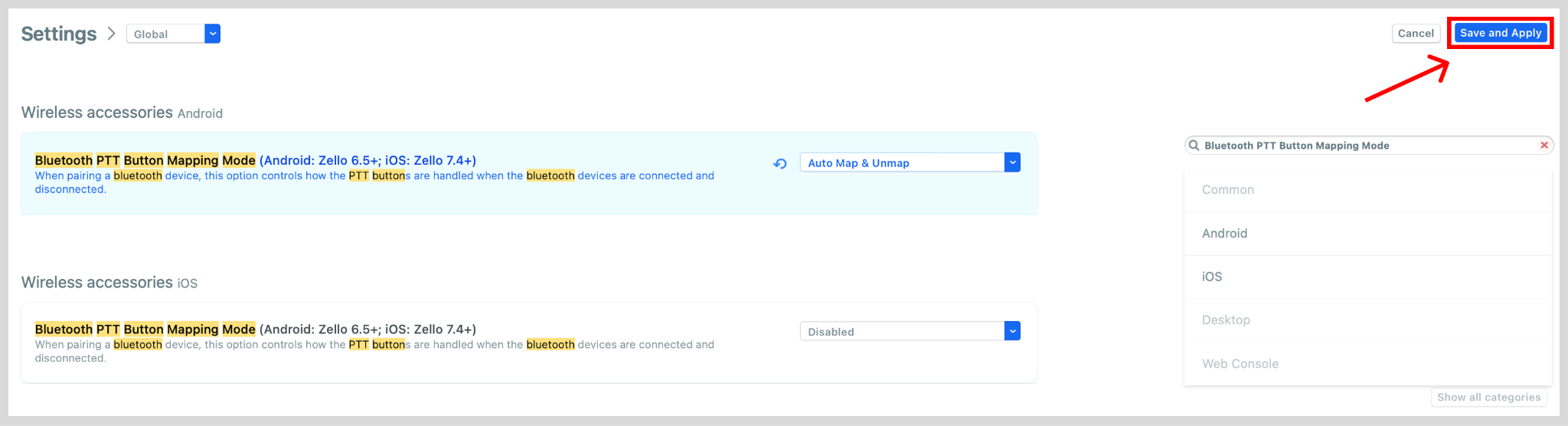
- Click Save and Apply.
Using a Bluetooth PTT accessory on Android
Requires Zello version 6.5 or later.
When Automapping is enabled on your network, your PTT button is ready to go as soon as you pair the accessory with your phone.
- Pair the Bluetooth accessory with your phone in your device's system Bluetooth settings. If you need help, see Google's guide to pairing a Bluetooth accessory.
- Start using the PTT button.
Automapping works in the background on Android, so you don't need to open the Zello app for the mapping to happen.
Using a Bluetooth PTT accessory on iOS
Requires Zello version 7.4 or later.
If Automapping is enabled on your network, pairing a compatible Bluetooth PTT accessory takes just a couple of steps.
- Pair the Bluetooth accessory with your iPhone or iPad in your device's system Bluetooth settings. If you need help, see Apple's guide to pairing Bluetooth accessories.
- Open the Zello app. Automapping triggers once Zello is in the foreground.
- Start using the PTT button.
On iOS, you need to open the Zello app once after pairing to complete the mapping. After that, the PTT button works whether the app is in the foreground or not. Only one accessory can be automapped at a time. If your iPhone is connected to more than one compatible accessory, none of them will be automapped.
Compatibility
Automapping only works with Bluetooth PTT accessories that Zello has tested and certified. Regular Bluetooth headphones won't automap, even if they connect to your phone normally. To check whether a specific accessory is supported, see Zello's certified hardware page. If your accessory is listed there, it should auto map.
Frequently asked questions
Does Automapping work with any Bluetooth headset?
No. Automapping only works with Bluetooth PTT accessories that Zello has tested and certified. See the Compability section above for details on how to check whether a specific accessory is supported.
What's the difference between Auto Map and Auto Map & Unmap?
Auto Map leaves the PTT button mapped even after the accessory disconnects, which is a good fit for users who keep the same personal accessory. Auto Map & Unmap removes the mapping when the accessory disconnects or the user logs out, which is better for shared-device setups.
Why isn't my PTT button automapping on iOS?
A few things could be preventing it:
- The accessory may not be supported. See the Compatibility section above to check.
- The accessory may not actually be connected to your phone. Check your device's system Bluetooth settings.
- You may not have opened the Zello app after pairing. On iOS, opening the Zello app once after pairing is required to complete the mapping.
- Your admin may have Automapping disabled at the network level.
What happens if I rename my Bluetooth accessory?
Renaming an accessory can break Automapping, since the renamed accessory won't match the name in Zello's device database. If your accessory stops automapping after a rename, you may need to reset it or map the PTT button manually.
Do setting changes take effect right away?
In some cases, you may need to restart the Zello app for a setting change to take effect.
Does Automapping work on MDM-managed devices?
Yes, though some MDM-locked devices may have issues during initial pairing. If you run into trouble on a managed device, contact Zello paid support.