
This article is written for: Zello Work Zello Friends & Family.
To add a new radio gateway to your network, first create a profile for the gateway in your management console. This profile is necessary to configure your gateway and connect Zello to an existing LMR radio system.
Similar to a user profile, the gateway profile page is where you can see the channel membership, direct contacts, and online status for your gateway: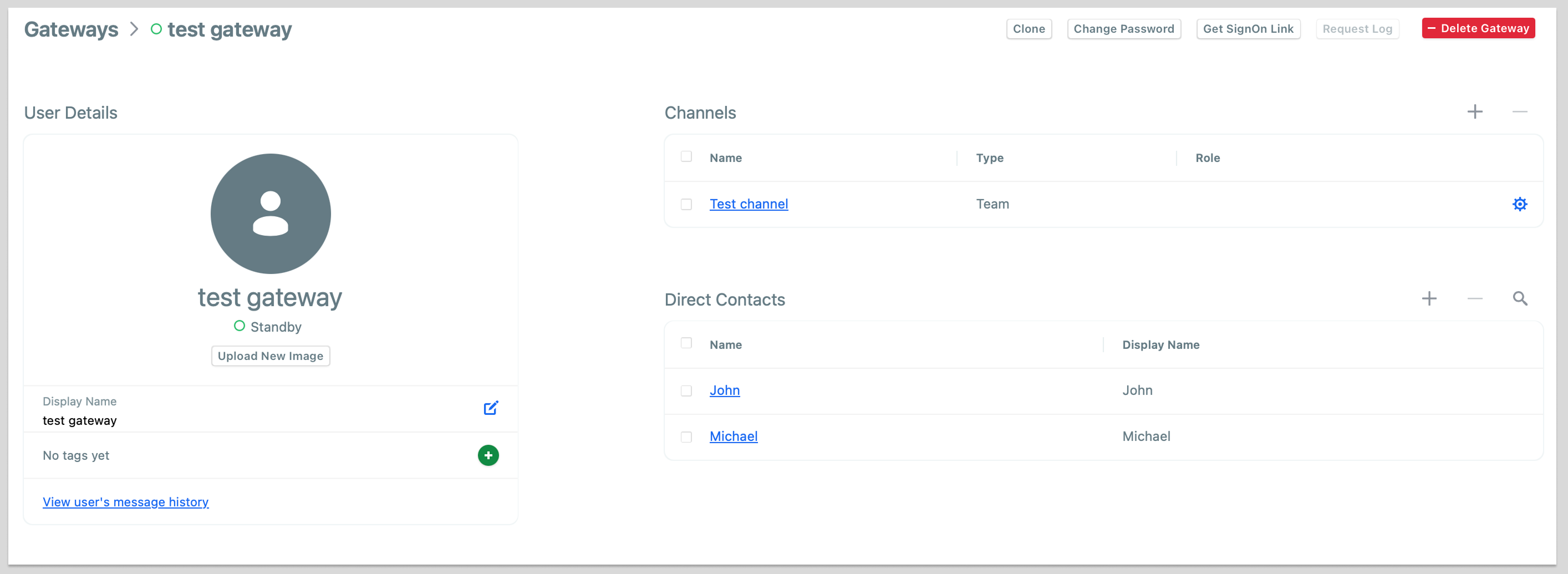
Note: please check your gateway specifications to determine the maximum number of channels the gateway can be added to.
Adding a gateway to your network
1. Log into your management console ([Your network name].zellowork.com) with your admin account.
2. Click Administration to open a drop down menu and then select Gateways.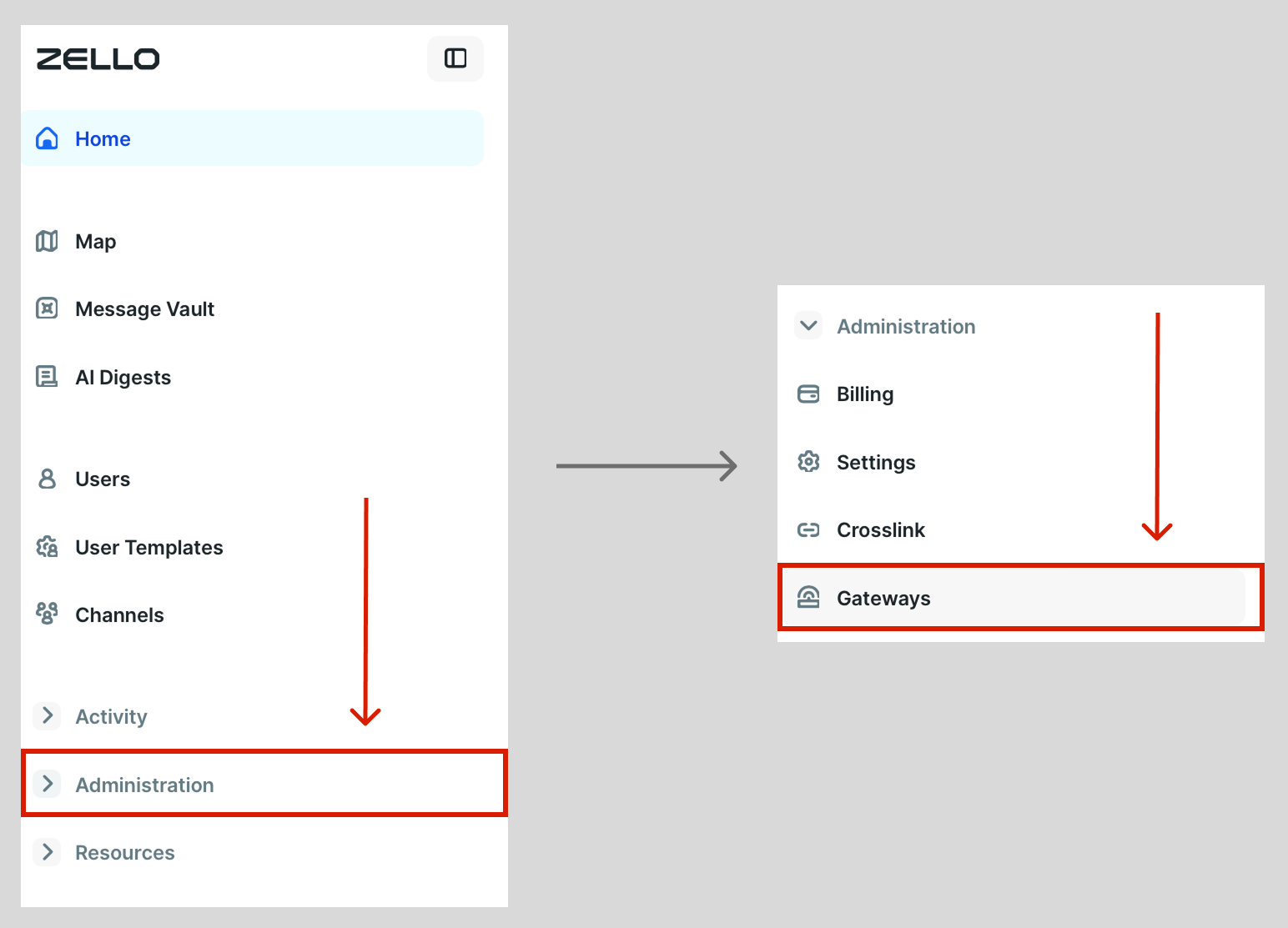
3. Click + New Gateway.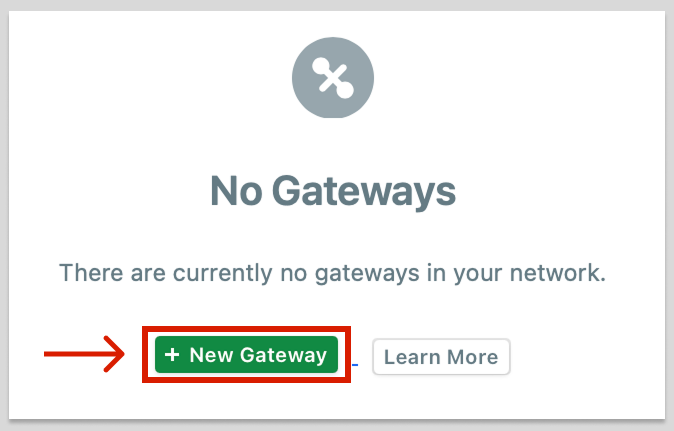
Note: If your network already contains profiles for other gateways, you will need to click + New Gateway in the upper right of the Gateways screen.

4. Assign a username, password, display name, and tags (if applicable) to your gateway, then click Create Gateway. We recommend securely storing these credentials, as they'll be needed to sign in to the app.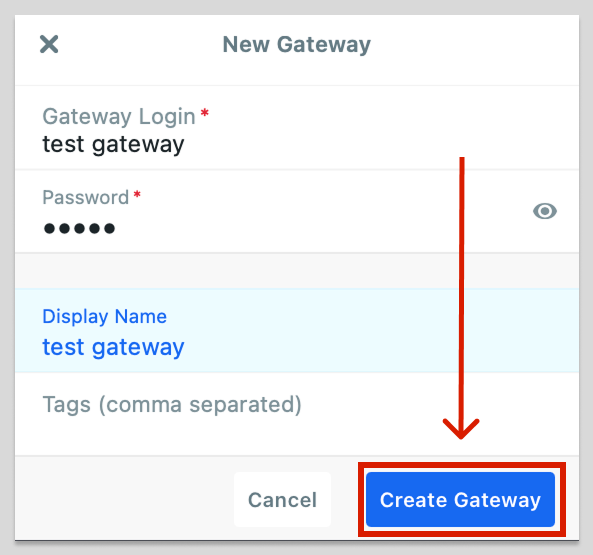
Assigning a gateway to a channel
1. Select Gateways from the Management Console menu.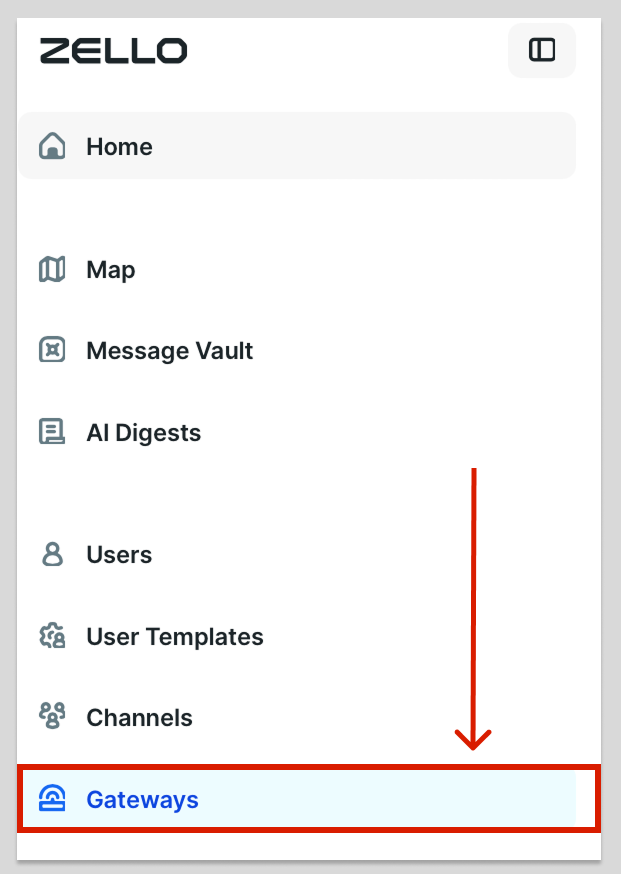
2. Select the gateway you would like to assign to a channel and click the name of that gateway.

3. Click the + at the top-right corner of the Channels box.

4. Select the channel(s) you'd like to assign the gateway by clicking the checkmark boxes. Click Next to confirm your choice.
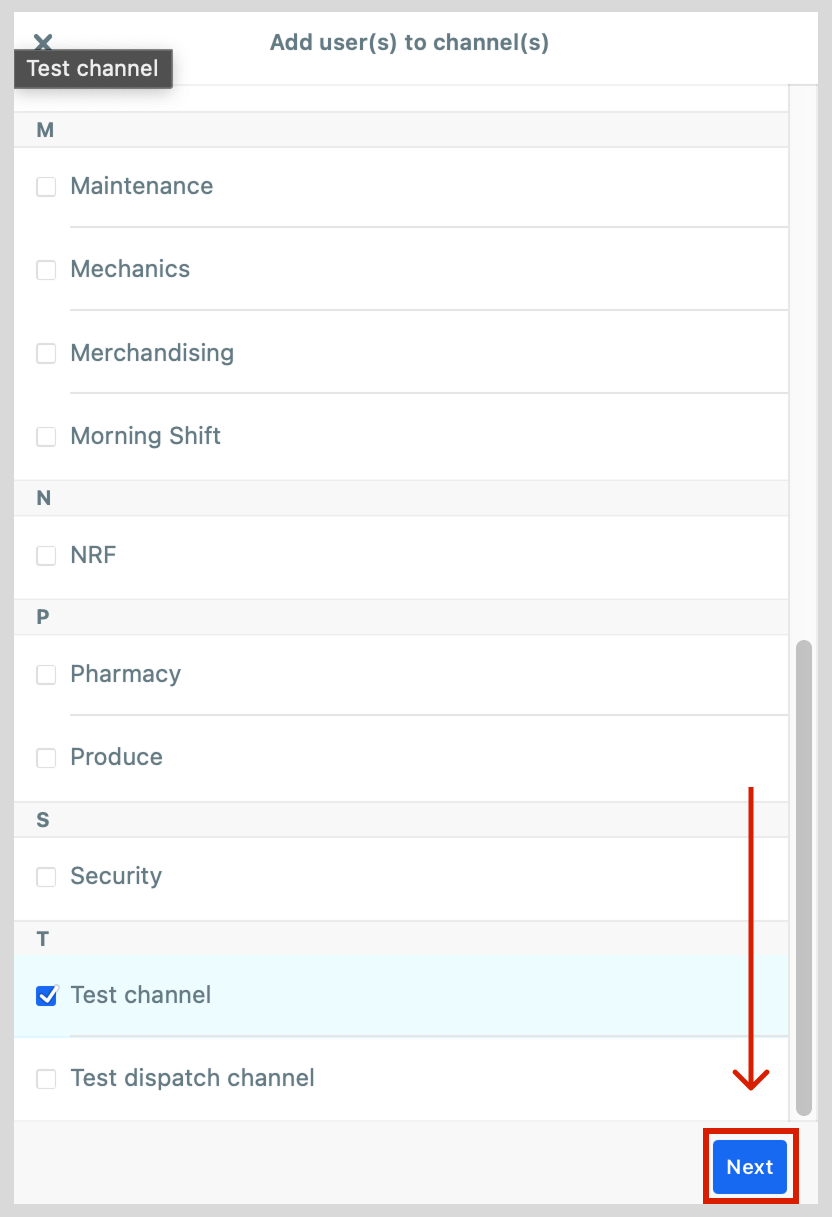
Now that the gateway has been added to channels within your network, it can be configured to transmit messages between Zello and your existing LMR system.
Click here for full setup instructions for RoxiTek gateways.
Click here for full setup instructions for JPS Interoperability gateways.