
This article is written for: ✅ Zello Work ❌ Zello Friends & Family.
SignOn links streamline app sign-in, allowing end-users to access their Zello account without entering a username and password. When a user opens a SignOn link, they're instantly signed in to their Zello account—ensuring an easy, secure, and seamless log in process.
SignOn links are sent by admins to users via email, text, or QR code.
Sending a SignOn Link
- Sign in to the management console at [yournetworkname].zellowork.com.
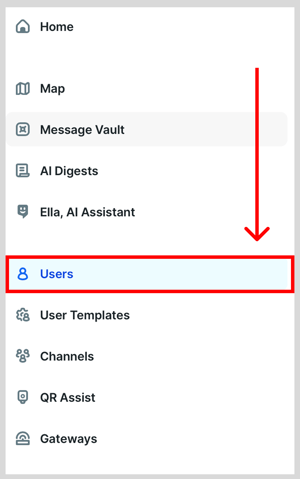
- Click Users.
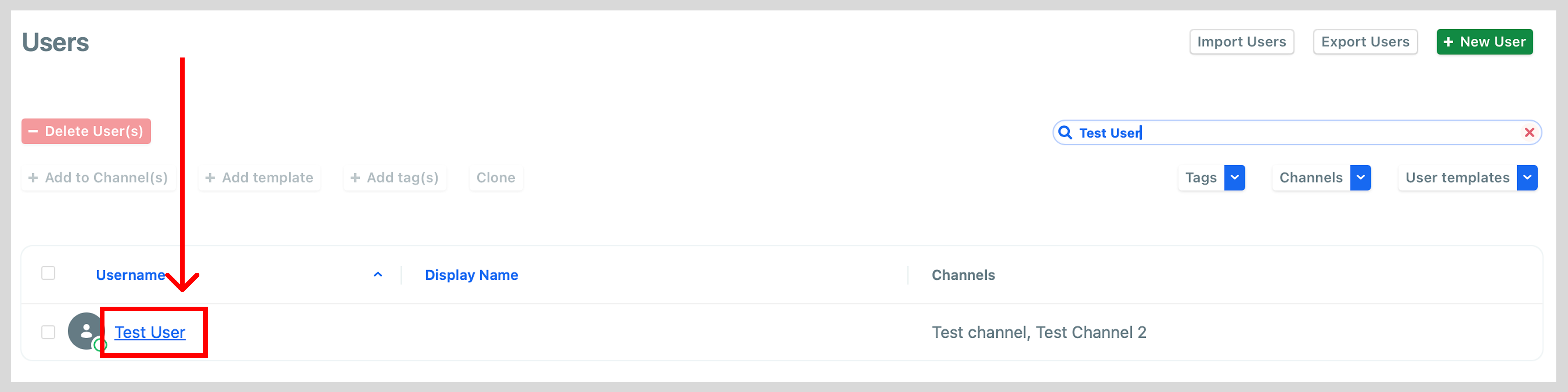
- Click the name of the user you want to send a SignOn link to.
- Click Get SignOn Link. Enter the user's cell phone number or email address, depending on how you'd like the link to be delivered. Click Done to send the link.
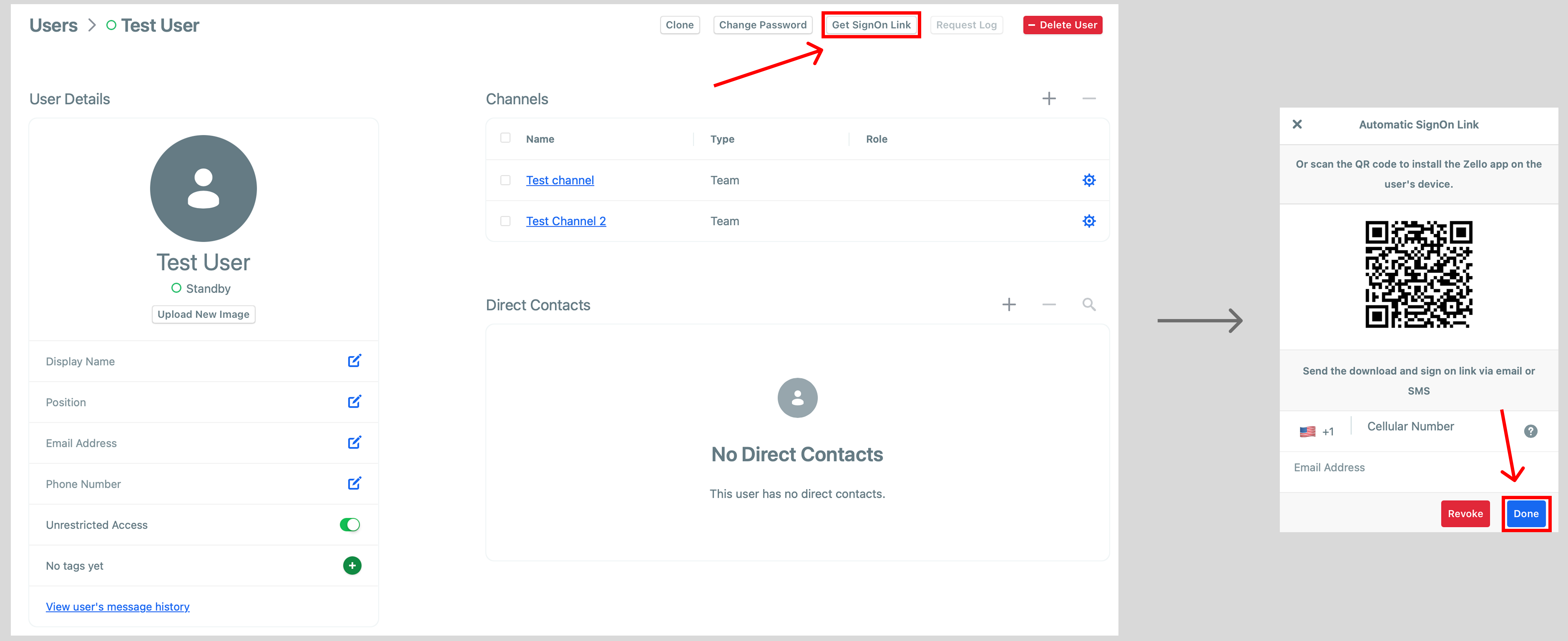 Alternatively, the user can scan the QR code presented in the pop-up to download, open, and sign in to Zello — username and password not required.
To Note
-If sending many SignOn links, consider using Zello's CSV import tool.
-SignOn links can be utilized when a user is first created, as well. For instructions on sending SignOn links at user creation, see this article