This article is written for: ✅ Zello Work ❌ Zello Friends & Family
|
Limited-access users can't send 1:1 voice messages unless they receive one first; they must receive a voice message from a specific contact to be able to send a voice message to that contact. If a limited-access user tries to send a direct voice message unprompted, they will receive an error message on the PTT screen. This setting is particularly useful for team and hidden channels, both of which automatically add direct contacts and enable 1:1 messages. Please note that not all channel types automatically enable 1:1 messages. Learn more about channel types. Limiting a user's access requires the admin take two steps: turn on the Enable limited access users function in the console, then toggle off an individual user's unrestricted access setting. |
Please Note
The settings that enable limited access users restrict 1:1 messaging, but they do not affect a user's ability to send group conversations. Limited access users will retain the ability to initiate group conversations if the ad-hoc conversations setting is also enabled.
Step 1: Enable limited access users
- Sign in to the management console at [yournetworkname].zellowork.com.
-
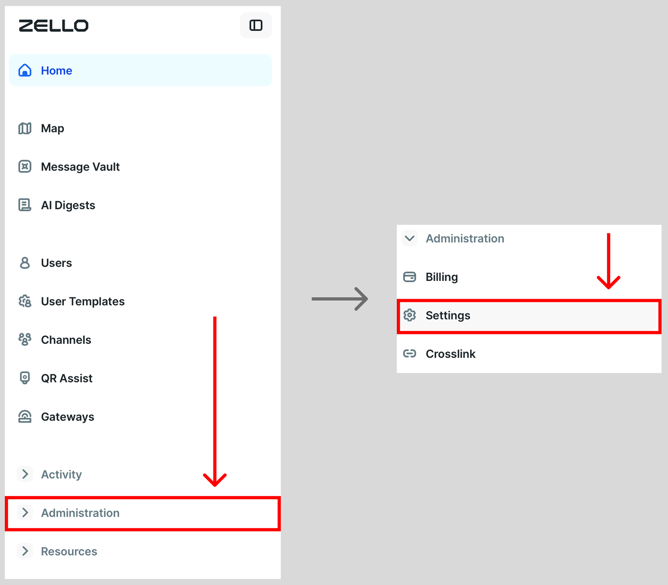
Select Administration and then select Settings.
-
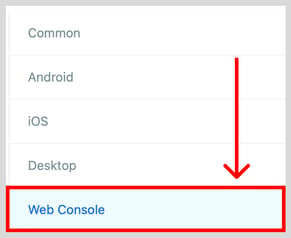
Select Web Console.
-
Use the toggle to enable limited access users. Note: If the toggle is green, then that means that limited access users are currently enabled on the network.

Step 2: Disable unrestricted access
-
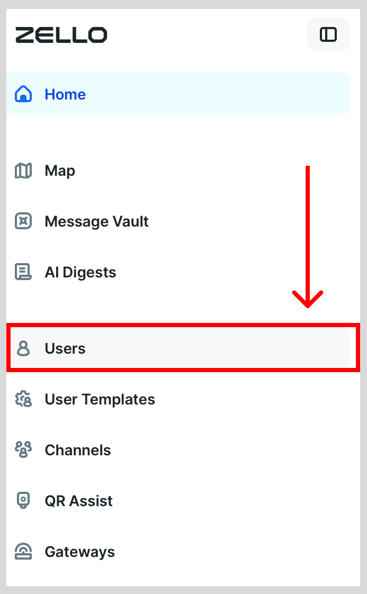
Select Users.
-
Click the username of the individual you'd like to disable unrestricted access for.

-
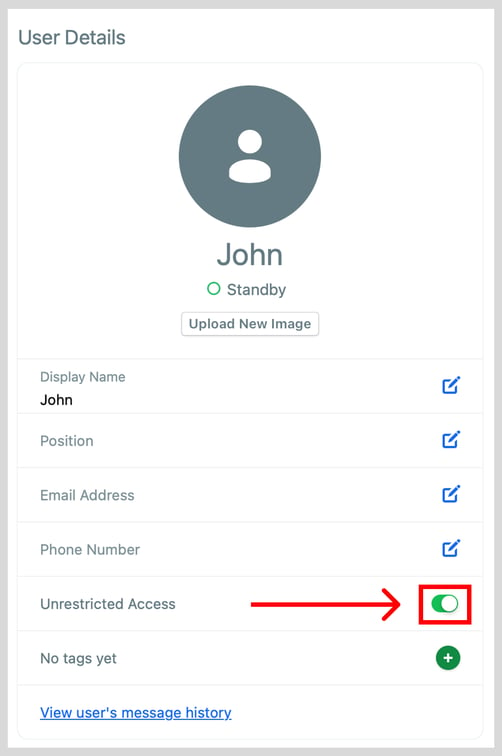
Under the User Details panel, use the toggle to enable/disable unrestricted access for that user.
Note: If the toggle is green, then that user has unrestricted access.