
This article is written for: ✅ Zello Work ❌ Zello Friends & Family.
Live Activities show your recent Zello messages on your iPhone's lock screen. From there, you can jump into a conversation, replay the last message you received, and toggle your status, all without unlocking your device or opening the app.
For frontline workers in time-sensitive situations, that means less friction between receiving a message and responding to it, helping them act on urgent communications without delay.
This article covers what Live Activities look like in use, how to enable them across a Zello Work network, how to turn them on or off on your device, and answers to common questions.
Using Live Activities
When you receive a Zello message, a Live Activity appears on your lock screen.
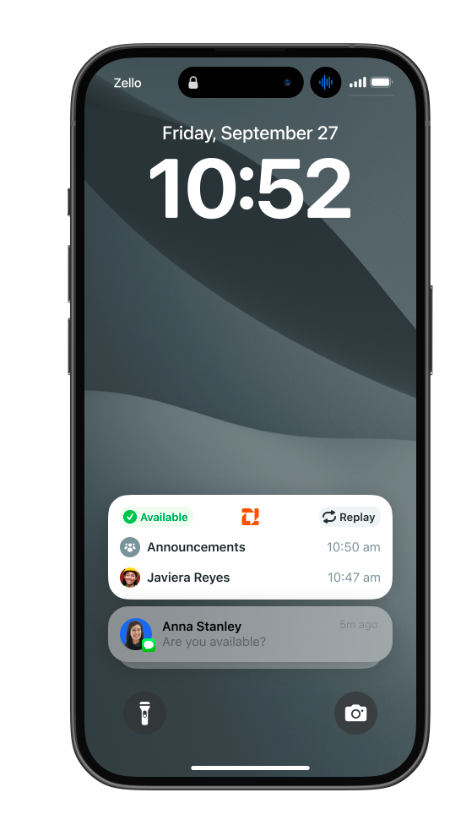
From the Live Activity, you can:
- Jump into a conversation. Tap a user or channel to open that talk screen directly.
- See who's active. The Live Activity shows your two most recent sources of incoming messages. If a message is coming in right now, a "live" indicator appears next to that user or channel.
- Replay the last message. Tap the replay button to play back the most recent message you received.
- Change your status. Toggle between Available and Busy right from the lock screen.
- Open Zello. Tap the Zello icon to open the app.
The Live Activity stays visible until you swipe it away, or until about an hour passes without any new messages.
Enabling Live Activities across your network (for admins)
Zello Work admins can choose to enable Live Activities for everyone on their network, disable Live Activities for everyone on their network, or let each user decide for themselves on their own device. The setting is found in the management console under "Allow Apple's Live Activities".
Note that the default behaves differently depending on when your network was created:
- Networks created on or after April 2026 default to On. Live Activities are enabled network-wide automatically.
- Networks created before April 2026 default to Off. Live Activities are disabled network-wide to avoid changing existing user experience without admin action. To enable Live Activities, an admin will need to change the setting.
To configure Live Activities for your network:
- Log in to the management console at [yournetworkname].zellowork.com.
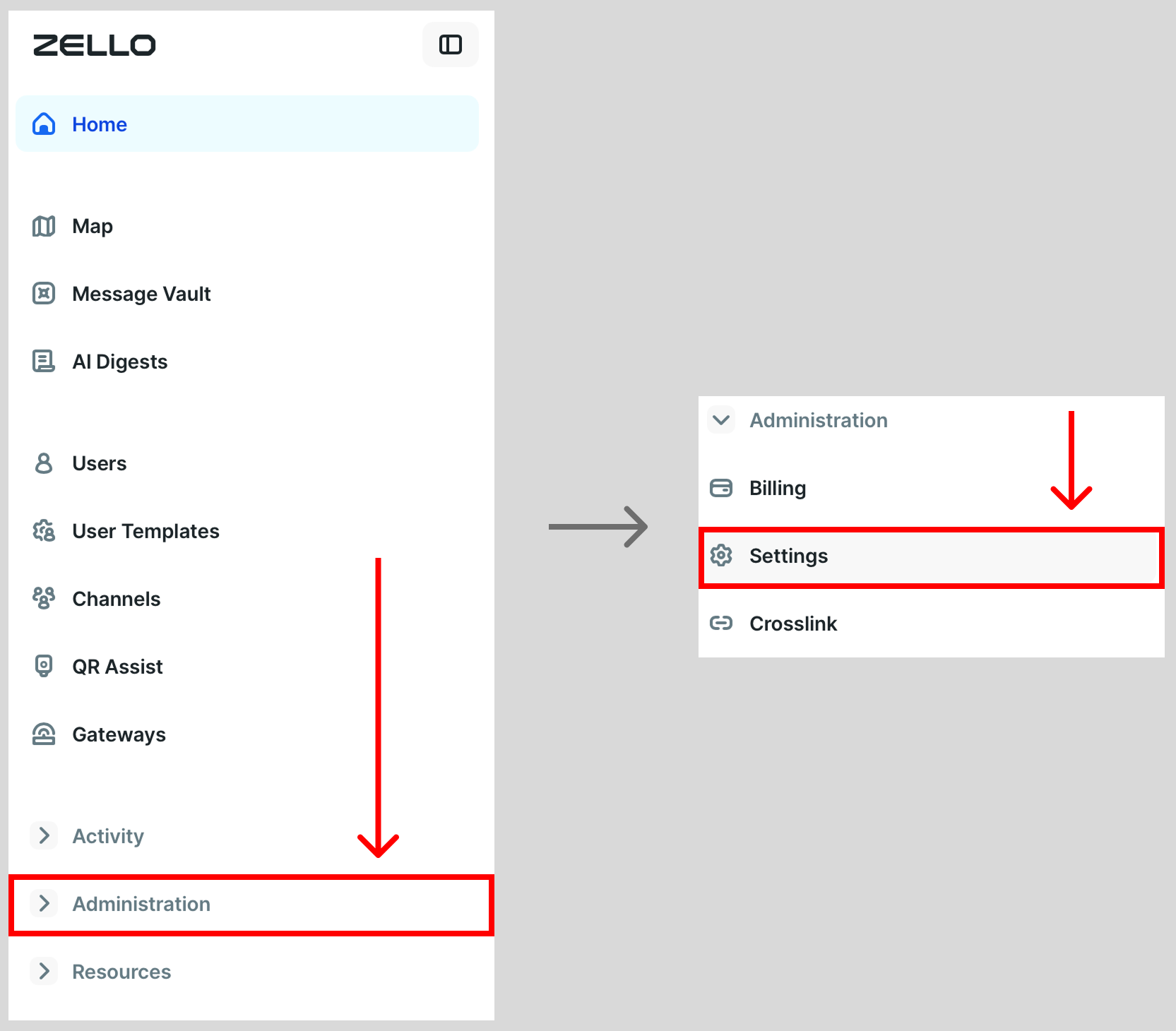
- Choose Administration, then Settings.
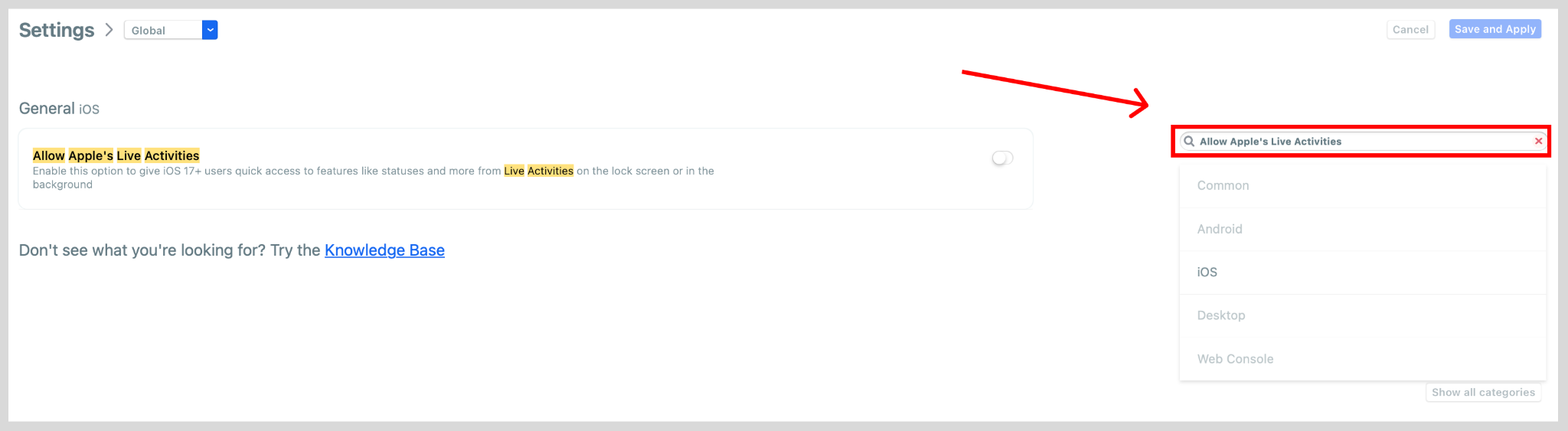
- Use the search bar on the Settings page to search for Allow Apple's Live Activities.
- Set the state you want for your network. The setting has three states, controlled by a toggle and a revert arrow:

- Default (the original state): the toggle is off and no revert arrow is visible. Users control the setting on their own devices.

- On: click the toggle to switch it on. Live Activities are enabled network-wide and users can't turn them off.

- Off: click the toggle again to switch it back off. Live Activities are disabled network-wide and users can't turn them on. A revert arrow will appear next to the toggle.

- Click Save and Apply.
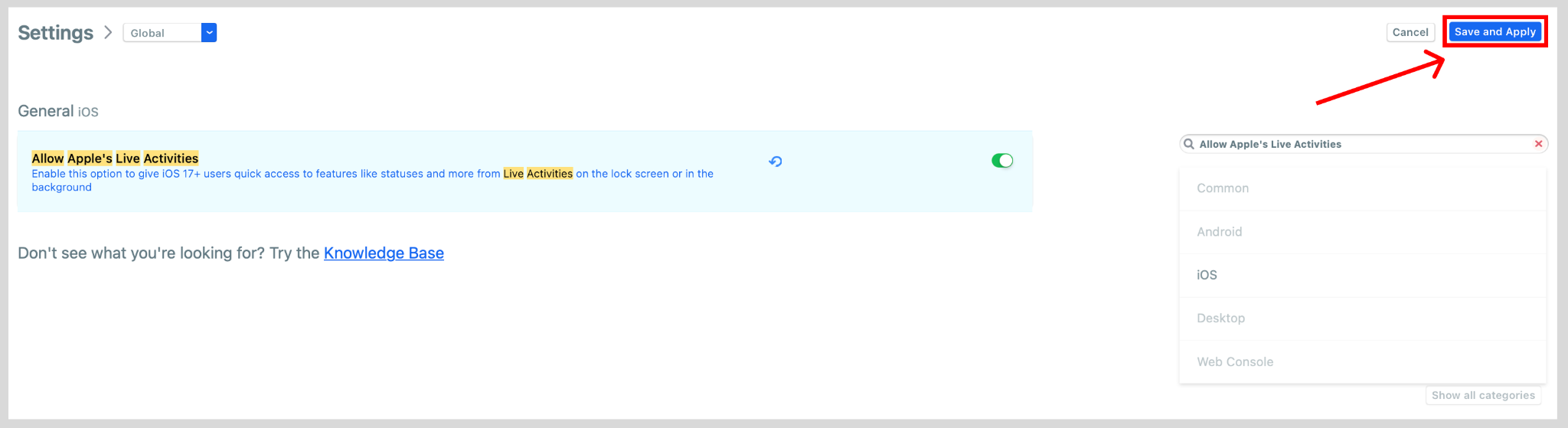
Note: The Default and Off states look almost identical in the console. The only difference is the small revert arrow that appears next to the toggle when the setting is Off. To return to the Default state from Off, click the revert arrow.
Turning Live Activities on or off on your device (for users)
If your admin has set Live Activities to Default, you can turn the feature on or off yourself. There are two settings to enable: one in the Zello app, and one in your iOS settings.
Enabling Live Activities in the Zello app
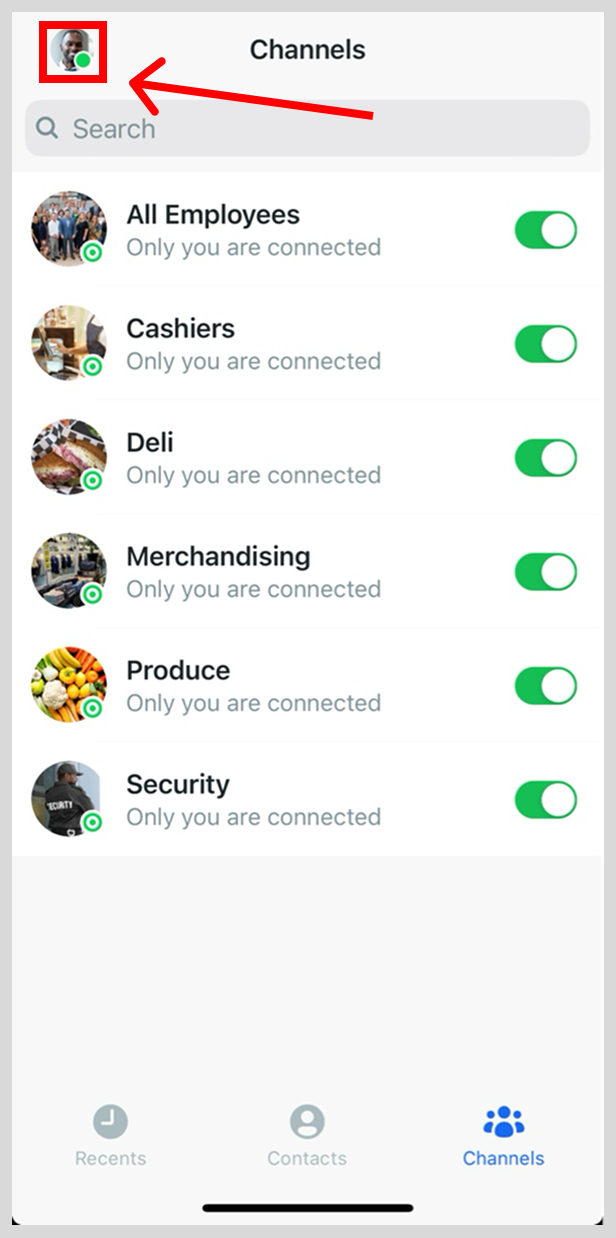
- In the Zello app, tap your profile icon.
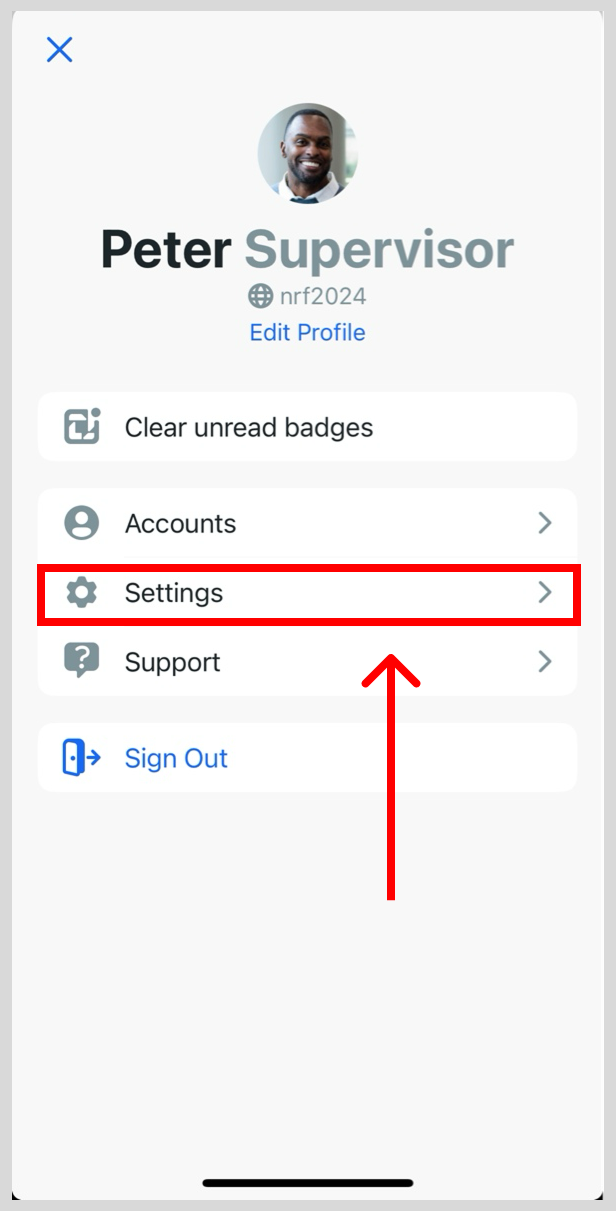
- Select Settings.
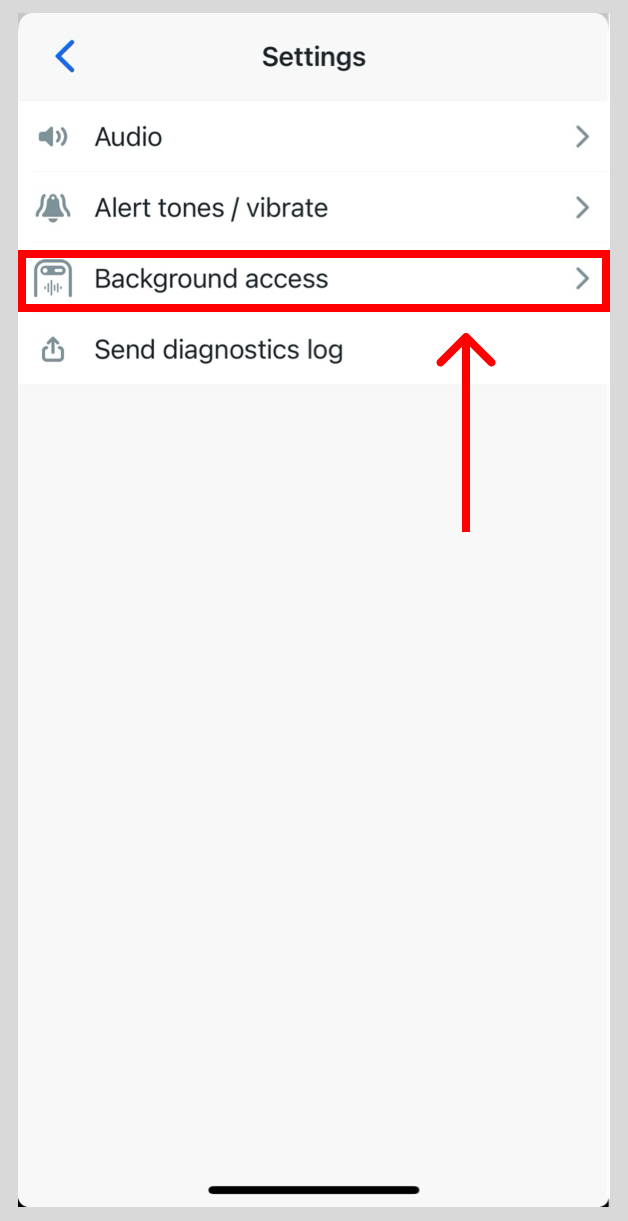
- Select Background access.
- Use the toggle for Enable Zello Live Activity.
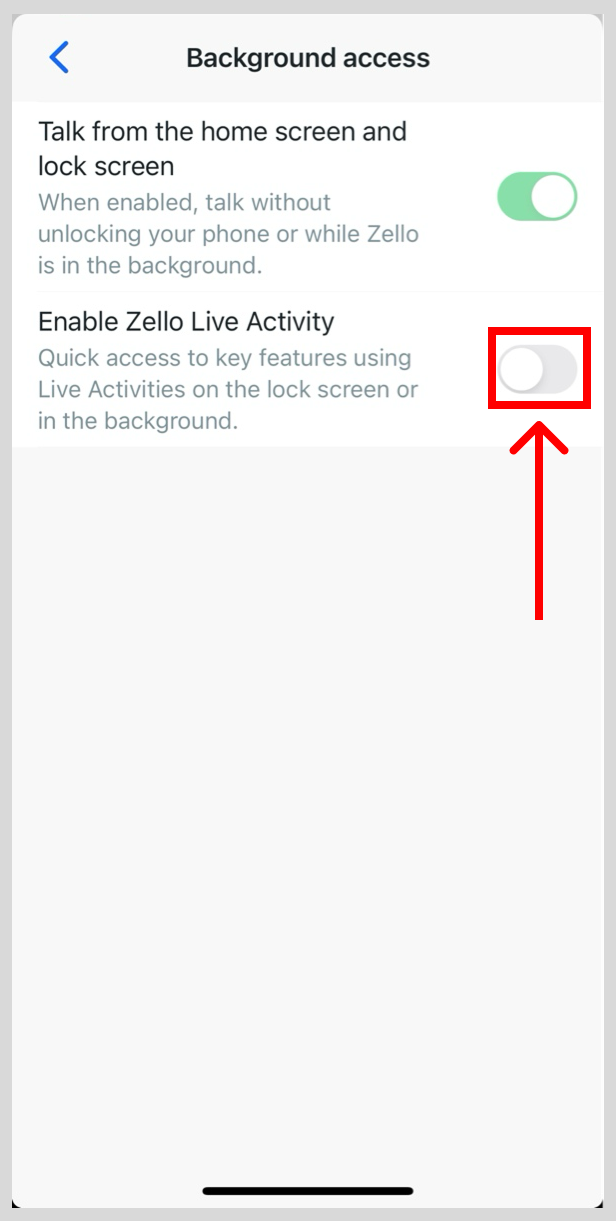
Note: A green toggle means that the feature is enabled.
Enabling Live Activities in iOS Settings
- Select Settings on your iOS device.
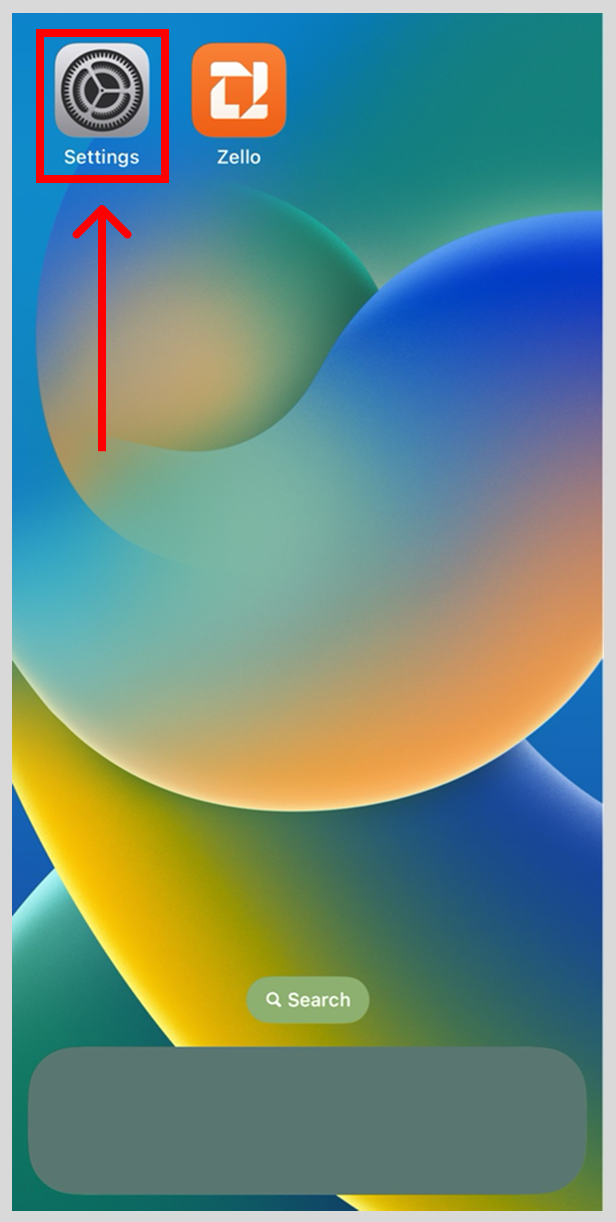
- Scroll down and select Zello.
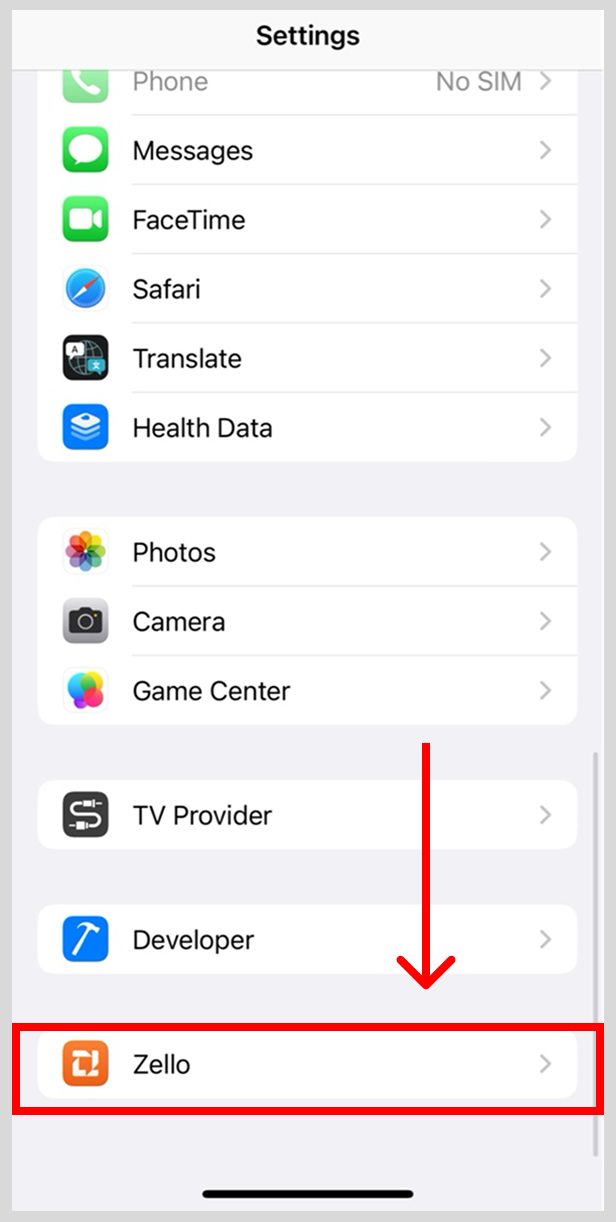
- Select Live Activities.
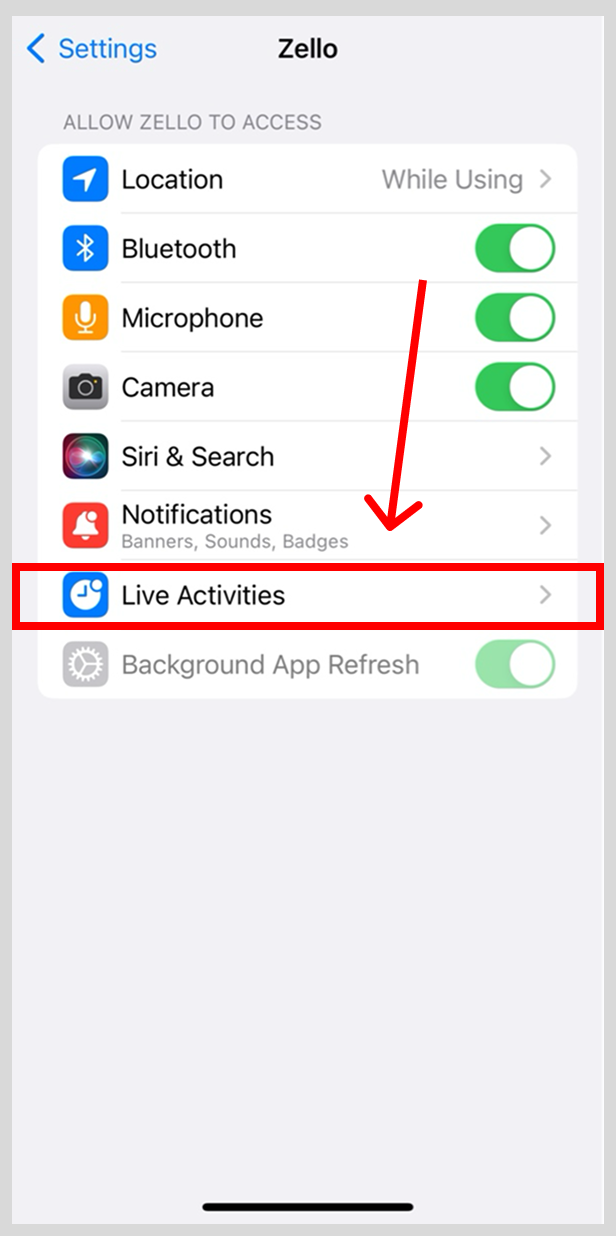
- Use the toggle for Allow Live Activities.
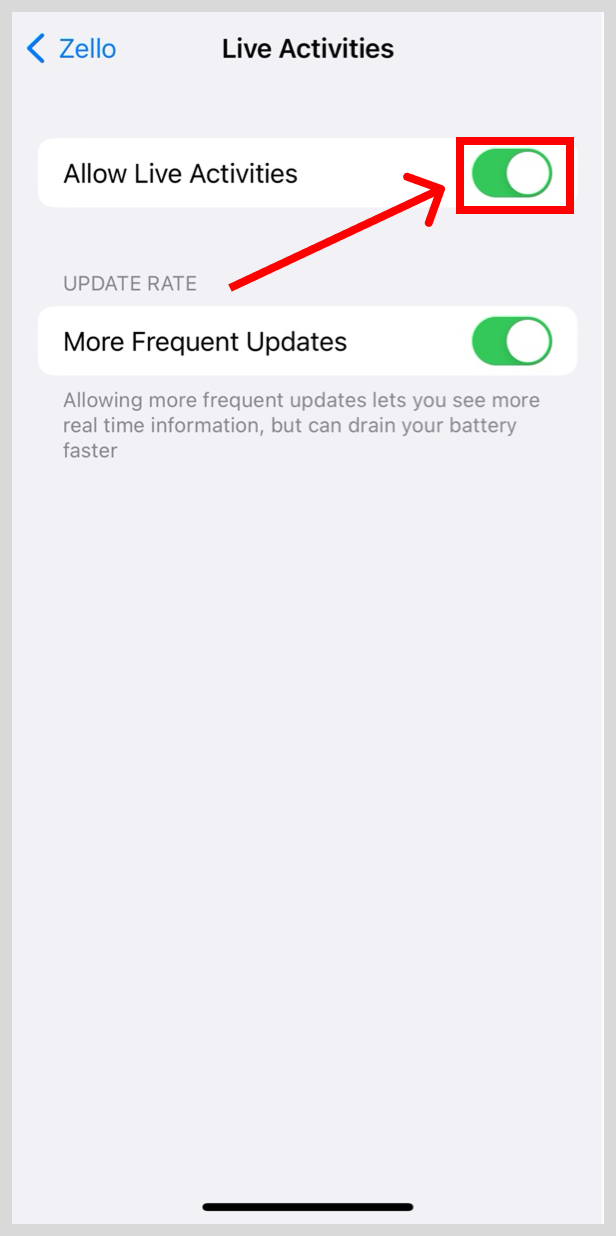
Note: A green toggle means the feature is enabled.
If your admin has disabled Live Activities in the management console, the feature won't appear on your lock screen, even if it's enabled in your iOS settings.
Frequently asked questions
What devices do Live Activities work on?
Live Activities are an iOS feature, so they're only available on iPhone. Android devices are not supported.
Why aren't Live Activities showing up on my lock screen?
A few things could be preventing them from appearing:
- The feature may not be enabled in the Zello app or in your iOS settings. See Turning Live Activities on or off on your device for instructions.
- Your Zello Work admin may have disabled Live Activities at the network level.
- You haven't received a recent message. The Live Activity only appears after you receive a Zello message and disappears after about an hour of no activity.
How long does the Live Activity stay on my lock screen?
Until you swipe it away, or about an hour after your most recent message.
Can I change my status from the lock screen?
Yes. You can toggle between Available and Busy directly from the Live Activity.
How many conversations does the Live Activity show?
Up to two: the two most recent sources of incoming messages (users or channels).