This article is written for: ✅ Zello Work ❌ Zello Friends & Family.
Mapping Zello's PTT (push-to-talk) button to an external headset or microphone allows you to use that accessory's button to send PTT voice messages over Zello. PTT buttons can be mapped to a specific contact or channel, or they can be generally mapped so that pressing the button transmits a message to the user/channel whose contact screen is currently open.
This functionality works with many wired and Bluetooth accessories, but please note that we can only guarantee Zello's compatibility with our certified accessories.
Mapping the PTT Button
There are three different PTT button configurations:
| Map the PTT button to a contact or channel | Assigning a PTT button to a contact or channel ensures that messages sent using the accessory are automatically directed to the specified channel or user. For example, if I map my accessory to a user called Andrew, pressing the PTT button will initiate a message that's sent to him. I don't have to choose who will receive my message in-app. |
| General mapping of the PTT button (not to a contact or channel) | If I don't assign the PTT button to a specific contact or channel, my voice message will send to the user whose contact screen I was most recently on. |
| Map the PTT button to a default channel (admins only) |
Admins have the option to assign a default channel from the management console. When enabled, Zello will default back to this channel after periods of inactivity. For users, this means that pressing their accessory's mapped PTT button after a period of inactivity will initiate active transmission of a message to that channel. Please note that this will be overridden if a device has specifically mapped a PTT button to a contact or channel. |
To map your external PTT button to Zello, follow the instructions below.
1) Connect the accessory to your iPhone or iPad. If you're using a Bluetooth device, refer to the manufacturer's guide for instructions on pairing. If you're using a wired accessory, simply plug the accessory into your iOS device.
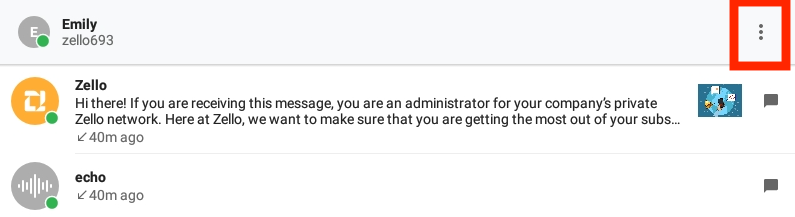
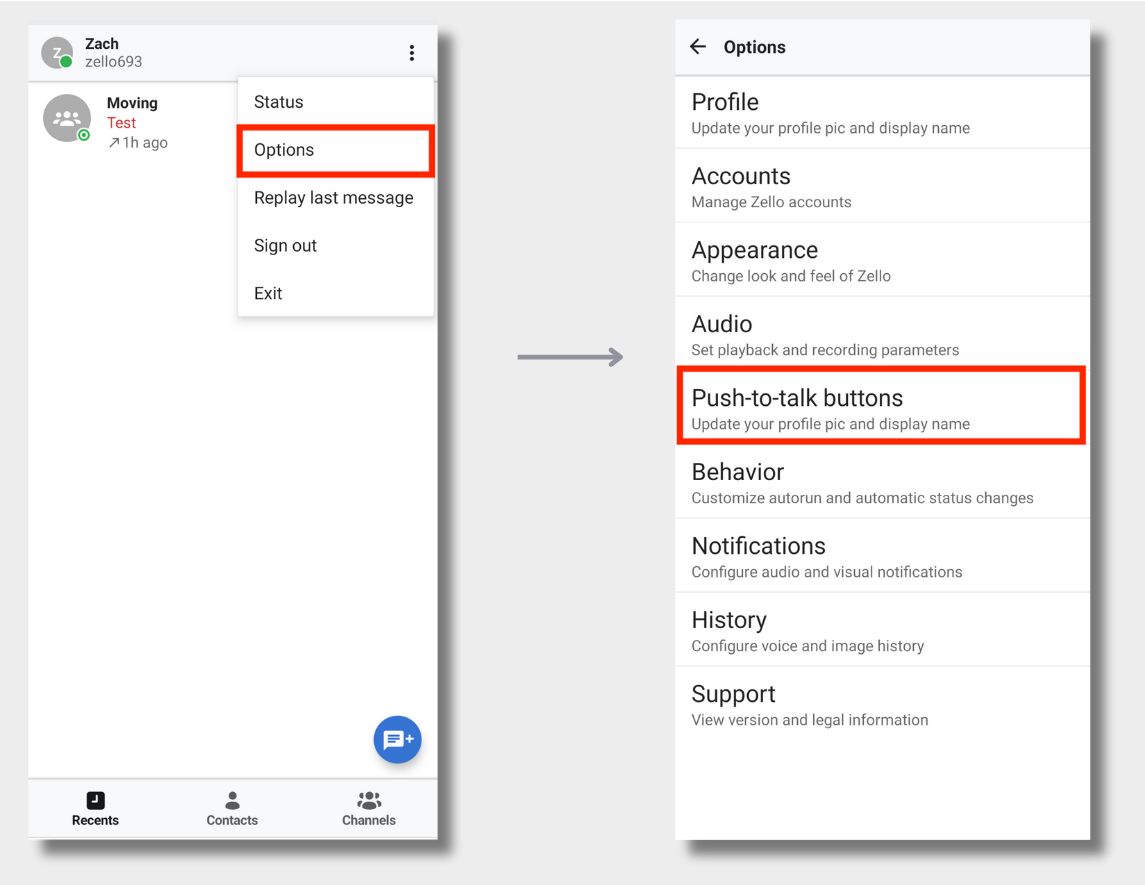
2) Open Zello, then open the Zello menu.
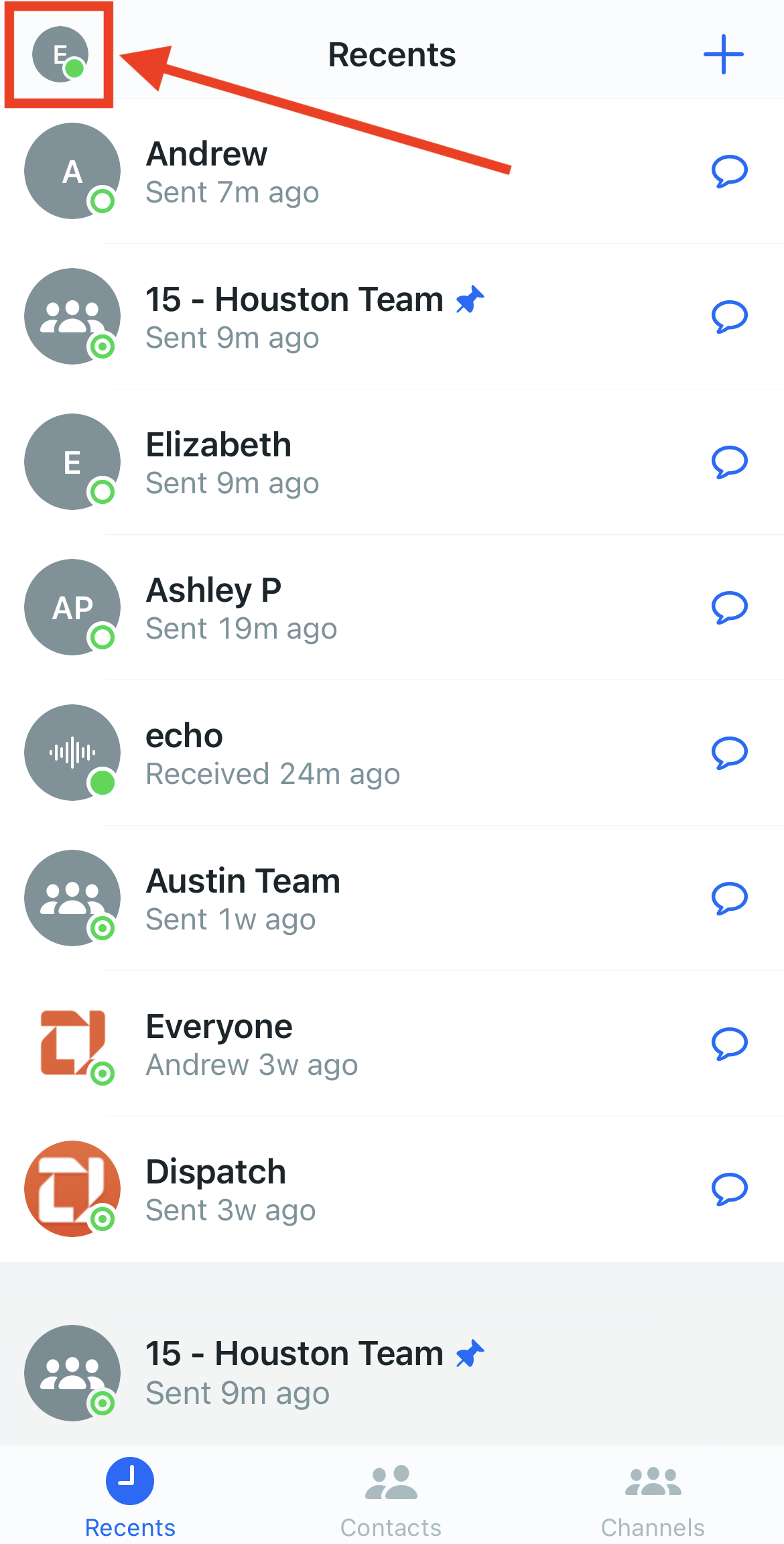
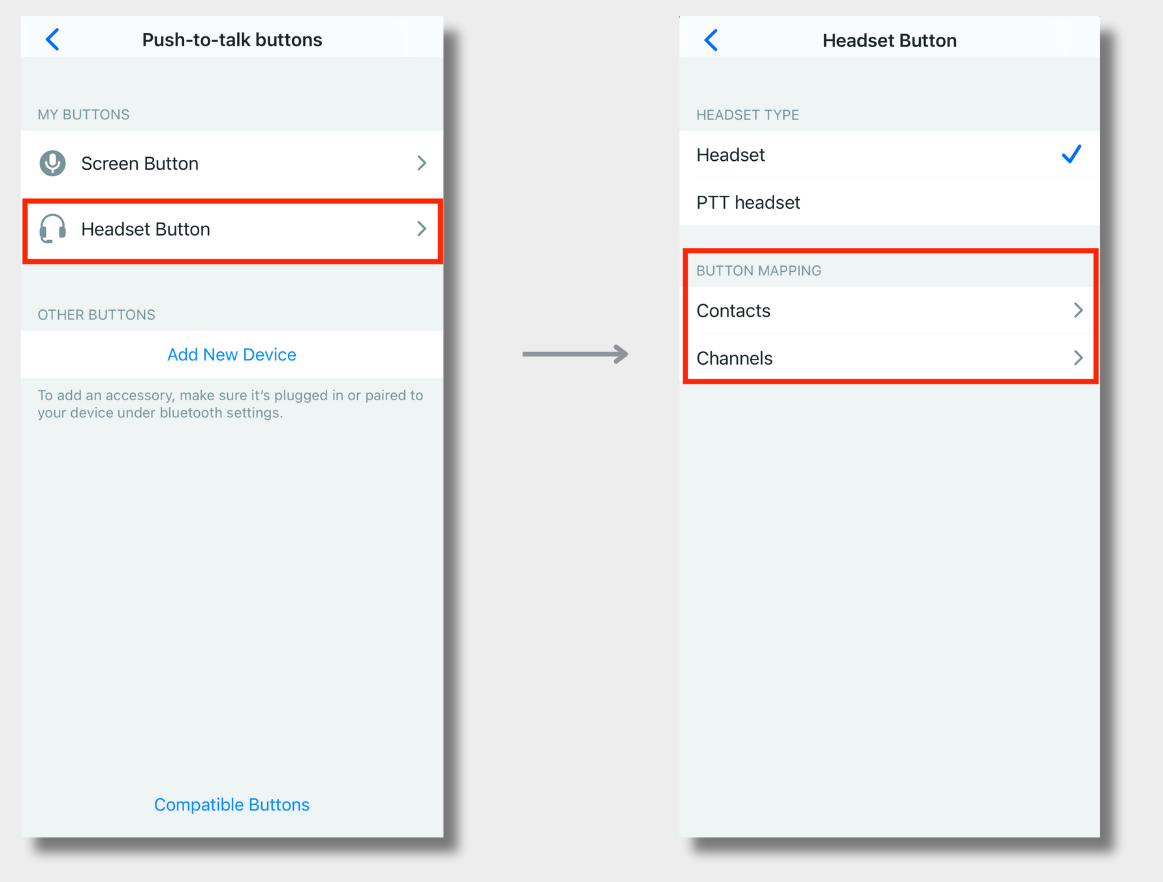
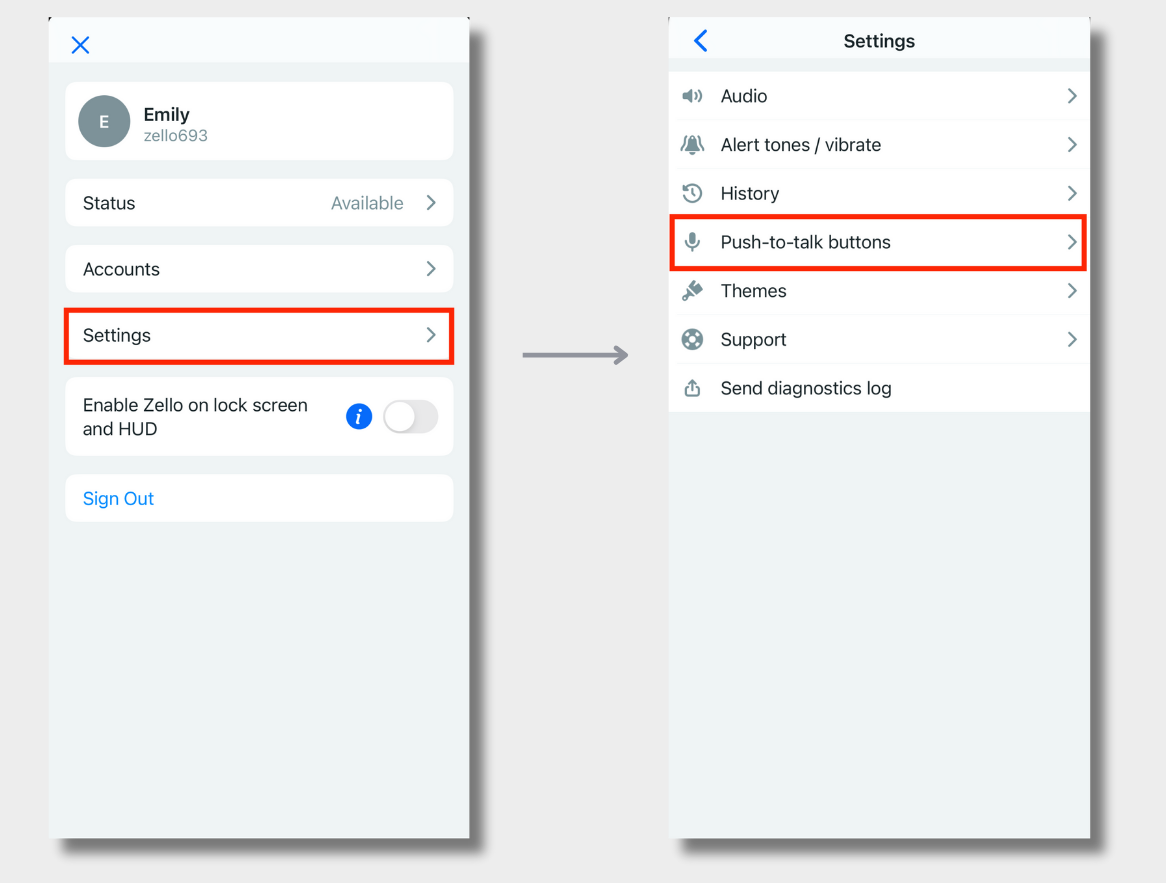
3) Go to Settings > Push-to-talk buttons.
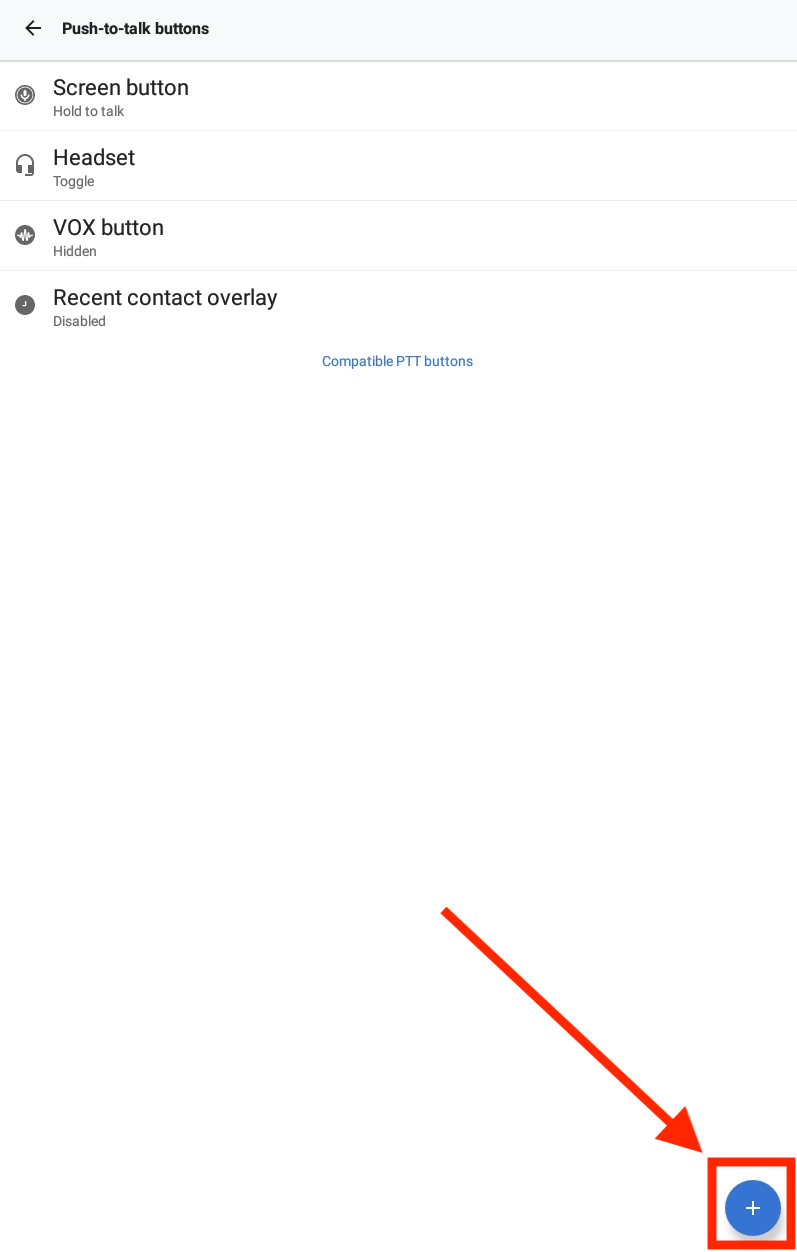
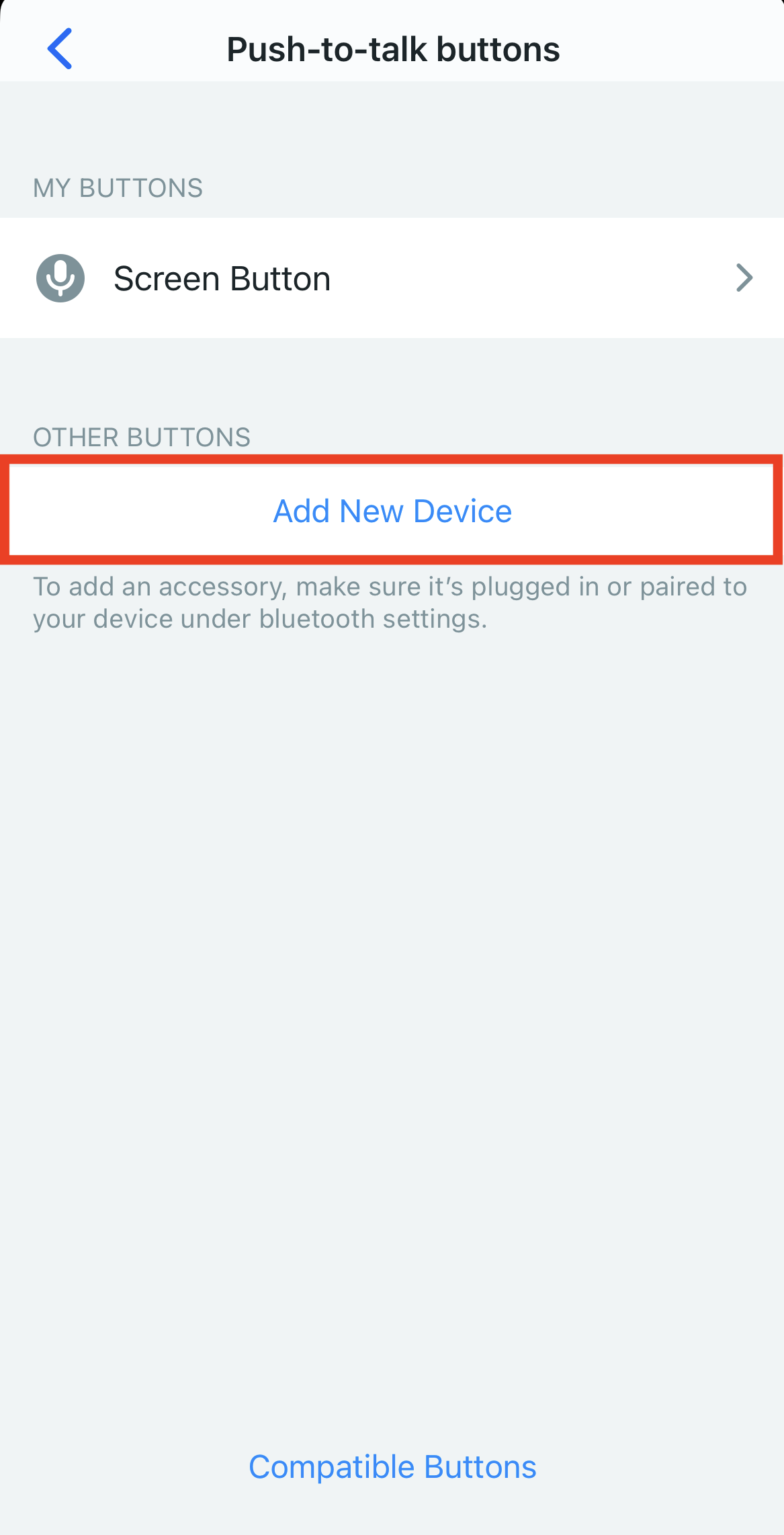
4) Tap Add New Device.
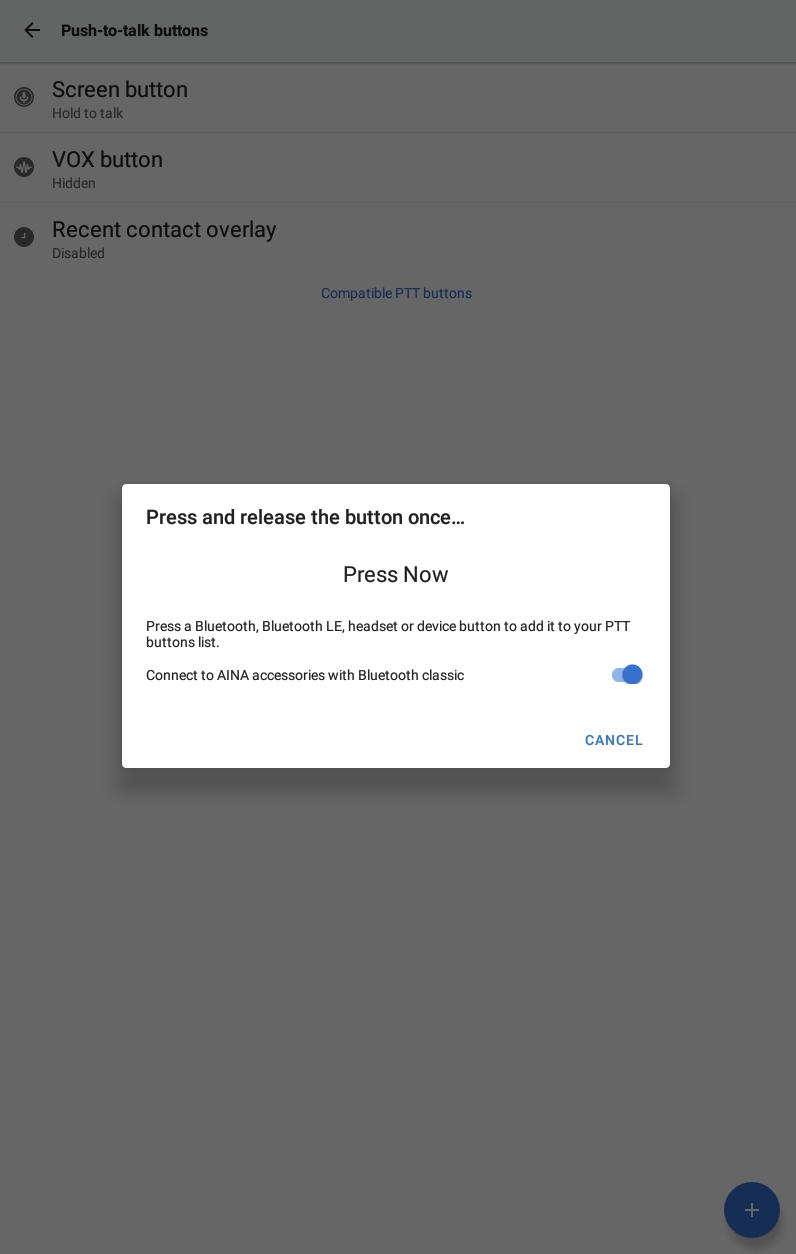
5) Press the accessory's intended PTT button to pair it with Zello.
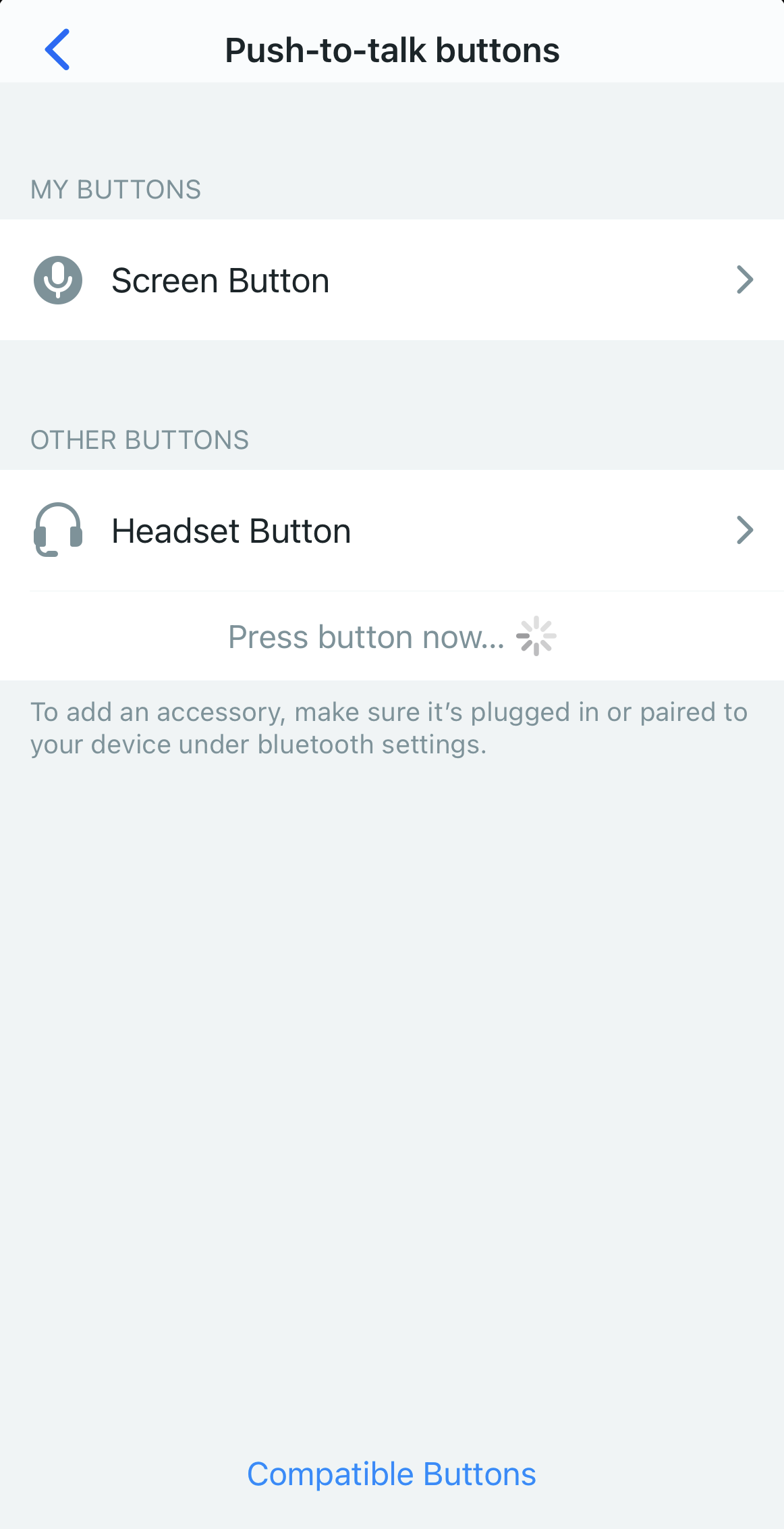
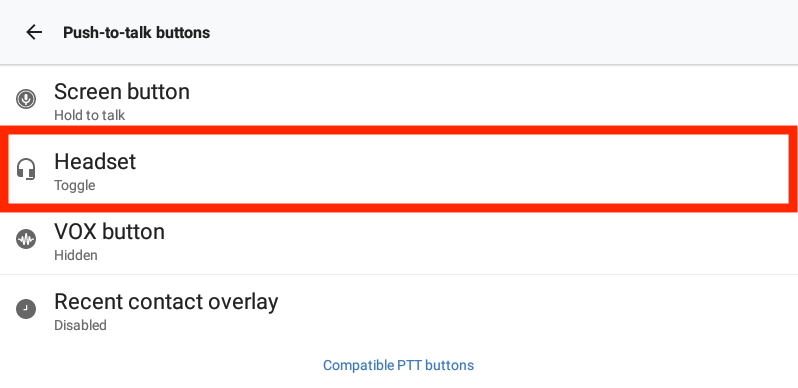
6) The accessory's button will now appear under your list of available PTT buttons; you're now able to use your accessory's PTT button to message the contact or channel you've opened the talk screen for.
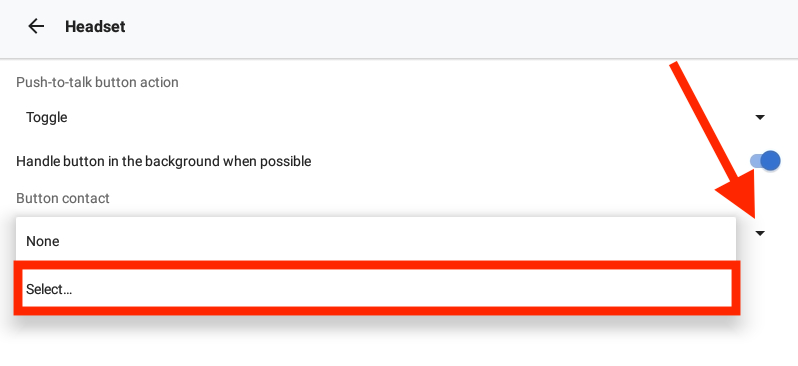
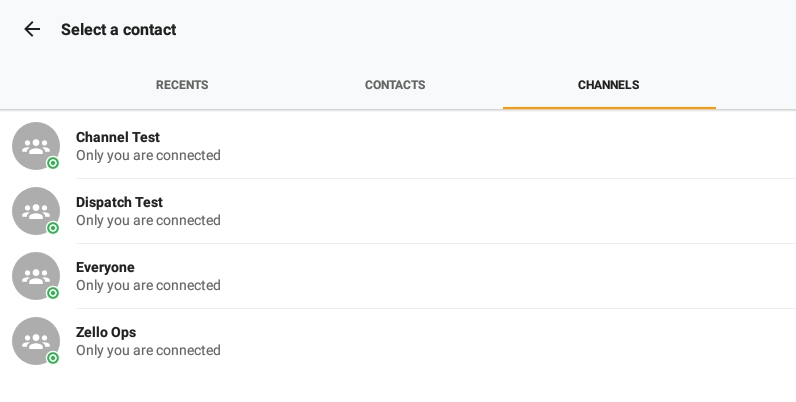
If you'd like to map the accessory's PTT button to a specific contact or channel, tap its name—often it's either the model name and/or the manufacturer's name—and select the intended recipient.