This article is written for: ✅ Zello Work ❌ Zello Friends & Family.
Message Recovery ensures that messages sent in a channel while a user is disconnected are accessible when they reconnect, helping minimize communication gaps and keeping your team aligned. This feature applies to all message types, including voice, text, image, and location messages. To use this feature, an admin must first enable it in the Management Console.
Frontline workers often experience temporary disconnections—whether from spotty cell service in remote areas, dead zones in large facilities, congested networks, or simply going offline between shifts. Without Message Recovery, messages sent during those gaps are missed entirely. With it enabled, those messages automatically become available when a user comes back online, so critical information isn't lost.
Messages are time-stamped and organized in chronological order. When a user reconnects, missed messages will appear in two places:
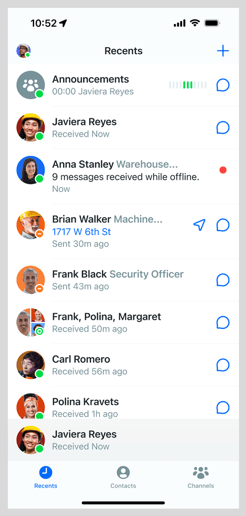
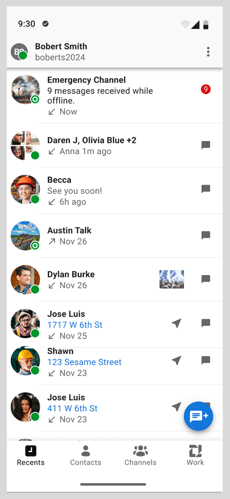
- The Recents tab, where channels with missed messages surface to the top in chronological order.
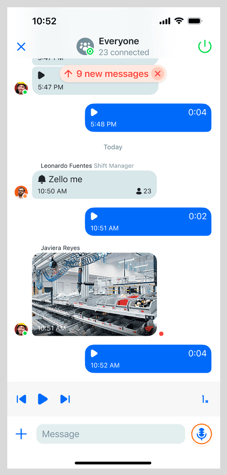
- The channel's History screen, where the messages auto-populate in the order they were received.
Unlike 1:1 messages received while in standby, channel voice messages will not automatically play upon reconnection. Users will need to manually play each missed voice message.
Upon reconnection, users will receive up to the last 50 messages sent in each channel while they were away. Messages are available for recovery for up to 24 hours after they are sent. Message Recovery also follows any history retention parameters configured at the device or network level — for example, if a network admin has configured messages to delete after 8 hours, only messages from the last 8 hours will be recoverable. If Message Vault is enabled for your network, these messages will appear there as well.
Recents screen
When the user reconnects, the Recents tab will display a notification reading "X messages received while offline" for each channel with missed messages. The timestamp will read "Now," referring to the moment the user reconnects.
| iOS | Android |
|
|
History screen
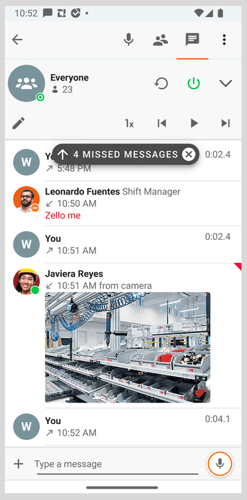
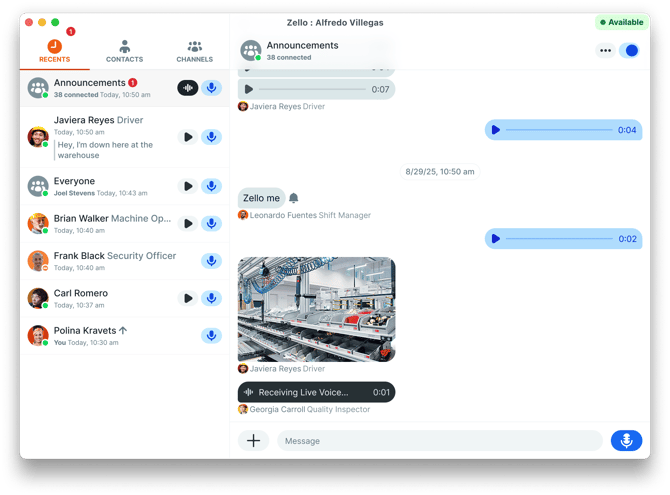
Missed messages will auto-populate in the channel's History screen. Once loaded, a missed message indicator will appear at the top of the History screen ("X new messages" on iOS/Dispatch Hub, "X Missed Messages" on Android). Individual missed messages are marked as follows:
- iOS: A red dot to the right of the message.
- Android: A red triangle at the top-right corner of the message.
- Dispatch Hub: A red dot to the right of the message.
| iOS | Android |
 |
 |
| Dispatch Hub |
 |
Channel roles
Message Recovery respects channel role configurations. When recovering missed messages, the system evaluates each message against the channel's role-based delivery rules and only returns messages the user was eligible to receive at the time they were originally sent. This ensures that role-based restrictions are consistently enforced, even after periods of disconnection.
Enabling / disabling Message Recovery
Admins will need to enable Message Recovery in the Management Console before it can be used. When enabled, it applies to all channels in the network.
To enable or disable Message Recovery:
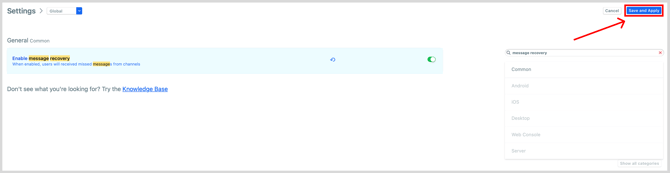
- Log into the Management Console at [yournetworkname].zellowork.com.
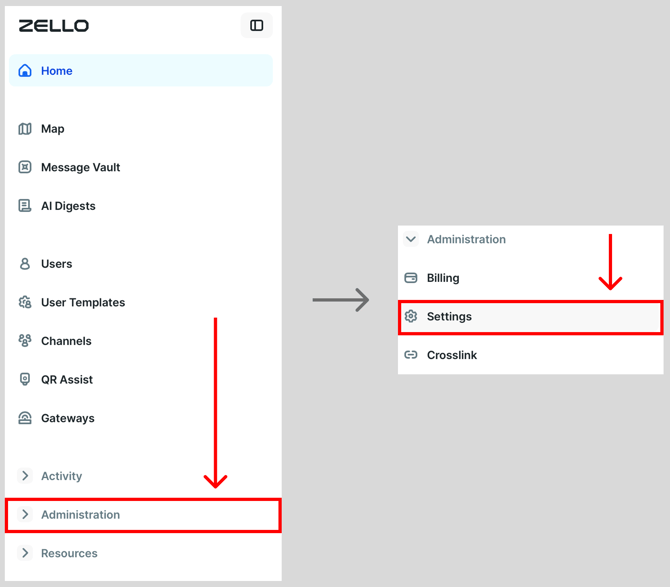
- Select Administration, then select Settings.
- Use the search bar to search for "Message Recovery" to locate the Enable message recovery setting.
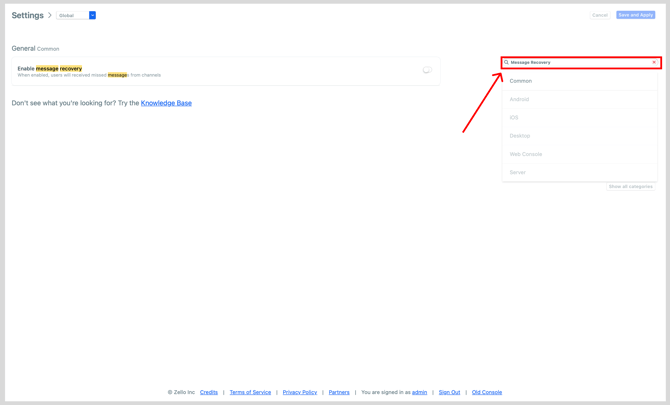
- Use the toggle to enable or disable the feature.

Note: A green toggle indicates that Message Recovery is enabled.
- Click Save and Apply.