This article is written for: ✅ Zello Work ❌ Zello Friends & Family.
Network admins can change any user's password via the management console, as well as change their own password from the Sign In page. Non-administrative users, however, can only change their password once signed in to Zello. Instructions for each scenario are discussed below.
Admins: Reset Your Own Password
- Go to [yournetworkname].zellowork.com.
- Select Forgot Password, and enter the email associated with your Zello account. Click Confirm Reset.
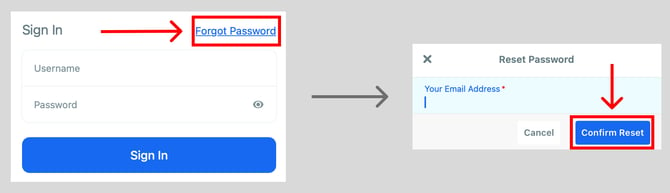
- Keep an eye on your email. We'll send a secure link that'll allow you to reset your password.
Resetting password within the Management Console
If you are already logged into the Management Console, you can still reset your password if you need to do so.
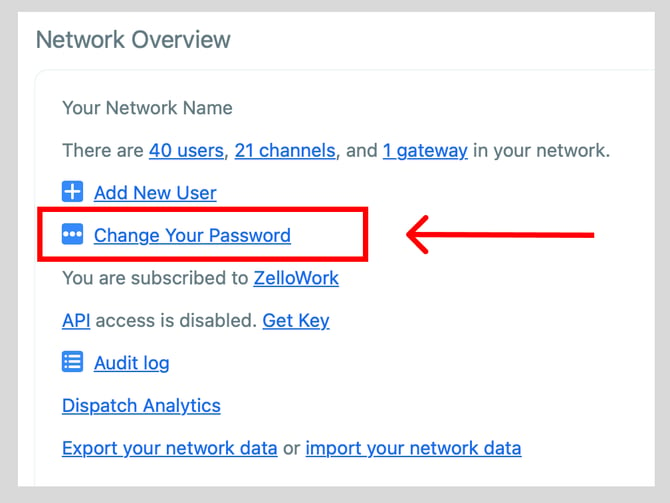
- From the home screen in the Management Console, click Change Your Password.
- Click Forgot Password. Enter the email address associated with your Zello account and click Confirm Reset.
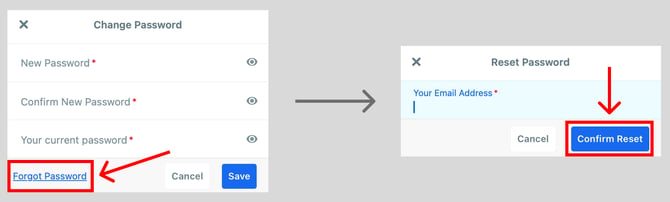
- Keep an eye on your email. We'll send a secure link that'll allow you to reset your password.
Admins: Reset a Team Member's Password
-
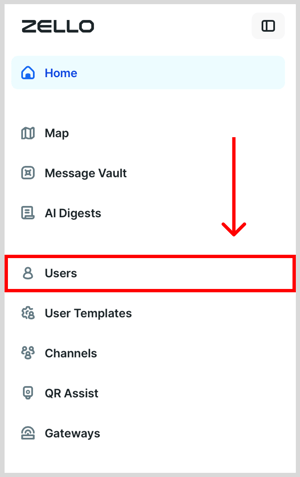
In the Management Console, select Users.
- Select the intended account from the user list by clicking their username.

- At the top of user screen, select Change Password.

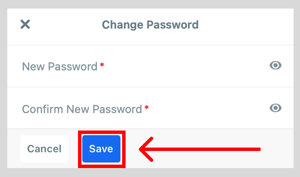
- Enter a new password for this user, confirm the password and click Save. Ensure they're informed of the change.