
This article is written for: ✅ Zello Work ❌ Zello Friends & Family.
In operations like taxi, limo, trucking, and delivery, drivers usually need to reach a dispatcher without hearing every other driver on the channel. In Zello Work, this is what a Dispatch channel is built for: drivers never hear other drivers, and each driver's call is handled one-to-one by a dispatcher.
How a Dispatch channel works
- A driver presses the channel's talk button on their phone, which places their call into a shared queue.
- A dispatcher accepts the call from Dispatch Hub (the Windows or macOS desktop app), and the conversation continues one-to-one.
- Other drivers never hear that call, and they never hear each other. This keeps drivers focused and cuts down on radio-style chatter.
Before you start
- A channel can only be set to type Dispatch when it is first created. An existing team or dynamic channel cannot be converted to a Dispatch channel later. To use this method on an existing group, create a new Dispatch channel and move the users into it.
- Dispatchers answer calls in Dispatch Hub on a Windows PC or Mac. Drivers use the Zello app on Android or iOS.
Create a Dispatch channel
- Sign in to the Management Console at [yournetworkname].zellowork.com.
- Select Channels.
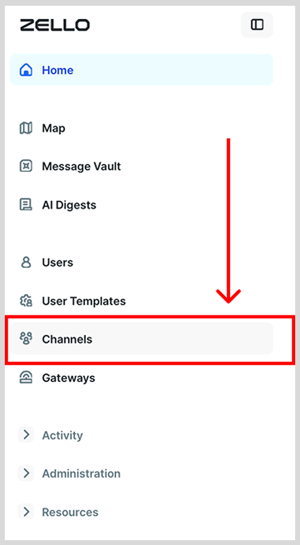
- Click + New Channel.

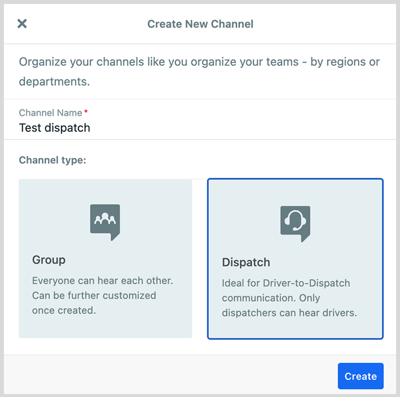
- Enter a name for the channel and set the Channel Type to Dispatch. Click Create.
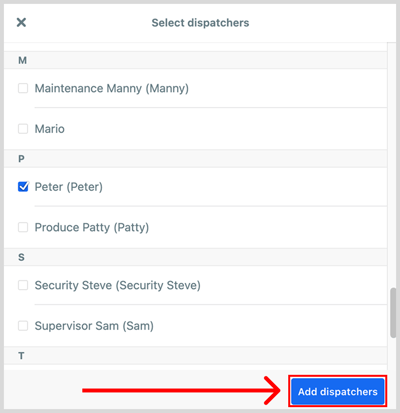
- Select the users who will serve as dispatchers, then click Add dispatchers.
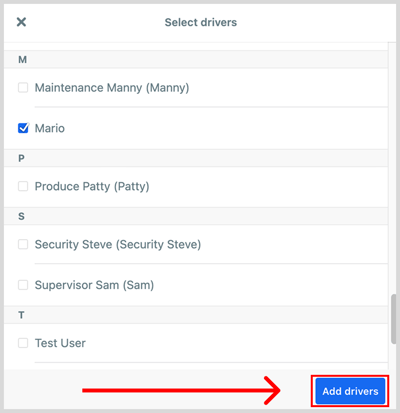
- Select the users who will serve as drivers, then click Add drivers.
Drivers can now call in from their mobile app, and dispatchers will see and answer those calls from Dispatch Hub.
Tip: If some people act as both drivers and dispatchers on different days, add them as drivers. They are automatically treated as dispatchers whenever they sign in through Dispatch Hub.
Add or change users
- Select Channels.
- Click the name of the Dispatch channel you want to add users to or change the users who are included in it.

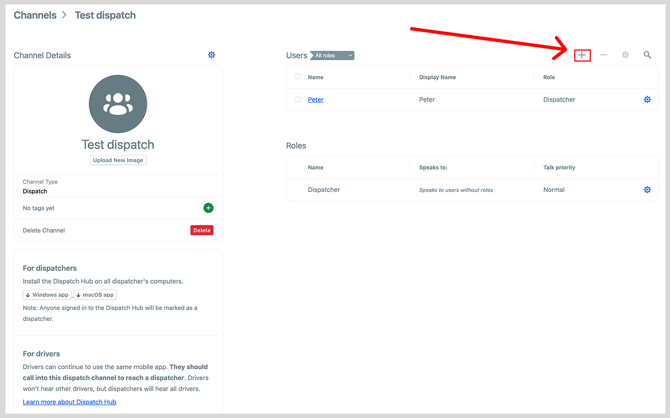
- Click the + icon at the top of the Users section.
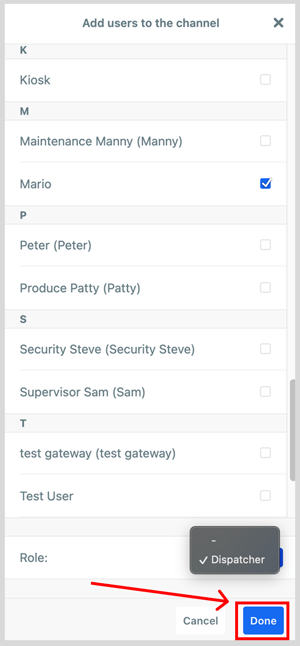
- Select the user you want to add and assign their role: Dispatcher for a dispatcher, or - for a driver. Click Done.
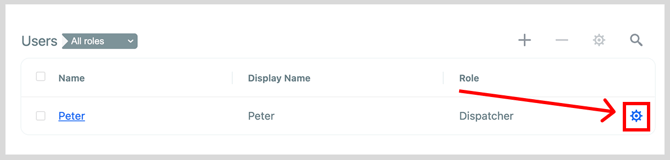
- To change an existing user's role, click the gear icon to the right of their name, then select Dispatcher, or click Reset Assignments to make them a driver.
If you also need dispatchers to hear each other
A Dispatch channel does not let dispatchers hear one another. If your team needs dispatchers to stay coordinated by hearing each other, or you want a broadcast-style channel rather than a one-to-one call queue, you can set this up with User Roles on a team or dynamic channel instead: give drivers a role that can speak only to dispatchers, and give dispatchers a role that can speak to anyone.
Keep in mind that with the roles approach there is no private call queue, so a dispatcher's reply is heard by all drivers, not just the one who called. See Setting Up User Roles for step-by-step instructions.