
This article is written for: ✅ Zello Work ❌ Zello Friends & Family.
Quick Reply gives users a fast way to send a message with a single tap, instead of needing to type or talk. Network admins set up the messages ahead of time, like "Minor delay" or "All clear," and each one appears as a button on the talk screen. Tapping one of these buttons sends a regular text message that shows up in chat history. Quick Reply works on iOS, Android, and desktop, and is available to all ZelloWork customers.
Setting up Quick Reply (admins)
In order to use Quick Reply, the Quick Reply setting needs to be enabled in the Management Console. Admins also need to write and add the messages that can be sent as quick replies. To enable Quick Reply for a network:
- Sign in to the Management Console at [yournetworkname].zellowork.com.
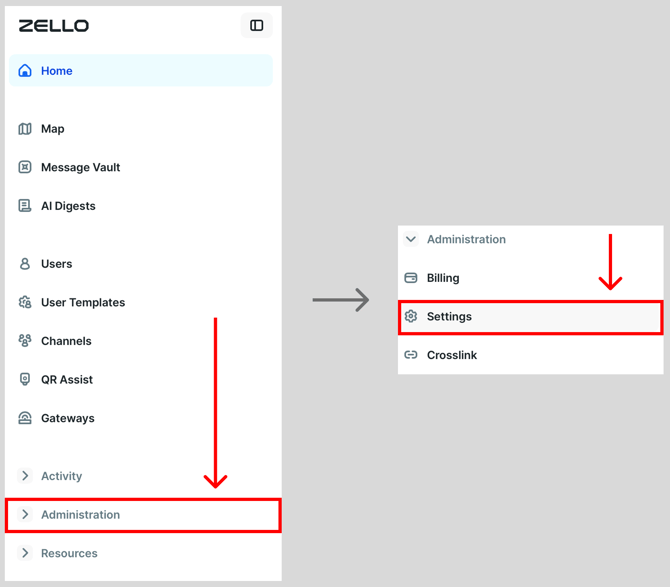
- Select Administration, then Settings.
- Locate the Quick Reply setting.
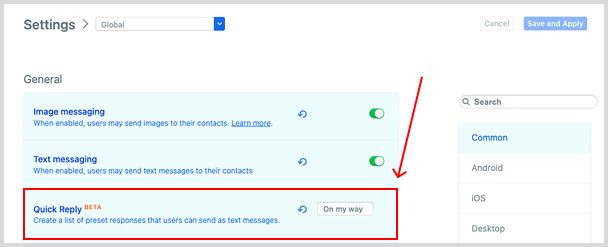
- Type a message that you want users on the network to be able to send as a quick reply, then click the plus sign (+). Repeat for each message you want users to be able to send as a quick reply.
 To remove a quick reply, click the trash can icon next to it.
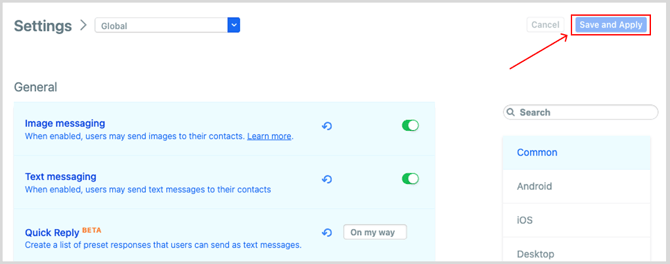
 - When you've added the messages you want usable as quick replies, select Save and Apply.
Please note: A template can have up to 20 quick replies, each up to 80 characters. To give different roles their own lists, for example drivers and dispatchers, use templates.
Furthermore, quick replies are not translated. They appear in whatever language the admin writes them, so workers see exactly what was entered.
Using Quick Reply
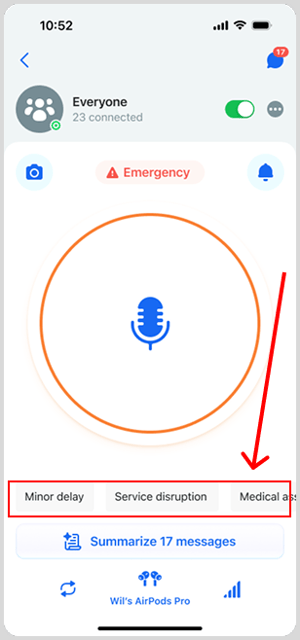
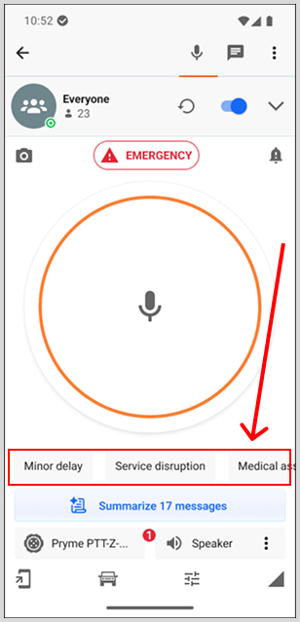
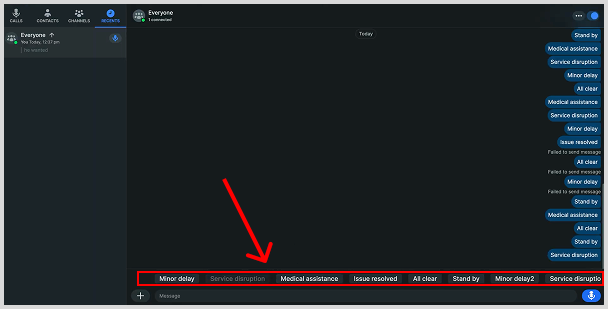
Once Quick Reply is enabled in the Management Console, the available quick replies appear as buttons that sit below the talk button on iOS and Android, and near the message box in the desktop app. A user can send a quick reply to any channel they're in or any contact they've added.
To send a quick reply:
- Open the channel or contact you want to message.
- Tap the quick reply on mobile, or click it on desktop.
iOS
Android
Desktop
Please note: Quick replies appear only when text messaging is enabled; if text messaging is turned off for a channel, the buttons are hidden. On Android, quick replies are hidden in landscape mode, so the device must be in portrait to see them.