This article is written for: ✅ Zello Work ❌ Zello Friends & Family.
Channel alerts allow select users to send messages in a channel that are emphasized by three audible beeps and a distinct text notification upon delivery. An individual must be assigned the correct user role to be able to send a channel alert, but all users—regardless of role—can receive a channel alert.
Channel alerts will appear in red text on both the Recents and History screens.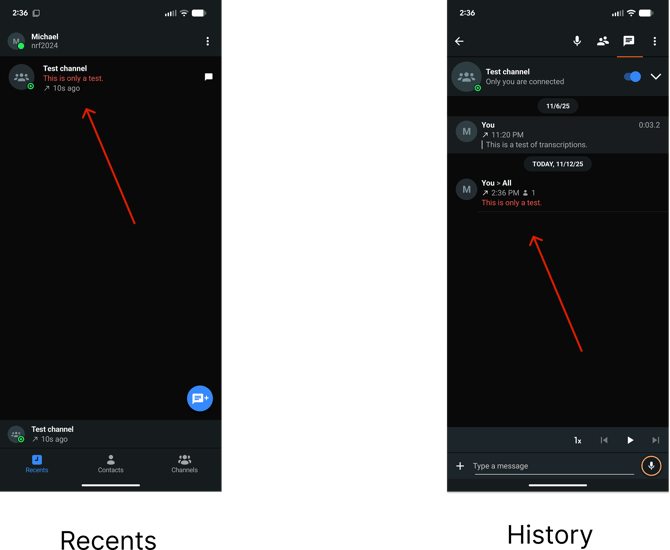
A few notes on channel alerts:
- Channel alerts will sound once for iOS/Android users; the audio is not persistent for these users.
- Channel alert’s audio notification is persistent for Dispatch Hub users, however. The audio will repeat in one-minute intervals until the DH user has cleared the notification.
- A similar functionality is available for one-to-one messages. Learn more about call alerts.
Admins: Enable Channel Alerts using User Roles
Channel alerts can be enabled through the configuration of a user role. Once you’ve created the role, assign it to users you’d like to grant permission to send channel alerts.
iOS Users: Sending Channel Alerts
- Open Zello on your device. Sign in to Zello Work with your username, password, and network name.
- Tap the Channels tab, then select the channel you’ve been granted alert permissions for.
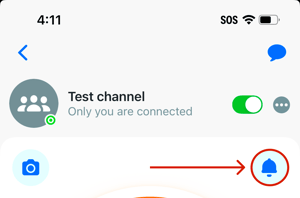
Note: If you’ve been granted permission to send channel alerts, your PTT screen will include a bell icon at the top-right corner. If you’ve not been granted permissions to send channel alerts, your PTT screen will not include this icon.
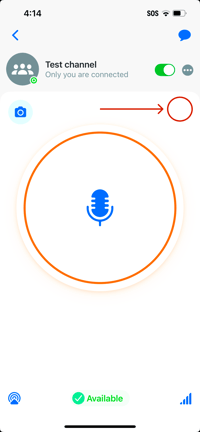
Channel alerts have not been assigned to this channel user’s role.
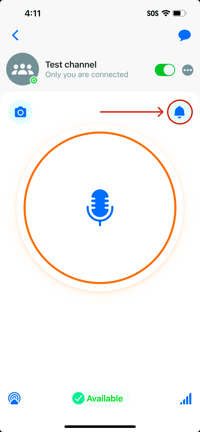
Channel alerts have been assigned to this channel user’s role.
- From the channel’s PTT screen, tap the bell icon.
-
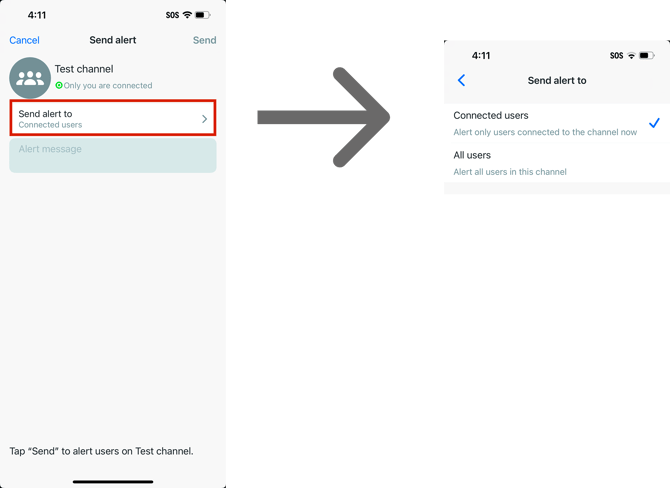
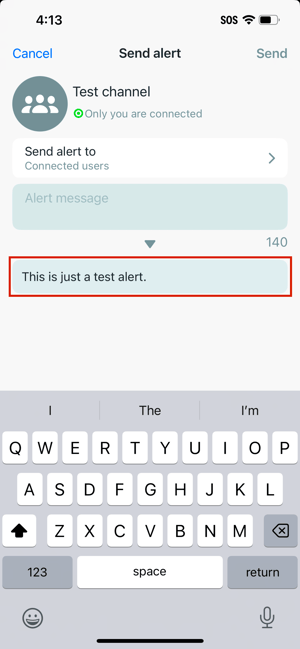
Tap Send alert to to select who you’d like to send the alert to—either connected users or all users.
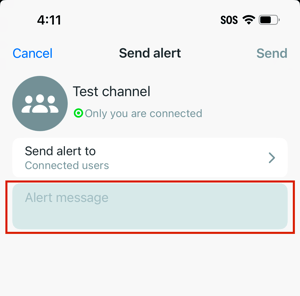
- Type your message in the Alert message field.
-
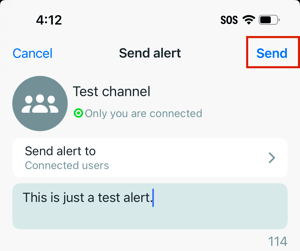
Tap Send.
Note: Previously-sent channel alerts will appear under the message box for quick selection. In the image below, I went to send a different channel alert and found my previously-sent one had been saved:
Android Users: Sending Channel Alerts
-
Open Zello on your device. Sign in to Zello Work with your username, password, and network name.
-
Tap the Channels tab, then select the channel you’ve been granted alert permissions for.
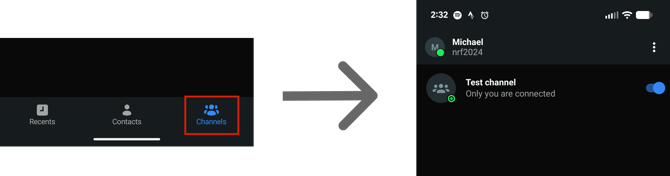
-
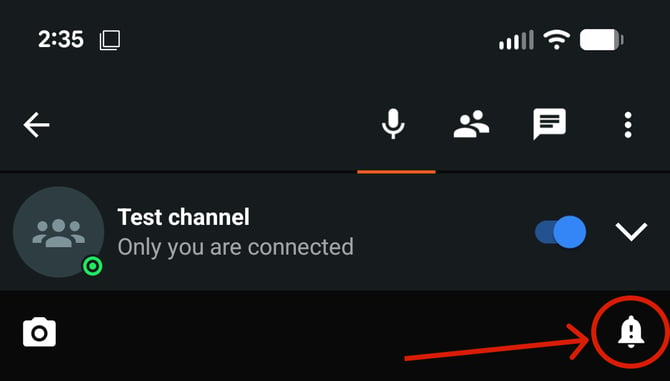
Tap the alert icon. Note: If there is no alert icon, then you need to be assigned a role that can send alerts.
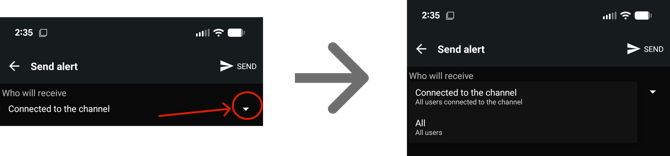
- Tap the small down arrow to choose whether the alert will be sent to just those connected to the channel or to all users.
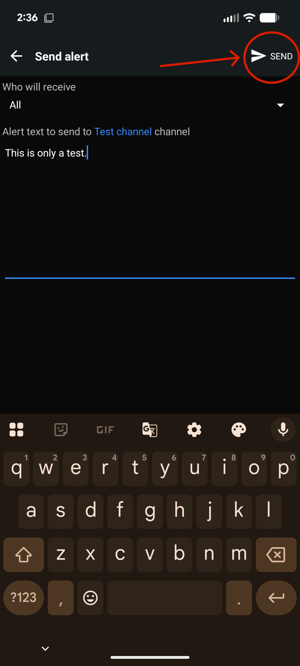
- Type your message into the provided field and then tap Send.
Dispatch Hub Users: Sending Channel Alerts
- Sign in to Dispatch Hub with your network name, username, and password.
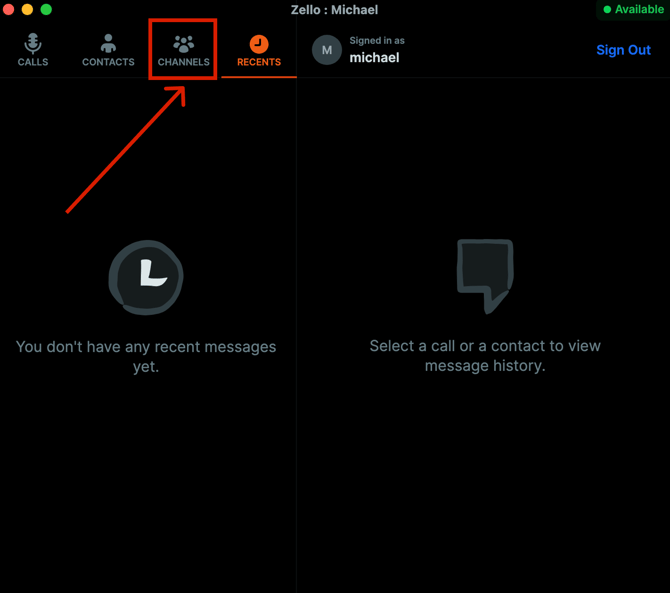
- Click the Channels tab on the Dispatch Hub menu.
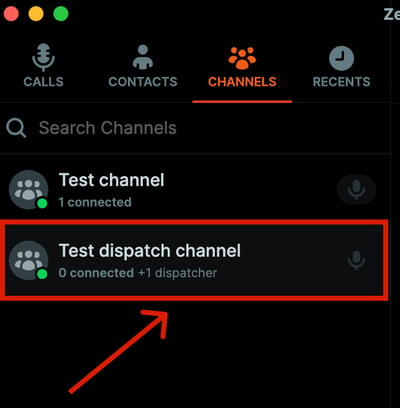
- You will see a list of the channels on your network. Locate the channel that you want to send the alert to. In this case, I'll be sending an alert to the Test dispatch channel.
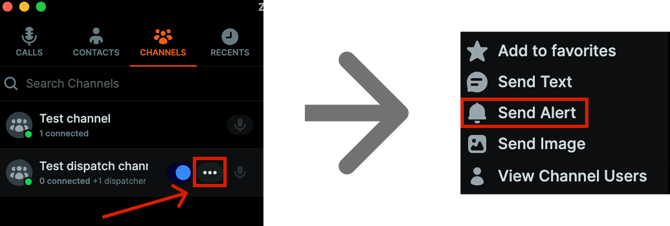
- Place your cursor above the channel that you want to send an alert to. This will cause three dots to appear. Clicking those three dots will open a menu. Click Send Alert. Note: If “Send alert” isn’t displayed as an option for that channel, you haven’t been granted permissions to send a channel alert.
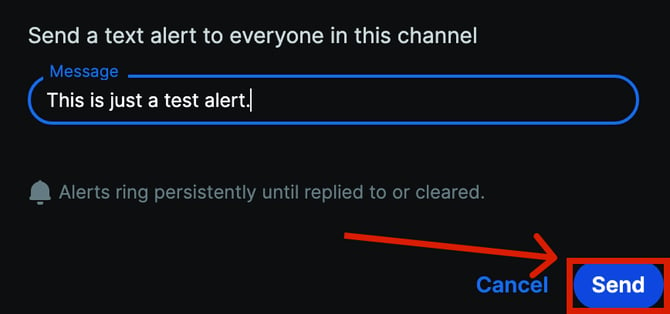
- Type your alert message and click Send.