---
title: Sending Problem Reports to Zello Support
description: Problem reports are detailed logs that allow Zello's team to diagnose unexpected app behaviors. These reports provide comprehensive data on Zello's...
---
[Skip to content](https://support.zello.com/zw/sending-problem-reports-to-zello-support#main-content)
English
Show submenu for translations
[More support](https://support.zello.com/zw/kb-tickets/new?hsLang=en)
[](https://zello.com/)
Open main navigation
Close main navigation
- English
Show submenu for translations
- [More support](https://support.zello.com/zw/kb-tickets/new)
- [Contact us](https://zello.com/contact/new-ticket/)
[Contact us](https://zello.com/contact/new-ticket/)
Hello. How can we help you?
- There are no suggestions because the search field is empty.
1. [Zello Work](https://support.zello.com/zw?hsLang=en)
2. [Using Zello](https://support.zello.com/zw/using-zello?hsLang=en)
3. [Settings](https://support.zello.com/zw/using-zello?hsLang=en#settings)
July 11, 2026
# Sending Problem Reports to Zello Support
This article is written for: ✅ Zello Work ❌ Zello Friends & Family.
Problem reports are detailed logs that allow Zello's team to diagnose unexpected app behaviors. These reports provide comprehensive data on Zello's actions and errors, and can be sent from either an individual's device or the management console.
### When to Send a Problem Report
---
Problem reports should be sent immediately after you encounter an issue. The logs only capture a few minutes of activity, so if too much time passes between the error's occurrence and and the report's submission, the issue may not appear in the log. If there's too long of a delay, we'll request that you try to reproduce the issue and re-send the report.
Once you've sent in your problem report, email [paidsupport@zello.com](mailto:paidsupport@zello.com)for further assistance. Please include your network name and username (or username of the individual you've requested the log for, if you're an admin) in the email.
### Admins: Send a Report on a User's Behalf
---
Admins can send problem reports on behalf of network users via the management console. Please note that if you opt for this method, you must reproduce the problem on the user's device immediately prior to requesting the log.
Admins can only request logs for users whose status is **available**. If the user in question is not available, the **Request Log** button will be greyed out.
1. If necessary, have the user reproduce the issue on their device.
2. From the management console's taskbar, go to **Users**. Then select the user you'd like to request the log for from the user list.
3. Click the **Request Log** button at the top of the user profile page. This will send our team a problem report.

### Android Devices
---
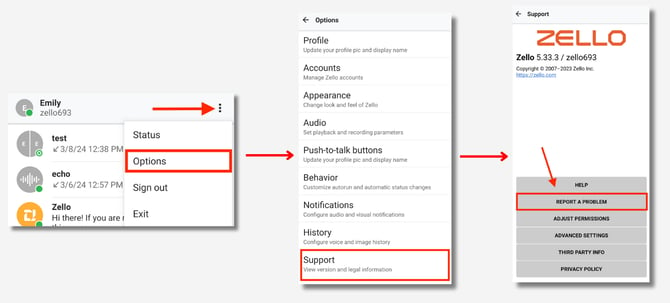
1. Tap the Zello menu (three horizontal dots in the upper-right corner of your screen).
2. Go to **Menu** \> **Options** \> **Support** \> **Report a problem.
**
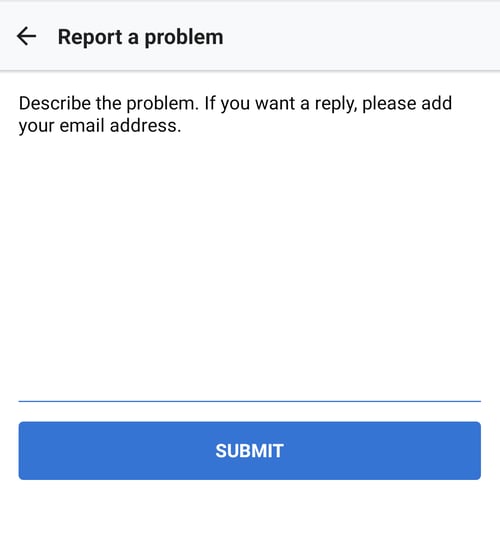
3. Describe your problem, then click **Submit**.
4. The log file, your problem description, and any contact information will be sent to Zello Support. Additionally, a copy of your log file will be saved locally. It may be stored in one of the following locations:
| **Android 7 and newer** \*If the Android app hasn't been updated recently, the path might need to change to .../data/**net**.loudtalks/files/... | - /Internal Storage/Android/data/com.loudtalks/files/zello-problem-report.txt - File/Other Storage/Bug Reports |
| --- | --- |
| **Android 6 and older** | - /storage/emulated/0/Zello/zello-problem-report.txt |
### iOS Devices
---
There are two avenues for submitting a problem report on iOS devices.
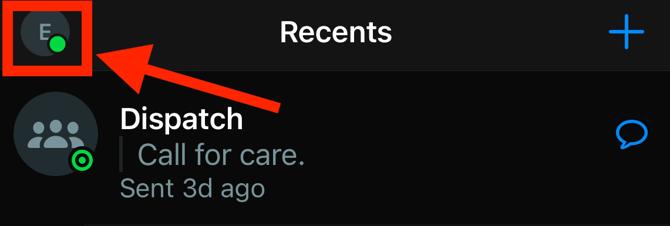
1. From either your Recents, Contacts, or Channels tab, tap your user icon in the top-left corner of the screen.
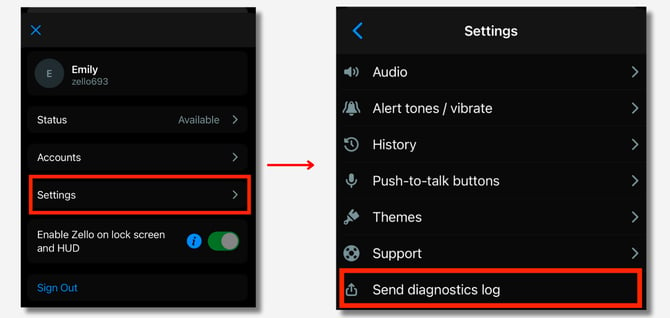
2. Tap**Settings** \> **Send diagnostics log**. A problem report will be automatically sent to our team.
-OR-
Go to Settings \> Support \> Report a Problem. Enter your email and describe the issue you're experiencing. This information will be sent alongside your problem report to our support team.
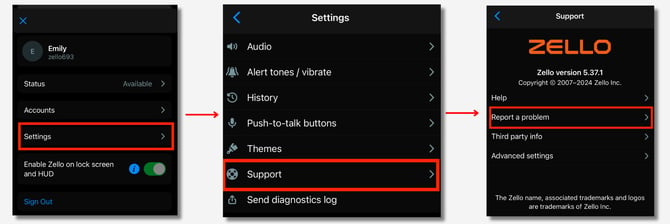
The following video shows the steps for how to report a problem on an iOS device:
### macOS Dispatch Hub
---
1. Submit immediately after the problem occurs, or try to reproduce the problem.
2. From the menu bar, click ***Help*** \> ***Report a Problem***

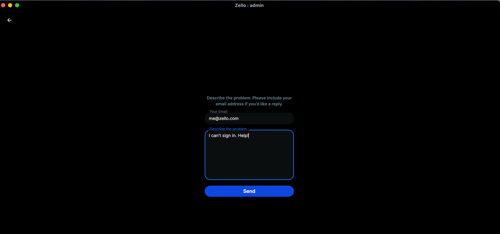
3. Enter your email, and describe the problem you're experiencing. Then press **Send**.
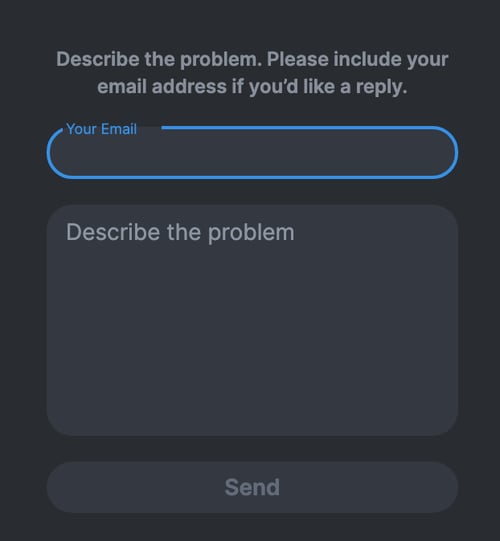
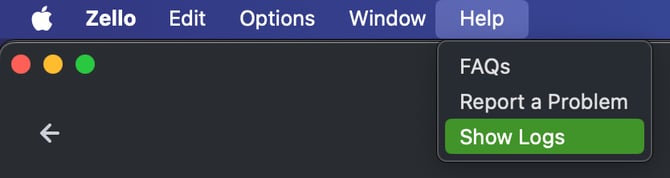
4. The log file, your problem description, and any contact information will be sent to Zello Support. A copy of the log also appears in the **/Users/ \/ Library/ Logs/Zello** folder, which is accessible via the pathway
**Help \> Show Logs.
**
### Windows Desktop Dispatch Hub
---
1. Submit immediately after the problem occurs, or try to reproduce the problem.
2. From the menu bar at the top of your screen, go to **Help \> Report a Problem.** Enter your email address and describe the problem you're encountering. Then press **Send**.
3. The log file, your problem description, and any contact information will be sent to Zello Support. A copy of the log is accessible by choosing Help \> Show Logs
### Legacy PC
---
1. Submit immediately after the problem occurs, or reproduce the problem on the PC
2. From the application's top menu bar, click **Help** \> **Report a problem.
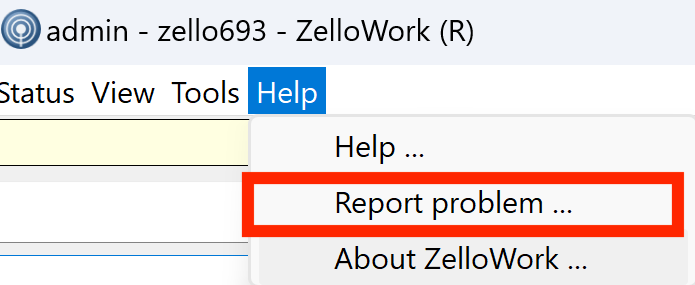**
3. Enter your email and describe the issue you're experiencing. Then click on **Send**
4. The log file, your problem description, and any contact information will be sent to Zello Support. A copy of the log will be saved in the **My Documents** folder on your PC; it will be named **ptt\_report.txt**.
### I'm locked out of my account. How do I send a problem report?
---
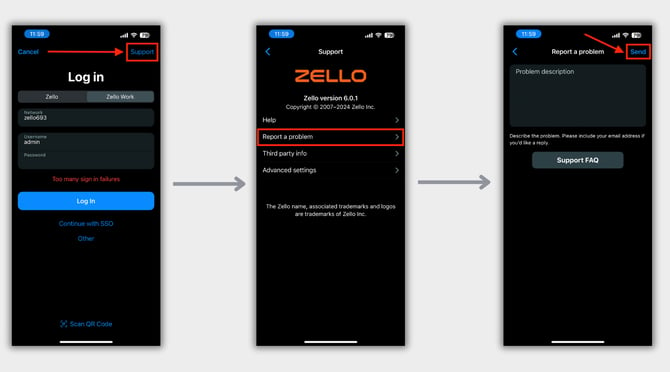
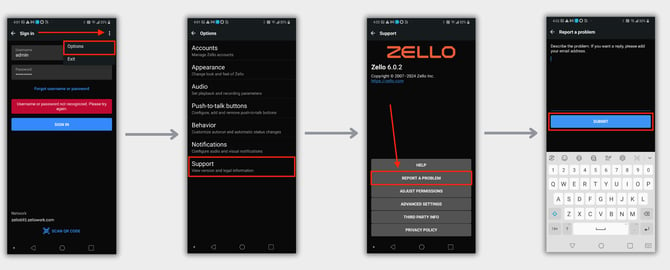
Problem reports can be sent from the app's sign in screen. If you've been locked out of your account, follow the steps below to send our team a problem report.
#### **iOS**
1\) From the sign in screen, tap **Support** \> **Report a problem.**
2\) Enter a description of the issue you're facing. Then tap **Send**.
#### **Android**
1\) From the Sign In screen, open the Zello menu (three linear dots in the upper-right corner).
2\) Go to **Support** \> **Report a Problem**. Describe the issue you're encountering, then tap **Submit**.
#### **Dispatch Hub**
| **macOS** |
| --- |
| Open **Help** \> **Report a Problem** from your device's task bar. **[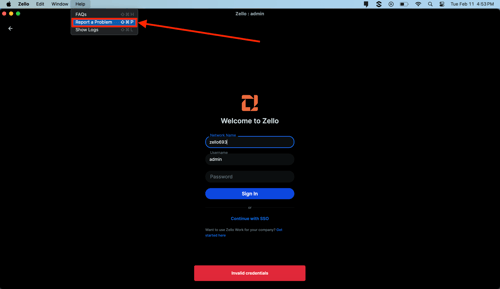](https://paidsupport.zello.com/hc/article_attachments/34217178352781)** |
| **Windows** |
| --- |
| Open the Zello menu (three lines in the upper-left corner of Dispatch Hub). Then go to **Help** \> **Report a Problem**. 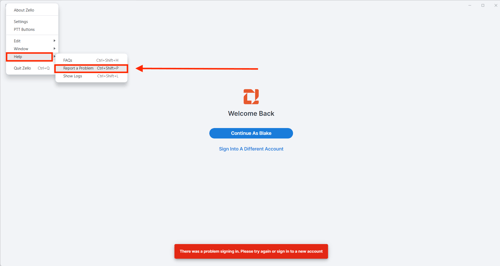 |
Enter your email address and describe the issue. Then press **Send**.
- [Getting Started](https://support.zello.com/zw/getting-started?hsLang=en#main-content)
- [Trials](https://support.zello.com/zw/getting-started?hsLang=en#trials)
- [Admins](https://support.zello.com/zw/getting-started?hsLang=en#admins)
- [Users](https://support.zello.com/zw/getting-started?hsLang=en#users)
- [Dispatch Hub](https://support.zello.com/zw/getting-started?hsLang=en#dispatch-hub)
- [Intro to Zello](https://support.zello.com/zw/getting-started?hsLang=en#intro-to-zello)
- [Admins](https://support.zello.com/zw/admins?hsLang=en#main-content)
- [User Management](https://support.zello.com/zw/admins?hsLang=en#user-management)
- [Channels](https://support.zello.com/zw/admins?hsLang=en#channels)
- [Dispatch Hub](https://support.zello.com/zw/admins?hsLang=en#dispatch-hub)
- [Network Settings and Configurations](https://support.zello.com/zw/admins?hsLang=en#network-settings-and-configurations)
- [Zello Enterprise Server](https://support.zello.com/zw/admins?hsLang=en#zello-enterprise-server)
- [Payments, Subscriptions, and Billing](https://support.zello.com/zw/admins?hsLang=en#payments-subscriptions-and-billing)
- [Using Zello](https://support.zello.com/zw/using-zello?hsLang=en#main-content)
- [Dispatch Hub](https://support.zello.com/zw/using-zello?hsLang=en#dispatch-hub)
- [User Communications](https://support.zello.com/zw/using-zello?hsLang=en#user-communications)
- [Channels](https://support.zello.com/zw/using-zello?hsLang=en#channels)
- [Settings](https://support.zello.com/zw/using-zello?hsLang=en#settings)
- [Features](https://support.zello.com/zw/using-zello?hsLang=en#features)
- [Windows PC App](https://support.zello.com/zw/using-zello?hsLang=en#windows-pc-app)
- [Accessories](https://support.zello.com/zw/accessories?hsLang=en#main-content)
- [Rugged/Specialized Phones](https://support.zello.com/zw/accessories?hsLang=en#rugged-specialized-phones)
- [Network Radios](https://support.zello.com/zw/accessories?hsLang=en#network-radios)
- [Headsets](https://support.zello.com/zw/accessories?hsLang=en#headsets)
- [Speakers/Mics](https://support.zello.com/zw/accessories?hsLang=en#speakers-mics)
- [Wireless Buttons](https://support.zello.com/zw/accessories?hsLang=en#wireless-buttons)
- [Gateways](https://support.zello.com/zw/accessories?hsLang=en#gateways)
- [Partners & Developers](https://support.zello.com/zw/partners-developers?hsLang=en#main-content)
- [Partnerships](https://support.zello.com/zw/partners-developers?hsLang=en#partnerships)
- [New Mobile SDK (iOS, Android, React Native)](https://support.zello.com/zw/partners-developers?hsLang=en#new-mobile-sdk-ios-android-react-native)
- [Legacy SDK (Android-Only)](https://support.zello.com/zw/partners-developers?hsLang=en#legacy-sdk-android-only)
- [API and Integrations](https://support.zello.com/zw/partners-developers?hsLang=en#api-and-integrations)
- [FAQ](https://support.zello.com/zw/faq?hsLang=en#main-content)
- [Functionality](https://support.zello.com/zw/faq?hsLang=en#functionality)
- [Accessories](https://support.zello.com/zw/faq?hsLang=en#accessories)
- [Troubleshooting](https://support.zello.com/zw/faq?hsLang=en#troubleshooting)
- [Network](https://support.zello.com/zw/faq?hsLang=en#network)
- [Compliance](https://support.zello.com/zw/faq?hsLang=en#compliance)
- [Videos](https://support.zello.com/zw/videos?hsLang=en#main-content)
- [Android](https://support.zello.com/zw/videos?hsLang=en#android)
- [Management Console](https://support.zello.com/zw/videos?hsLang=en#management-console)
- [iOS](https://support.zello.com/zw/videos?hsLang=en#ios)
- [Channels](https://support.zello.com/zw/videos?hsLang=en#channels)
- [Dispatch Hub](https://support.zello.com/zw/videos?hsLang=en#dispatch-hub)
[](https://zello.com)
Zello Inc Help Center
Copyright © 2025, Zello
```json
{
"@context" : "https://schema.org",
"@type" : "VideoObject",
"contentUrl" : "https://2567349.fs1.hubspotusercontent-na1.net/hubfs/2567349/video_assets/216926541384/inherited/web_optimized.mp4",
"dateModified" : "2026-07-11T19:51:40.634Z",
"duration" : "PT35S",
"height" : 1440,
"name" : "Guide_ Submitting a problem report (iOS)",
"thumbnailUrl" : "https://info.zellowork.com/hubfs/Guide_%20Submitting%20a%20problem%20report%20(iOS).mp4/medium.jpg",
"uploadDate" : "2026-07-11T19:51:40.632Z",
"width" : 652
}
```