
This article is written for: ✅ Zello Work ❌ Zello Friends & Family.
Signals gives you insight into your operation the moment a situation comes up. You create a signal for each one you want to know about: describe it in your own words, pick which channels it applies to, and choose where the alert goes. This is helpful when:
- More channels are active than any one person can follow
- Certain events always need your attention, however someone describes them
- Your team has its own codes or phrases for the things that matter
- You want to know how often something comes up, and where
This article covers how to create, edit, silence and delete Signals, along with providing some helpful tips so that your operation can get the most out of Signals.
Please note: Signals is currently in beta. Contact your Zello representative to try it on your network for a limited time.
Creating a Signal
To create a new Signal, follow these steps:
- Log into the Management Console at [yournetworkname].zellowork.com and select Signals.

- Select Set a new Signal.

- Under The prompt, describe what you want to be alerted about in plain language. The prompt identifies and surfaces concepts that are said in different ways, using different words, sentence structures, and contexts. Signals matches on meaning rather than exact wording, so "Alert me when someone reports flooding also catches "there's water coming through the ceiling in aisle 6."

- Under Specific words or phrases, add exact terms you want matched word for word. This works well when your team has a set phrase or code for a situation, like a "Code Adam" or a particular piece of equipment that they need to keep track of. Pick terms or phrases that are specific to that situation, since choosing too generic a might cause the alert to fire too many times. After you've entered in a word or phrase, hit the enter key. You can add multiple words or phrases for each Signal.

- Once you've entered the prompt and specific words or phrases you want the Signal to look for, select Continue.

- Under Signal name, give the Signal a descriptive name so you can tell it apart from the others at a glance. (The prompt and specific words or phrases will populate from what you had entered on the previous screen.)

- Under Channel tags, choose which channels the Signal applies to. Across the company includes every channel on your network, and Specific channel tags limits the Signal to just the channels you've chosen.

- Under When to alert, choose how many messages it takes within a certain time frame for an alert to be sent. For instance, if you select 1, an alert is sent as soon as a single message triggers the Signal. If you select 2 within 5 minutes, an alert is sent only when two messages trigger the Signal within that time.

- Under Deliver via, choose how you want to receive the alert: Email, Text, Slack, or any combination. Enter the email address, phone number, or webhook URL for where you want to receive the alert. (For info on how to set up a Slack webhook to have Signals sent to Slack, see "Creating a Slack webhook URL" below.

- Once you are done, select Set signal.
Creating a Slack webhook URL
To deliver Signal alerts to Slack, you need an incoming webhook URL from your Slack workspace. Follow these steps:
- Go to the Slack API apps page at api.slack.com/apps and select Create an App.
- Under Or start your own way, select Blank app, then select Continue. AI agent is selected by default, so switch to Blank app first.
- Name the app Zello, choose the workspace you want alerts posted in, then select Create App.
- Under Features in the left sidebar, select Incoming Webhooks.
- Toggle Activate Incoming Webhooks to On.
- Scroll down and select Add New Webhook to Workspace.
- Choose the Slack channel you want alerts posted in, then select Allow.
- Under Webhook URLs for Your Workspace, copy the URL. It starts with
https://hooks.slack.com/services/. - Back in the Management Console, paste that URL into the Deliver via field for your Signal.
Editing, silencing, and deleting Signals
Within the Management Console, you can edit, silence or delete any Signals that you have set up for your network from the Signals list.
The Signals List contains every Signal currently set up on your network. Each row gives the Signal's name, its channel tags, when it will alert, how it delivers the alert, and its status. All signals covers the whole network, and Created by you covers only the Signals you set up.
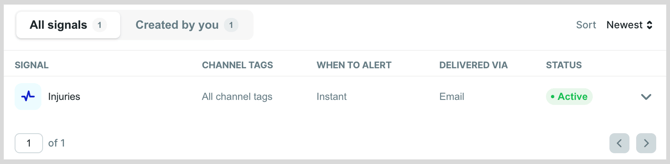
You can get a more detailed look at each Signal by selecting the down arrow in that Signal’s row.
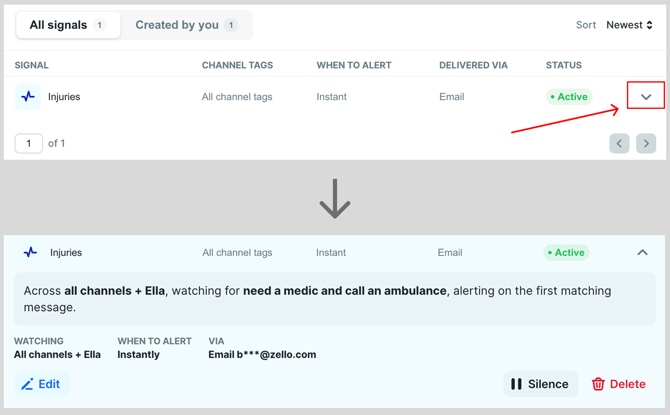
The expanded view describes the Signal in a sentence, repeats its settings, and gives you the ability to Edit, Silence, or Delete that Signal.
Editing a Signal
You can edit a Signal to change its name, prompt, the specific key words that trigger it, the channels it applies to, when it should send an alert and how that alert should be delivered and to whom. To do so, follow these steps:
- Select Edit.
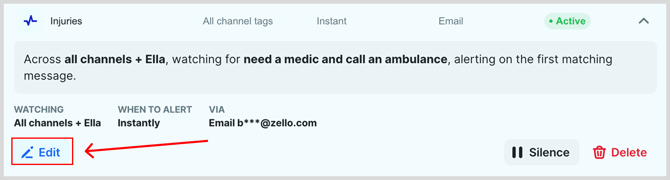
- Change any of the desired fields and then select Save changes.

Silencing a Signal
If you do not want a Signal to stop sending alerts, you can silence it. To do so, select Silence.
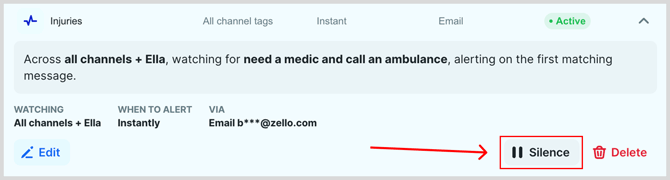
When a Signal is silenced, its status changes from Active to Paused. To unsilence a Signal, select Unsilence.

Deleting a Signal
You can delete a Signal to remove it completely from your network. (Be aware that once you delete a Signal, you cannot restore it. If you just want to stop a Signal from sending alerts for some amount of time, then you should silence the Signal instead.)
To delete a Signal follow these steps:
- Select Delete.

- Type the Signal's name to confirm you want to delete it and then select Delete Signal.
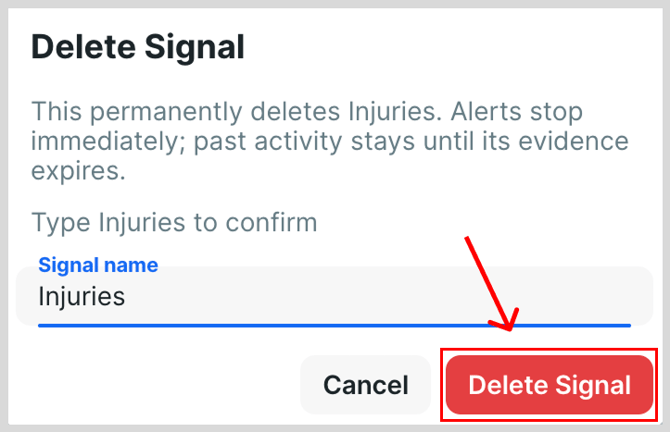
When a Signal is deleted, alerts from that Signal will be stopped immediately. Past alerts sent from that Signal can still be viewed under Recent activity.
Understanding alerts
When a Signal is triggered, an alert is sent to each delivery method you chose for it.

Alerts contain the following information:
- Signal name, and the channel or channel tag it came from
- Short summary of what happened
- Quoted message that triggered the Signal
- Who sent the message
- Time the message was heard, labeled in UTC
When an alert comes only from a match on your specific words or phrases, it has no summary and the quoted message carries the detail.

Alerts are grouped rather than repeated, so a single incident produces one alert instead of a burst. Every alert also lands in Recent activity on the Signals page.
Please note: if your network uses Anonymized Message Vault, alerts identify the person who sent the message as <redacted> instead of by name.

Getting the most out of Signals
These tips apply to any operation, whatever your industry.
- One Signal, one job. Keep each Signal focused on a single kind of event. To catch several different things, create a separate Signal for each, and write a prompt for each that describes only that one thing.
- Route with tags. Scope a Signal to one location's channel tags so the alert reaches the manager for that location.
- Use clear language. When writing a prompt, describe the specific event you want a Signal for instead of a general category. "Incidents in the store" could mean anything from a papercut to a customer threatening staff, and Signals has no way to know which of those you care about. Describing what the event sounds like on the channel gives Signals a clear picture of which messages should trigger an alert.
- ❌ Too broad: "Incidents in the store"
- ✅ Specific: "Someone reporting an injury, a theft in progress, or a customer threatening staff"
If a Signal alerts you less than you expected, check that the Signal is applied to the correct channels and consider lowering the number of messages needed for that Signal to send an alert. If the Signal sends more alerts than desired, tighten the prompt to describe one situation, or increase how many messages are needed for that Signal to send an alert.
Starting from a suggested Signal
Suggested Signals arrive with their Signal name, The prompt, and Specific words or phrases already written. Select Set it up on the one you want and the only choices left are the ones specific to your operation: Channel tags, When to alert, and Deliver via.

Opening one is also a quick way to see what a working prompt and phrase list look like before you write your own.
Starting points by industry
Every industry has situations that are worth knowing about right away. These situations are exactly what Signals was built for. Below are examples for each industry that it's worth considering creating a Signal for.
Security
- Calls for assistance, including someone who says they need help rather than pressing the emergency button
- Someone injured on site when no medic is nearby
- Hostile or aggressive people on site
- Someone in a restricted or staff-only area
Aviation and ground handling
- Early signs a turnaround is slipping, like missing stairs or no tractor driver
- Ground equipment out of service, like a GPU or a belt loader
- Safety events on the apron, including FOD and aggressive passengers
- Baggage lost or damaged during a turnaround
Retail
- Calls for help at checkout that nobody answers
- Someone concealing merchandise or leaving without paying
- Repeat out-of-stocks on the same item within a day
- Pricing problems that turn up in more than one store
- Flooding or a burst pipe near merchandise
Manufacturing
- Machinery going down
- Maintenance needs
- Safety incidents that would otherwise wait for the shift report
Transportation and logistics
- When there is an accident on the road
- There is a delay with a delivery and the reason is caught
- Incidents that need a supervisor who is not on the channel