
This article is written for: ✅ Zello Work ❌ Zello Friends & Family.
Silent Alert Notifications lets a recipient stay aware of an emergency without their device drawing attention to them. When enabled, incoming alerts are delivered discreetly through vibration and an on-screen (visual) notification instead of an alert tone and out-loud audio.
This is the receiver-side companion to Silent Alert Activation, which silences the sending device. The two settings are independent, so you can silence the sender, the receiver, both, or neither. Configuring them together with user templates lets you create role-based alerting. For example, a store associate can both send and receive silently, alongside a manager who receives audibly.
Retailers can use these settings to help meet the New York Retail Worker Safety Act, which requires large retailers to give associates a silent response button. Learn more about how Zello meets New York's silent response button requirement.
Note: This setting is off by default, which preserves the standard Emergency Alert experience (an audible alert tone and the automatic voice message playing out loud when an alert is received).
What happens when the setting is enabled
When Silent Alert Notifications is on, a recipient's device produces no audible cue when an Emergency Alert comes in. It mutes:
- the incoming alert tone,
- the roughly 10 seconds of automatically transmitted emergency audio (it will not play out loud), and
- the end-of-message chime.
The alert is still delivered and remains impossible to miss visually and by touch:
- the device vibrates using an attention-grabbing emergency vibration pattern,
- a visual notification still appears, and
- the emergency message is still saved to History, so it can be played back at any time.
Important: This setting affects only how alerts are received. It does not change how alerts are sent, the on-screen countdown, or normal talk audio on the emergency channel. To silence the act of triggering an alert on the sender's device, use Silent Alert Activation.
How to enable Silent Alert Notifications
Silent Alert Notifications can be enabled through the Management Console by following these steps:
- Log into the Management Console at [yournetworkname].zellowork.com.
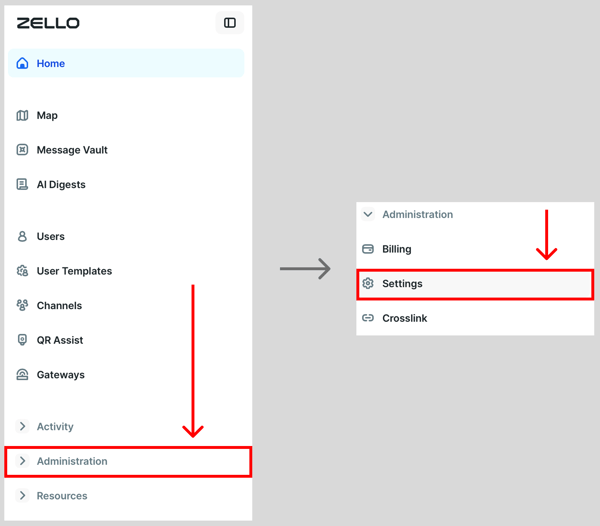
- Select Administration, then Settings.
- Locate the Silent Alert Notifications setting.
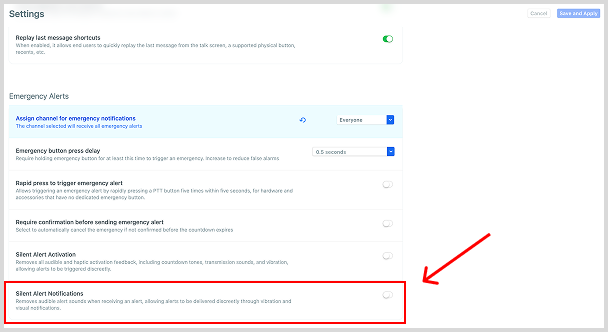
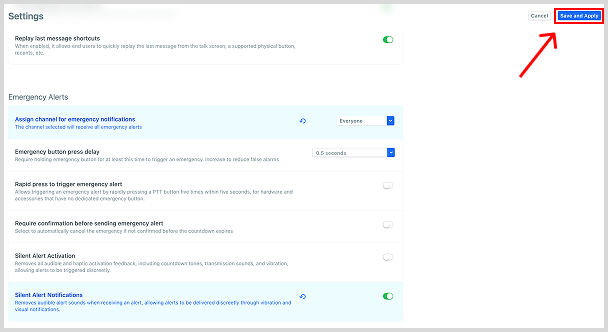
- Turn on Silent Alert Notifications using the toggle. (A green toggle means the feature is enabled.)

- Click Save and Apply.
You can enable it network-wide, or apply it to specific groups of users with user templates. After saving, affected users should sign out and back in (or force-close and reopen the app) for the change to take effect.