This article is written for: ✅ Zello Work ❌ Zello Friends & Family.
What is talk priority?
If your network is relatively busy, you may find it desirable to allow certain users' messages to interrupt others'. Talk priority allows dispatchers, managers, or any other assigned user role to interrupt channel users. An admin can assign user roles one of three priorities (low, normal, high) in the management console's, granting them interruption permissions.
| Talk priority | Behavior |
| High | Interrupts Normal and Low priorities |
| Normal (default) | Interrupts Low priority |
| Low | Unable to interrupt |
* Please note: Existing timeout rules apply when users of the same priority are speaking. Emergency messages interrupt all speakers regardless of talk priority.
Assigning talk priority
Talk priority is assigned by network admins when either creating or modifying roles in the console. The steps below outline the action required to either retroactively modify an existing user role's priority or establish a new role with talk priority. Learn more about user roles.
Creating a new user role and assigning talk priority
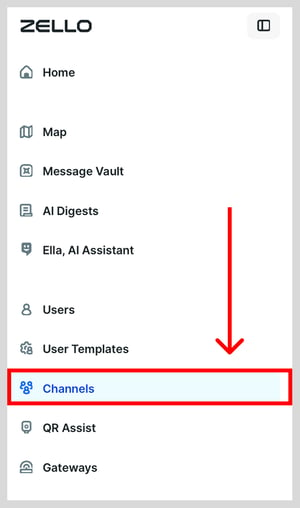
- Sign in to your network's management console [yournetworkname.zellowork.com] and select channels.
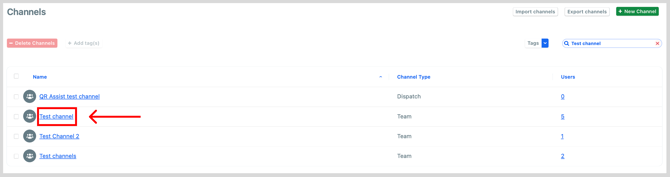
- Click the channel you'd like talk priority assigned.
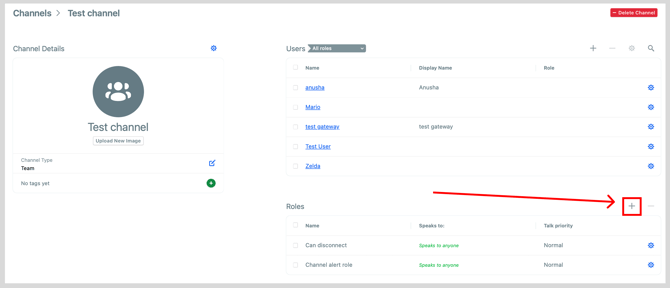
- Click the plus sign + icon at the top-right corner of the channel's roles section.
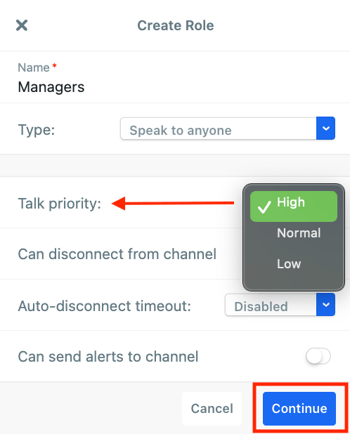
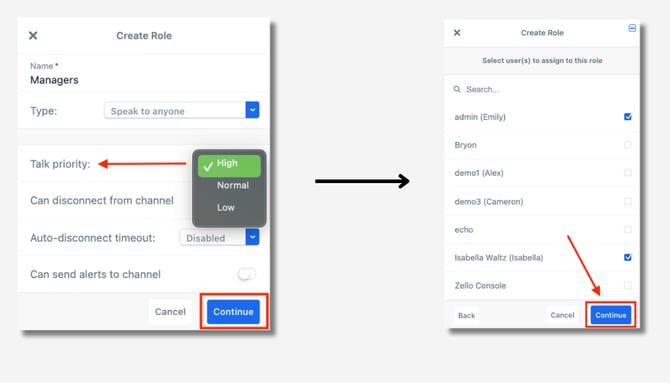
- Name the new role, and select your intended priority level from the talk priority dropdown. Click continue, then select the users you'd like assigned to the priority group. Again, click continue.
Modifying an existing role's talk priority
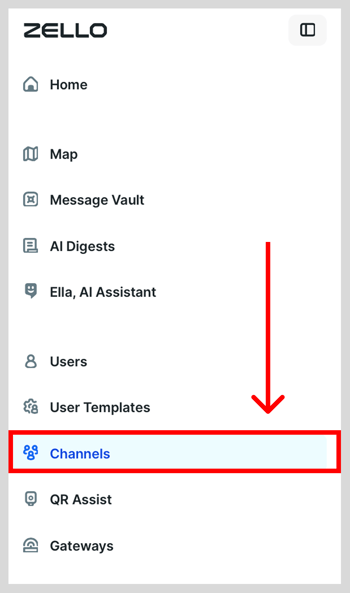
- Sign in to your network's management console [yournetworkname.zellowork.com] and select channels.
- Click the channel you'd like talk priority assigned. Scroll down to the roles section, and click the settings icon next to the role that requires modification.
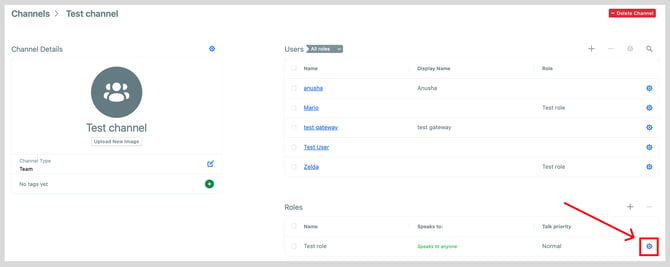
- Modify the talk priority as needed, then click continue.