
This article is written for: ✅ Zello Work ❌ Zello Friends & Family.
Task Management lets your team create, assign, and manage tasks directly in Zello. When someone calls out work over a channel, that request can become a task anyone in the channel is able to pick up, instead of something that disappears once the message finishes playing.
Channel members can see which tasks are still open and who has claimed each one. Tasks created from a message stay linked to that message, so anyone can go back and hear the original request to gain any needed context.
This article covers how to enable Task Management, and how to use the feature once it is enabled.
Please note: Task Management is currently in beta and requires Zello 7.19 or later on Android or iOS. Contact your Zello representative to have it turned on for your network.
Enabling Task Management
Before your team can use Task Management, it needs to be enabled by an administrator in the Management Console.
- Sign in to the Management Console at [yournetworkname].zellowork.com.
- Select Administration and then select Settings.
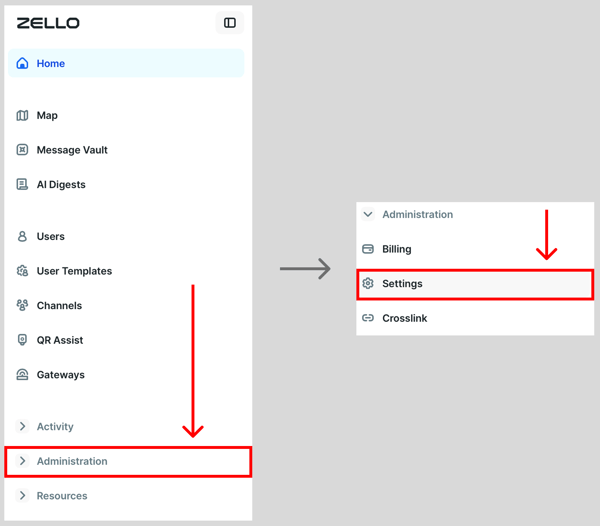
- Locate the Task Tracking setting.
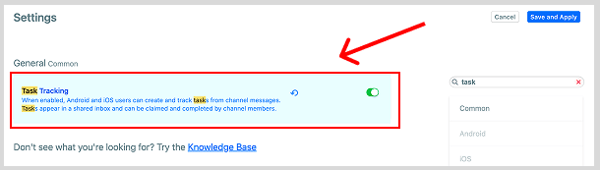
- Enable Task Tracking using the toggle. Note that a green toggle means the feature is enabled.

- Click Save and Apply.
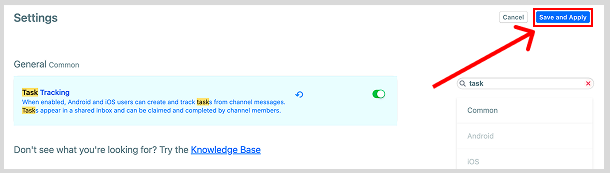
Once enabled, Android and iOS users on the network can create and track tasks.
Using Task Management
When Task Management is enabled for a network, users on that network can create, assign, claim, unclaim, complete, edit, and delete tasks. Most of that work happens in the Task Inbox, so we cover it first.
Task Inbox
Task Inbox is the main screen for managing tasks. It gathers tasks from every channel you belong to, so you don’t have to open each channel to find out what needs to be done. To open the Task Inbox, tap the clipboard icon at the top of the Recents, Contacts, or Channels screen.
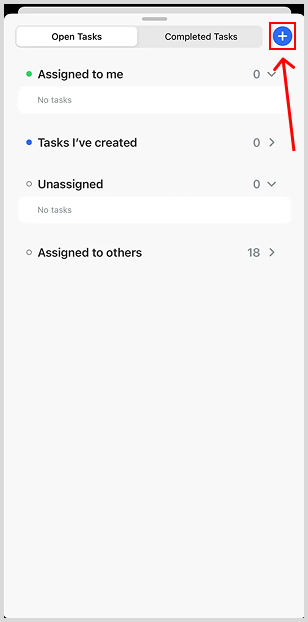
Tasks are split across two tabs, Open Tasks and Completed Tasks. The Open Tasks tab shows the tasks that need to be completed.
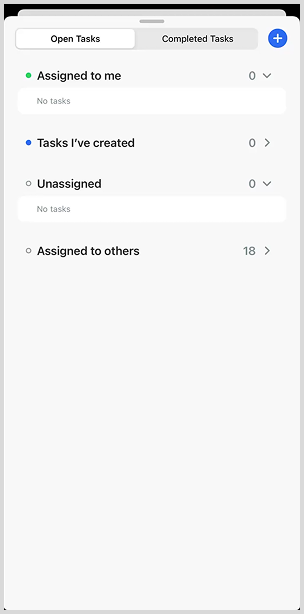
These tasks are split into four sections:
- Assigned to me. Tasks you have claimed or that have been assigned to you.
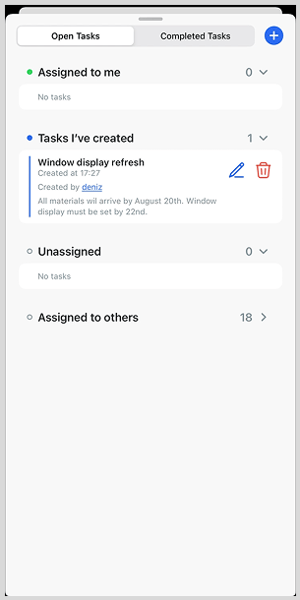
- Tasks I’ve created. Tasks you created, whether or not they have an assignee.
- Unassigned. Tasks that haven’t been claimed by or assigned to anyone yet.
- Assigned to others. Tasks someone else has claimed or been assigned, shown with their name.
Finished work moves to the Completed Tasks tab, where tasks can no longer be edited or claimed.
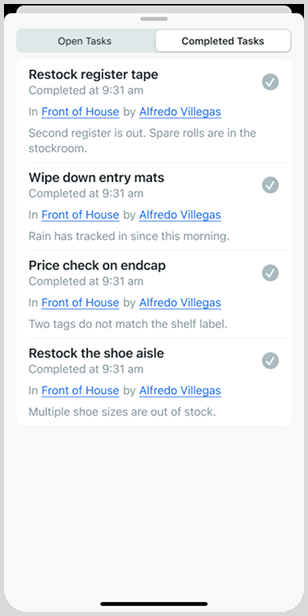
Tasks clear from the inbox on their own so that finished and stale work doesn’t build up.
- Completed tasks clear after 48 hours.
- Tasks that have not been completed clear after 30 days, whether or not anyone has claimed them.
While the Task Inbox is the main hub for managing tasks, you can also perform some of these actions from the History screen, without leaving the conversation the task came from. The sections below cover each way of managing tasks.
Creating a task
There are three main ways to create a task.
- You can start a new message with “Create a task.”
- You can turn a message already in channel history into a task.
- You can create a task from scratch in the Task Inbox.
Each option is covered below.
Option 1: Start a message with “Create a task”
Start a channel message with “Create a task,” then say or type what needs to be done. Zello builds the task from the rest of the message.
For example, saying or typing “Create a task, restock the register tape at checkout three” creates a task titled “Restock the register tape at checkout three.”
You can do the same in any language Zello supports. For example, start the message with “Crea una tarea” in Spanish or “Opret en opgave” in Danish. For the words and phrases that work for each language, see Supported languages.
Please note: Voice messages are matched against their transcript. Transcription needs to be enabled for a voice message to create a task.
Option 2: Turn an existing message into a task
Press and hold the message you want to turn into a task, then choose Create Task. You can edit the title and description before saving.
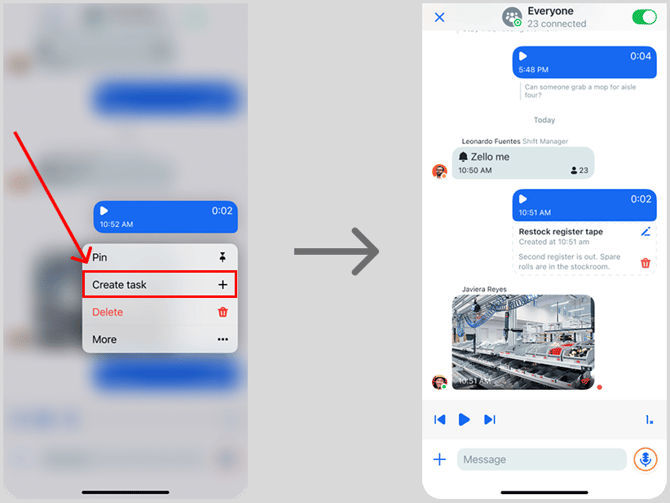
Option 3: Create a task from the Task Inbox
To create a task from the Task Inbox, follow these steps:
- Open the Task Inbox and tap the plus icon (+).
- Enter the Task Title and Task Description.
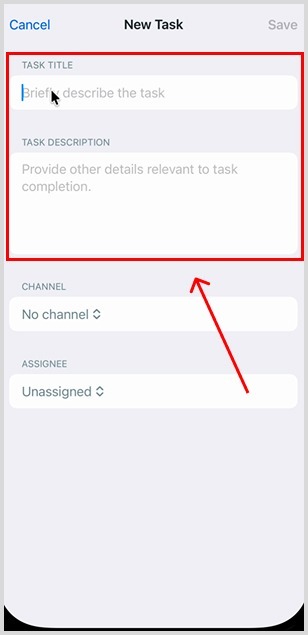
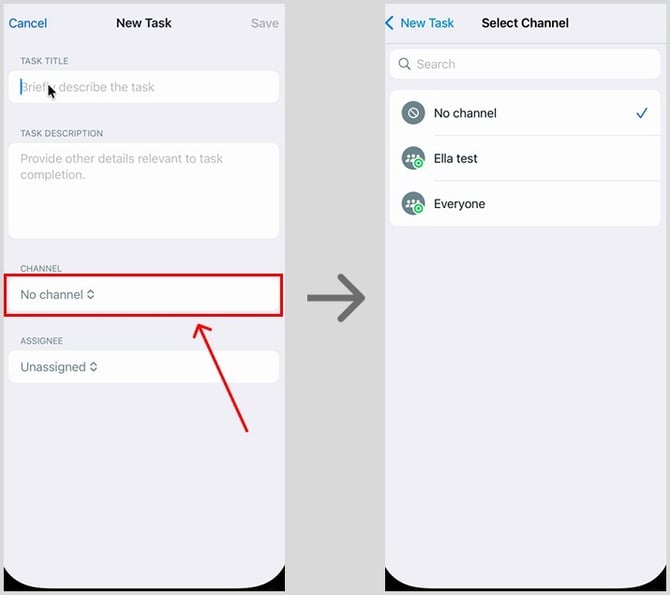
- Tap Channel and pick the channel that should see the task, such as a department or a work crew. Only members of that channel will see the task in their Task Inbox. If you pick No channel, every user on your Zello network can see it.
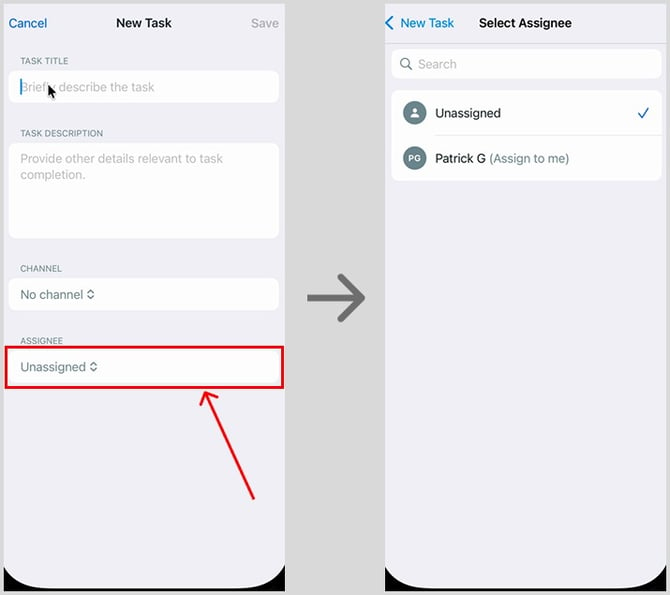
- Tap Assignee and pick the person responsible for the task. The list only shows members of the channel you picked. Leave it set to Unassigned to let anyone in the channel claim the task, or pick (Assign to me) to take it on yourself.
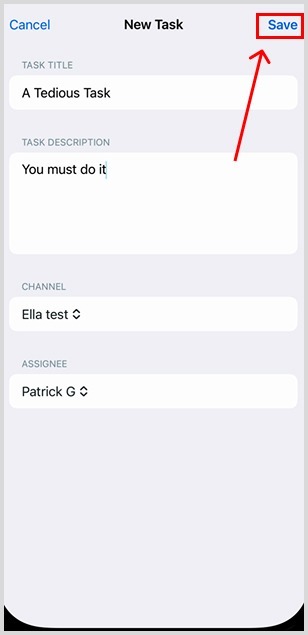
- Select Save.
The created task will appear in the Task Inbox.
Choosing a channel and assignee for a task
Which channel and assignee you pick depends on who should do the work:
- Anyone in a group. Pick the group’s channel as the Channel and leave Assignee set to Unassigned. Everyone in that channel sees the task and can claim it.
- A specific person. Pick the channel the person belongs to, then pick them as the Assignee. Your colleague sees it in their Assigned to me list.
- Yourself. Pick (Assign to me) as the Assignee. You’ll see it in your own Assigned to me list as a reminder.
- Everyone on your network. Pick No channel. Every user on your Zello network can see the task, so use this only when it really applies to everyone.
Tasks created from a message go to that message’s channel as Unassigned. You can assign them to someone afterward by editing the task.
Editing a task
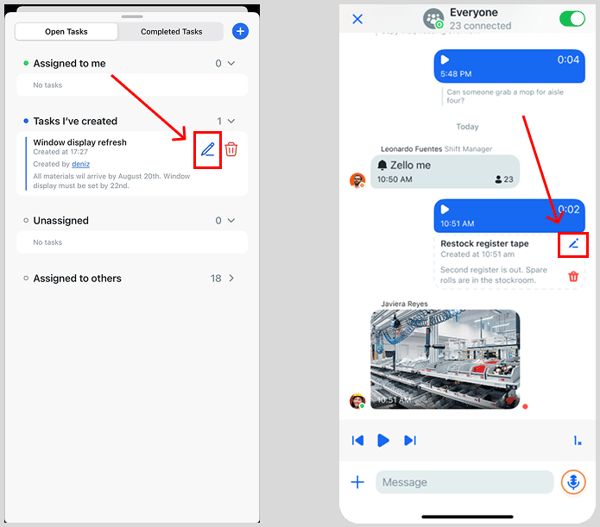
Once you have created a task, you can edit its title, description, and assignee. To do so, follow these steps:
- Tap the pen icon, either in the Task Inbox or on the message connected to the task you want to edit.
- Change the title, description, or assignee, then select Save Changes. To let anyone in the channel claim the task, set the assignee to Unassigned.
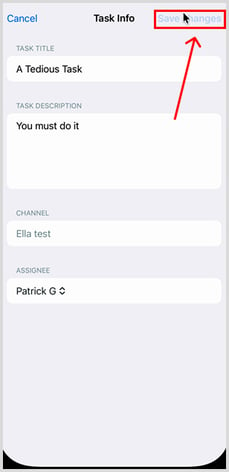
Only the person who created a task is able to edit it, and you are no longer able to edit a task once it is completed. You also can’t move a task to a different channel after it’s created.
Deleting a task
To delete a task that you have created, select the red trash can icon next to the task, either on the Task Inbox screen or the History screen.
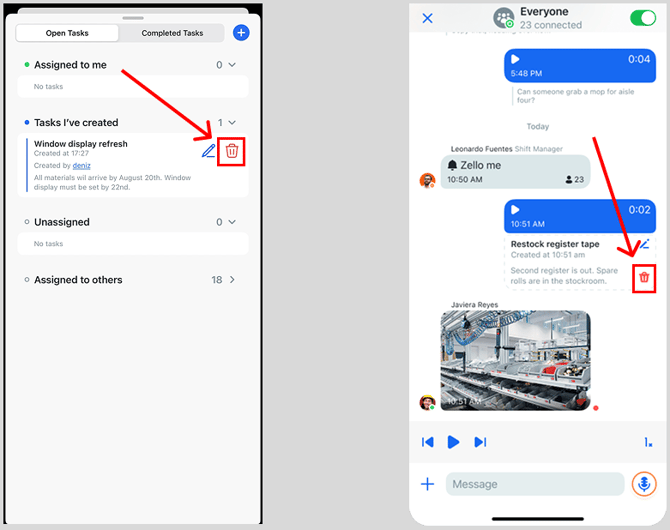
Only the person who created a task can delete it.
Claiming a task
Claiming a task assigns that task to you. You can claim a task that someone else created by selecting the plus icon (+) next to it on the Task Inbox screen.
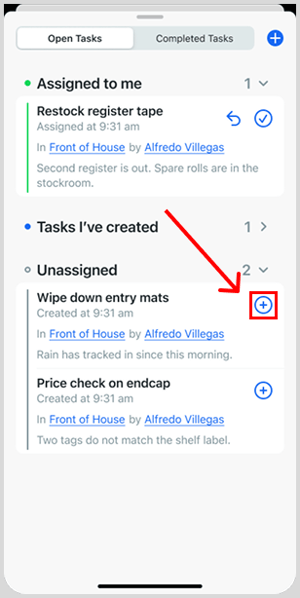
Alternatively, you can select the plus icon (+) next to the message associated with the task on the History screen.
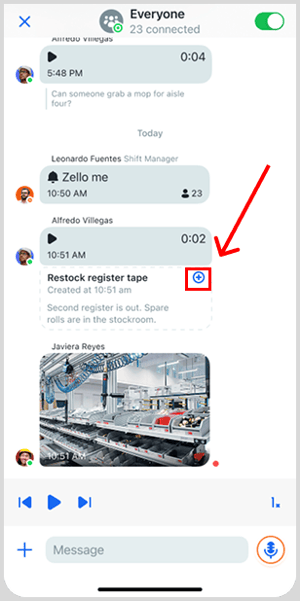
You can claim a task even if someone else already has it. Claiming it moves the task from them to you.
Tasks you created don’t have a plus icon next to them. To take on one of your own tasks, pick (Assign to me) as the assignee when you create or edit the task.
Channel members are notified when a task is created, and the notification lets the recipient claim it without needing to open the channel.
Unclaiming a task
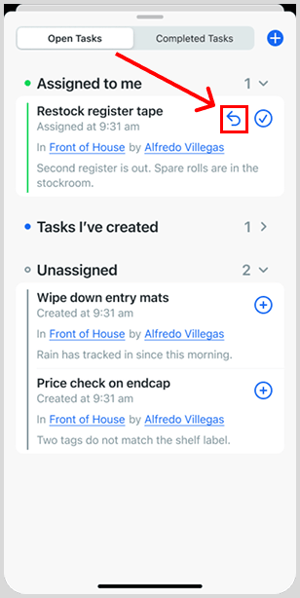
Unclaiming a task returns it to having an Unassigned status, where people can see that the task still needs someone to claim it.
To unclaim a task, select the looping arrow icon next to the task on the Task Inbox screen. You will need to confirm that you want to unclaim the task before it goes back to being unassigned.
Completing a task
Once you have finished a task, you can mark it as complete to help show that the work is done. To do so, simply select the check mark icon next to the task on the Task Inbox screen.
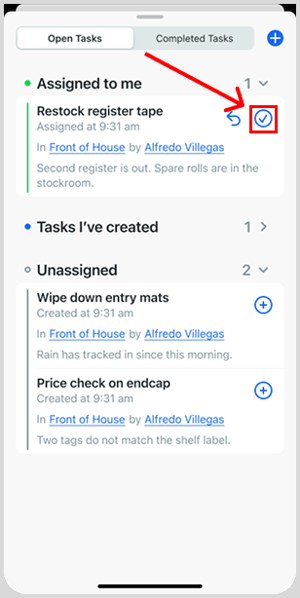
Only the person a task is assigned to can mark it complete.
Supported languages
You can create a task from a message in any of these languages. Start the message with one of the verbs and one of the task words for your language, as in “Create a task” or “Erstelle eine Aufgabe.”
In languages marked "start or end," the verb and task word can also go at the end of the message.
- Arabic. Verbs: إنشاء, أنشئ, أنشئي, اصنع, أضف. Task words: مهمة, مهمه, المهمة.
- Azerbaijani (start or end). Verbs: yarat, yaradın, yaradin, yaratmaq. Task words: tapşırıq, tapşırığı, tapşırıqı.
- Bengali (start or end). Verbs: তৈরি, বানাও, যোগ, বানিয়ে দাও, বানিয়ে দিন, তৈরি করে দাও, তৈরি করে দিন, যোগ করে দাও, যোগ করে দিন. Task words: টাস্ক, কাজ.
- Bulgarian. Verbs: създай, създайте, създаване, добави, добавете. Task words: задача, задачата.
- Catalan. Verbs: crear, crea, creeu, afegir, afegeix. Task words: tasca.
- Chinese. Verbs: 创建, 建立, 新建, 添加, 新增, 創建, 增加, 建, 加, 弄, 新开. Task words: 任务, 任務, 待办, 待辦.
- Croatian. Verbs: stvori, stvoriti, stvorite, napravi, napravite, dodaj, dodajte, kreiraj. Task words: zadatak, zadatka.
- Czech. Verbs: vytvořit, vytvoř, vytvořte, přidat, přidej, přidejte, založ, založit, založte. Task words: úkol, úkolu.
- Danish. Verbs: opret, oprette, lav, tilføj. Task words: opgave, opgaven.
- Dutch. Verbs: maak, aanmaken, maken, creëer, voeg, toevoegen. Task words: taak.
- English. Verbs: create, make, add. Task words: task, todo.
- Estonian. Verbs: loo, looge, lisa, lisage. Task words: ülesanne, ülesande.
- Finnish. Verbs: luo, luokaa, lisää, tee. Task words: tehtävä, tehtävän.
- French. Verbs: créer, crée, créez, ajoute, ajouter, ajoutez, fais. Task words: tâche.
- Galician. Verbs: crear, crea, engadir, engade. Task words: tarefa.
- Georgian (start or end). Verbs: შექმნა, შექმენი, შექმენით, დაამატე. Task words: დავალება, დავალების, ამოცანა.
- German. Verbs: erstelle, erstell, erstellen, lege, leg, anlegen, mache, mach, machen, füge, füg, hinzufügen. Task words: Aufgabe, Auftrag, Task, Todo.
- Greek. Verbs: δημιουργία, δημιούργησε, δημιουργήστε, φτιάξε, πρόσθεσε. Task words: εργασία, εργασίας.
- Gujarati (start or end). Verbs: બનાવો, બનાવ, ઉમેરો, બનાવી દે, બનાવી દો, ઉમેરી દે, ઉમેરી દો. Task words: કાર્ય, ટાસ્ક, કામ.
- Hebrew. Verbs: צור, צרי, צרו, יצירת, הוסף, הוסיפי. Task words: משימה, המשימה.
- Hindi (start or end). Verbs: बनाएँ, बनाएं, बनाओ, बनाइए, जोड़ें, जोड़ो, बना दो, बना दें, बना दीजिए, बना दीजिये, बना लो, बनाना, जोड़ दो, जोड़ दें, डाल दो, डाल दें. Task words: कार्य, टास्क, काम.
- Hungarian (start or end). Verbs: létrehozása, létrehoz, hozz, hozzon, készíts, adj. Task words: feladat, feladatot.
- Indonesian. Verbs: buat, buatkan, bikin, tambah, tambahkan, bikinin, buatin, tambahin. Task words: tugas, tugasnya.
- Italian. Verbs: crea, creare, creami, aggiungi, aggiungere. Task words: attività, compito, incarico, task, todo.
- Japanese (start or end). Verbs: 作成, 作って, 作る, 追加, 登録, 作っといて, 作っておいて, 追加しといて. Task words: タスク, 作業.
- Javanese. Verbs: gawe, gawekake, damel, tambah. Task words: tugas.
- Khmer. Verbs: បង្កើត, បន្ថែម. Task words: ភារកិច្ច, កិច្ចការ.
- Korean (start or end). Verbs: 생성, 만들기, 만들어, 만들어줘, 추가, 추가해, 생성해, 생성해줘, 생성해주세요, 만들어주세요, 추가해줘, 추가해주세요, 등록, 등록해, 등록해줘, 만들어 줘, 추가해 줘. Task words: 작업, 작업을, 태스크, 태스크를, 할일.
- Lithuanian. Verbs: sukurti, sukurk, sukurkite, pridėk, pridėti. Task words: užduotį, užduotis.
- Malay. Verbs: cipta, ciptakan, buat, tambah, tambahkan, buatkan. Task words: tugas.
- Marathi (start or end). Verbs: तयार, बनवा, जोडा, बनव, बनवून दे, बनवून द्या, तयार करून दे, तयार करून द्या. Task words: काम, कार्य, टास्क.
- Mongolian (start or end). Verbs: үүсгэх, үүсгэ, үүсгээрэй, нэм, нэмэх. Task words: даалгавар, даалгаврыг.
- Norwegian. Verbs: opprett, opprette, lag, legg, lage. Task words: oppgave, oppgaven.
- Persian (start or end). Verbs: ایجاد, بساز, بسازید, اضافه, درست کن, درست کنید, بزن. Task words: وظیفه, تسک.
- Polish. Verbs: utwórz, stwórz, utworzyć, stworzyć, dodaj, zrób, załóż, założyć, dorzuć. Task words: zadanie.
- Portuguese. Verbs: criar, cria, crie, adicionar, adiciona, adicione, faça. Task words: tarefa.
- Romanian. Verbs: creează, creați, crea, adaugă, adăugați. Task words: sarcină.
- Russian. Verbs: создать, создай, создайте, добавь, добавьте, добавить, сделай, заведи, заведите, завести, сделай-ка. Task words: задачу, задача, задание.
- Serbian. Verbs: креирај, направи, направите, додај, створи, kreiraj, napravi, dodaj, stvori. Task words: задатак, задатка, zadatak, zadatka.
- Slovak. Verbs: vytvoriť, vytvor, vytvorte, pridaj, pridajte, založ. Task words: úlohu, úloha.
- Spanish. Verbs: crear, crea, cree, créame, añade, añadir, agrega, agregar, haz, hazme. Task words: tarea.
- Swedish. Verbs: skapa, gör, lägg, lägga. Task words: uppgift, uppgiften.
- Tamil (start or end). Verbs: உருவாக்கு, உருவாக்கவும், உருவாக்குங்கள், சேர், உருவாக்கி கொடு, உருவாக்கிடு. Task words: பணி, பணியை, டாஸ்க்.
- Telugu (start or end). Verbs: సృష్టించండి, సృష్టించు, చేర్చండి, చేసి పెట్టు. Task words: పని, టాస్క్.
- Thai. Verbs: สร้าง, เพิ่ม. Task words: งาน, ภารกิจ, ทาสก์.
- Turkish (start or end). Verbs: oluştur, oluşturun, oluşturunuz, oluşturalım, ekle, ekleyin, yarat. Task words: görev, görevi.
- Ukrainian. Verbs: створити, створи, створіть, додай, додайте, зроби, заведи, створи-но. Task words: завдання, задачу.
- Urdu (start or end). Verbs: بنائیں, بناؤ, شامل, بنا دیں, بنا دو, بنا دیجیے, بنا دیجئے, بنا لیں, بنا لو, بنائیے, شامل کر دیں, شامل کر دو, ڈال دیں, ڈال دو. Task words: ٹاسک, کام.
- Vietnamese. Verbs: tạo, thêm, lập. Task words: nhiệm vụ, công việc.
If you’re not sure which words to use, starting the message with "Create a task" always works.