
This article is written for: ✅ Zello Work ❌ Zello Friends & Family.
Zello can automatically translate voice and text messages into the recipient's language, so teammates who speak different languages can understand each other in channels and 1:1 conversations. With support for more than 50 languages on Android and more than 30 on iOS, translations help break down language barriers and keep your whole team connected. Translations are available on Zello Work networks subscribed to the Plus or Enterprise plan.
Note: Translations run server-side in the Zello environment. All messages are encrypted when traversing public networks.
Translations are not available on Zello Enterprise Server (ZES), our on-premise deployment.
This article covers how to enable and disable translations, change the language messages are translated into, switch to the original message, and rate translations.
Setting up Translations on your network
Translations are included with the Plus and Enterprise plans. To use them, channel translations need to be enabled for each channel, and 1:1 translations need to be enabled in your network settings and then for each user. The following sections cover how to enable both types of translations on your network.
Prerequisites
Before you begin, make sure everyone on your network is running a version of Zello that supports translations:
- Channel translations: iOS and Android 5.33 or later, Dispatch Hub 15.16.0 or later
- 1:1 translations: iOS and Android 7.18 or later
(Not sure which version you're on? Here's how to check.)
Translations also require transcriptions to be enabled. Channel transcriptions need to be enabled for channel translations, and 1:1 transcriptions need to be enabled for 1:1 translations.
Note: Disabling 1:1 transcriptions for a network also disables 1:1 translations. If you re-enable 1:1 transcriptions later, you'll need to re-enable 1:1 translations too.
Enabling Channel Translations
Channel translations need to be enabled individually for each channel where you want messages translated automatically. To turn on translations for a channel, follow these steps in the Management Console:
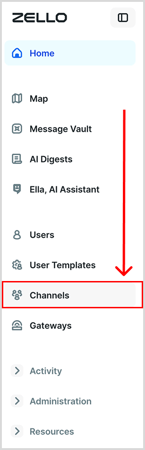
- Select Channels.
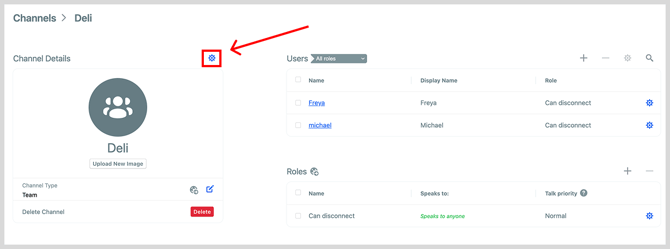
- Click the name of the channel you want to enable translations for.

- Click the settings icon in the top right of the Channel Details section to open advanced channel settings.
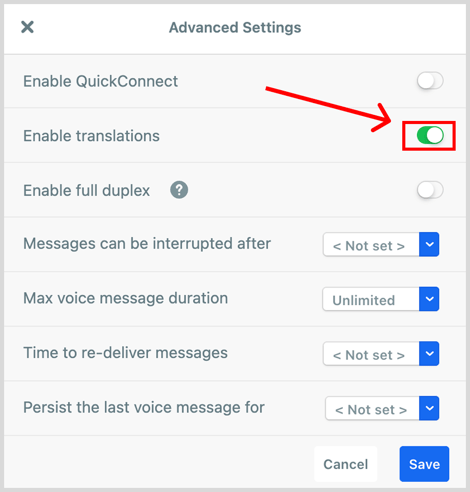
- Use the Enable translations toggle to turn translations on for that channel. Green means translations are enabled.
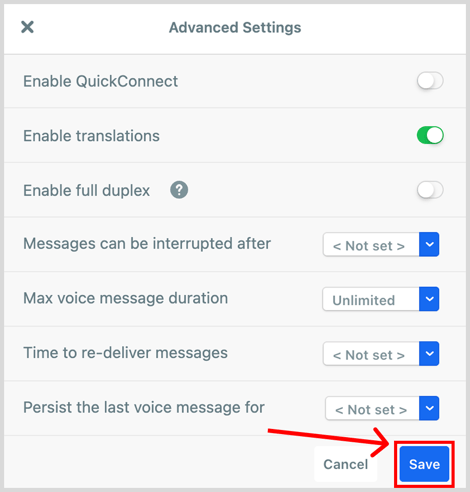
- Click Save.
You can turn on translations for as many channels as you need.
Enabling 1:1 Translations
To use 1:1 translations on your network, you'll need to enable them in the Management Console. Sign in to the Management Console (yournetworkname.zellowork.com) and follow these steps:
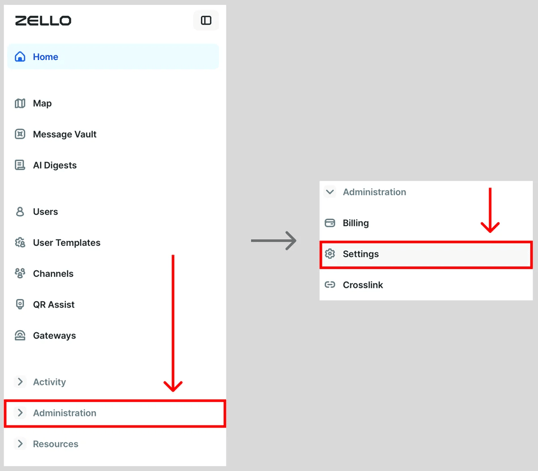
- Select Administration, then select Settings.
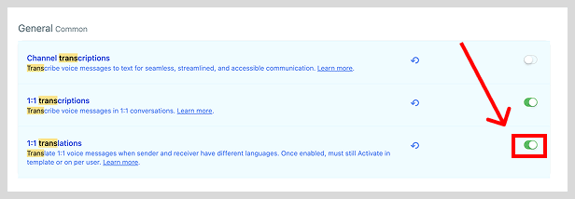
- Locate the 1:1 translations setting and use the toggle to enable it. Green means the setting is on.
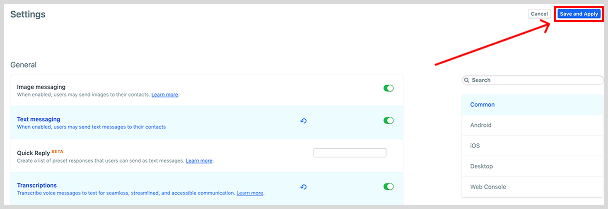
- Click Save and Apply.
Once 1:1 translations are enabled for your network, you'll also need to enable them for the users who should receive translated 1:1 messages. When 1:1 translations are on for a user, the 1:1 messages they receive are translated into their language.
The quickest way to turn on 1:1 translations for many users at once is with a user template. Open a user template and, under User Settings, turn on the 1:1 translations toggle. Every user assigned to that template will have 1:1 translations enabled.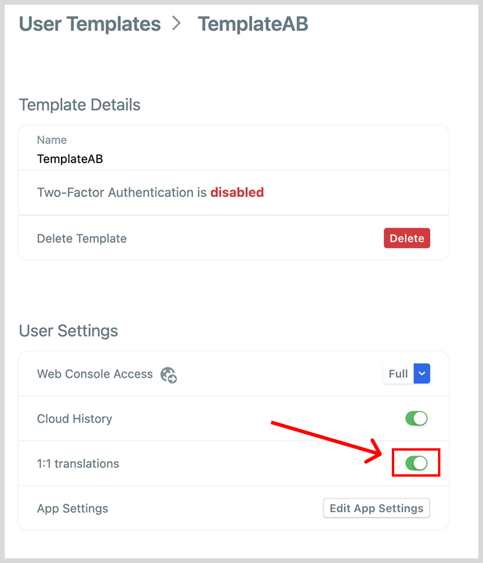 To enable 1:1 translations for an individual user instead, follow these steps in the Management Console:
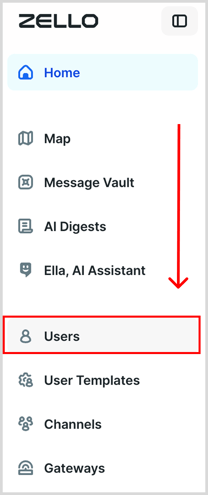
- Select Users.
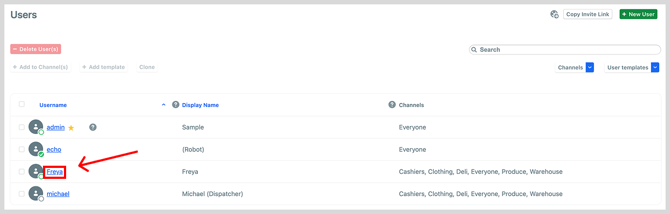
- Select the name of the user who you want to enable 1:1 Translations for.
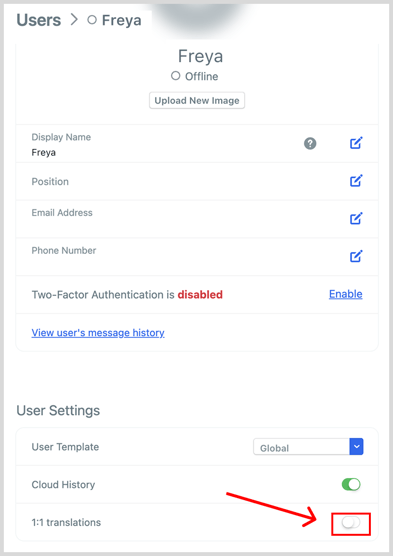
- Under User Settings, use the 1:1 translations toggle to turn translations on for that user. Green means 1:1 translations are enabled. Changes save automatically.
Disabling translations on your device
Translations play for everyone once they're enabled. Users who already speak their coworkers' languages can turn them off for themselves. Channel and 1:1 settings are separate, so you can turn translations off in your channels and keep them on in your 1:1 conversations, or disable them for the 1:1 conversations where you don't need them.
Disabling channel translations
Turning translations off at the channel level applies to all your channels at once.
On iOS:
- Open any channel.
- Tap the three dots to the right of the channel name.
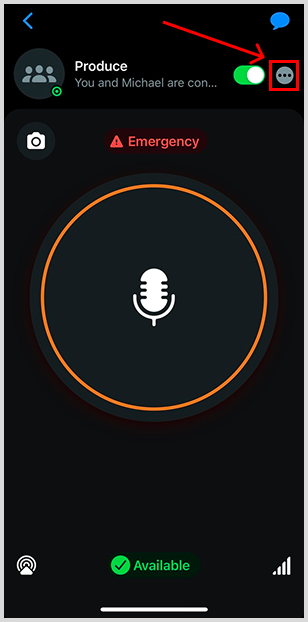
- Tap Turn off translations.
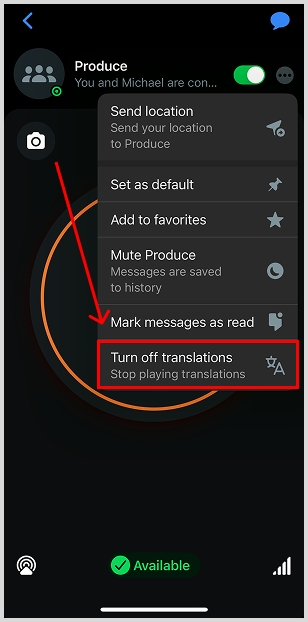
On Android:
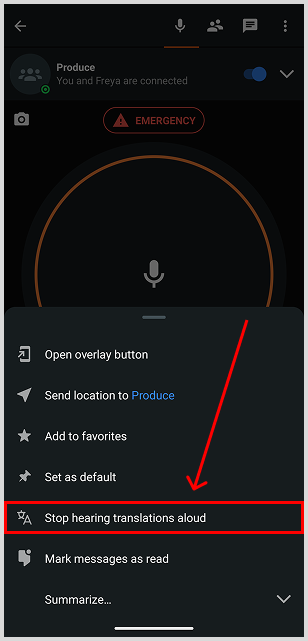
- Open any channel.
- Tap the downward arrow in the upper right.
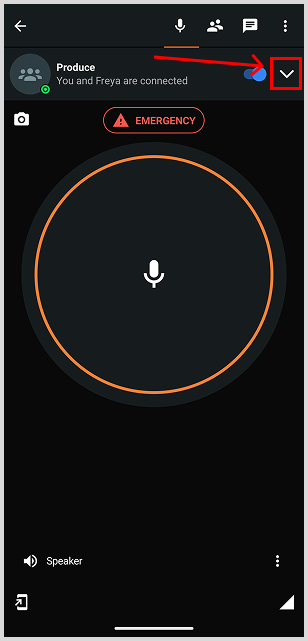
- Tap Stop hearing translations aloud.
Disabling translations in a 1:1 conversation
You can turn translations off in just the 1:1 conversations where you don't need them, on a per-conversation basis.
- Open a 1:1 conversation where you want to disable translations.
- On iOS, tap the three dots to the right of the contact's name. On Android, tap the menu arrow in the upper right.
- Tap Turn off translations.
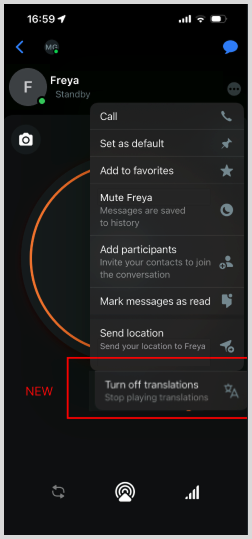
Zello saves this setting on the device you're using. If you sign in on another device, you'll need to turn translations off there too.
Using translations
Zello translates a message automatically whenever the sender's and recipient's device languages are different. Translation starts once the sender finishes talking, and an indicator shows when a translation is in progress. Messages are translated up to 1 minute. Anything longer plays the rest in its original language.
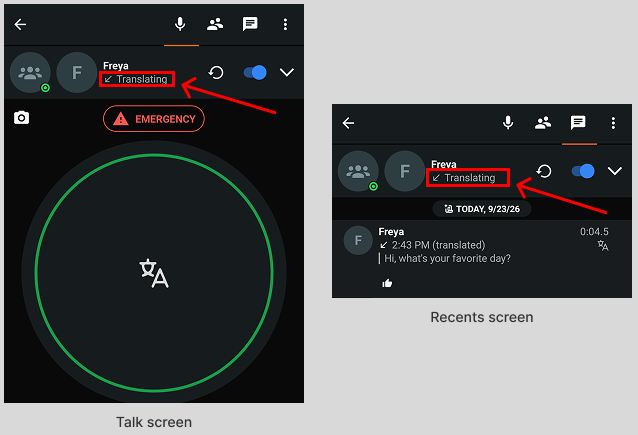
The following sections cover changing the language Zello translates into, switching to the original message, and rating a translation.
Changing the language Zello translates into
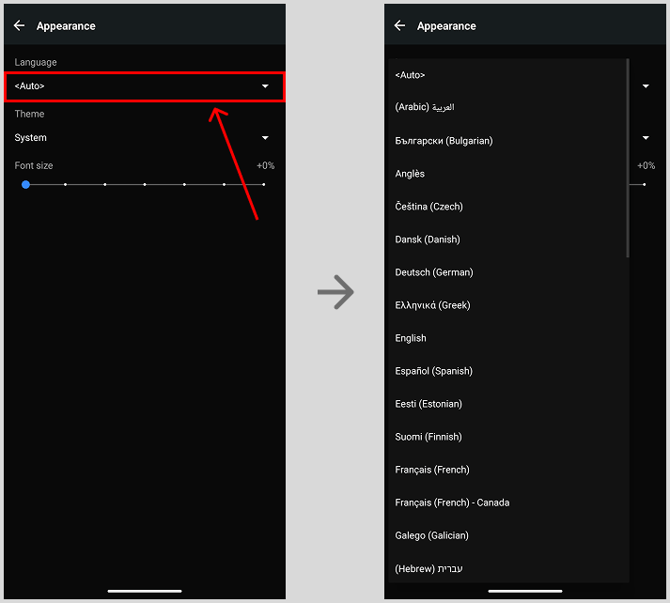
Zello translates messages into your language and uses it to recognize what you say when you talk. If you want to receive messages in a different language, you'll need to change your language settings. On iOS, that means changing your device's language. On Android, you can change it right in Zello.
On iOS:
- Go to your device’s Settings and then select General.
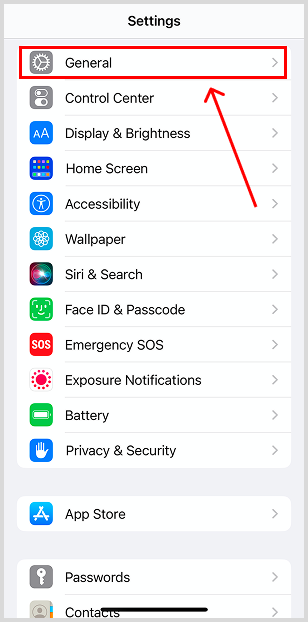
- Select Language & Region.
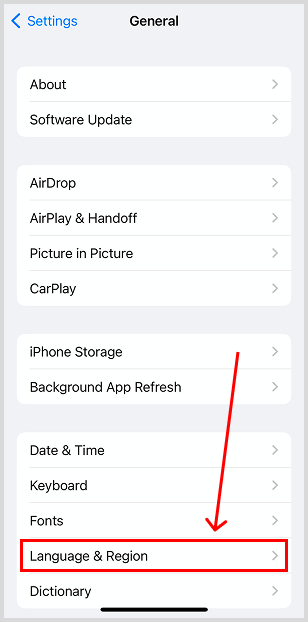
- Select Add Language.
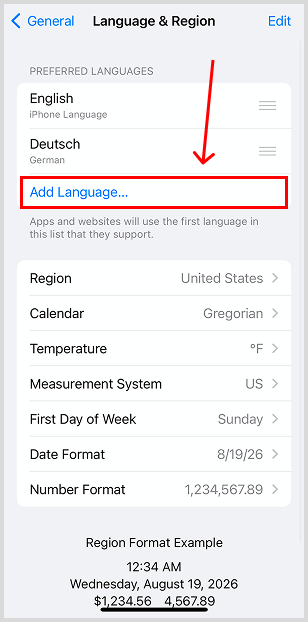
- Select from the list the language you would like to add to your preferred languages.
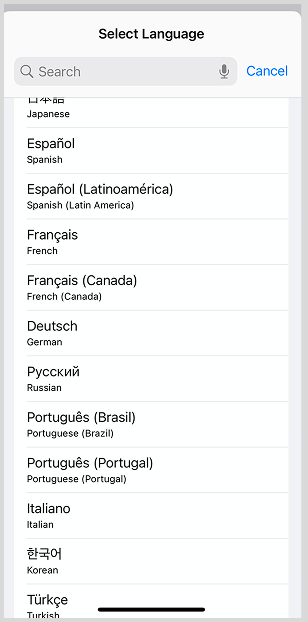
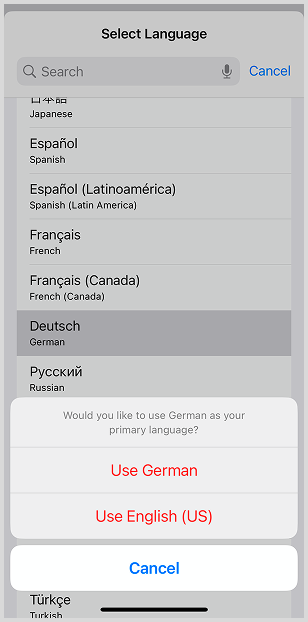
- Finally, confirm which language you would like to use as the primary language on your device.
On Android
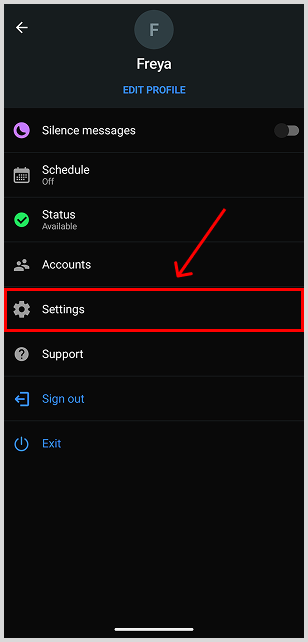
- Go to your profile page and then select Settings.
- Select Appearance.
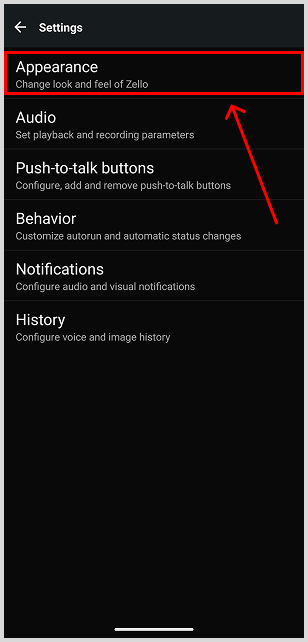
- Use the dropdown menu under Language and then select the appropriate language.
Switching to the original message
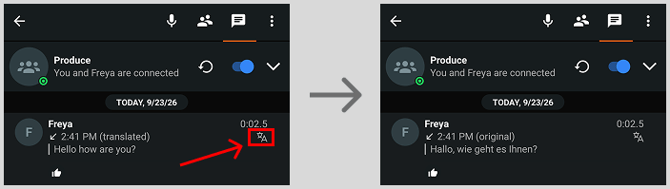
You can read and hear any message as it was sent, in its original language. Tap the [confirm name: translation toggle] next to the message in your history to switch between the translation and the original. The toggle switches the text and the audio together.
Rating a translation
You can rate any translation to help us make translations even better over time.
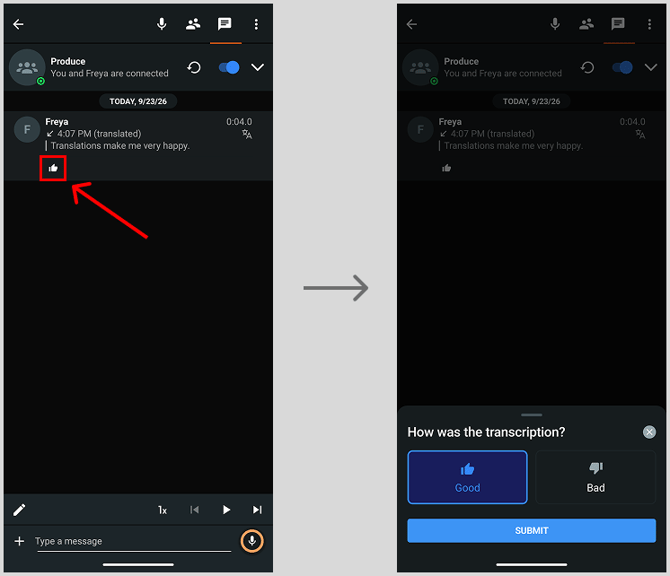
On Android, you can rate a translation by selecting the thumbs up icon under the message and then choosing a rating before tapping Submit.
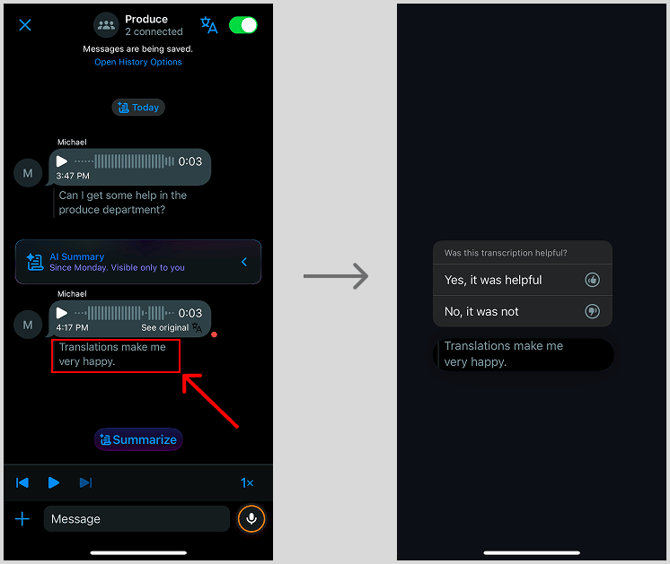
On iOS, long-press the message and then select a rating.
Please note: You cannot rate translations on Dispatch Hub.