This article is written for: ✅ Zello Work ❌ Zello Friends & Family.
Note: This article is written for the Legacy PC app. It doesn't apply to Dispatch Hub.
Starting with Zello Work for Windows PC v2.48, you can use the Microsoft Software Installer (MSI) to install and set up Zello Work PC clients. You can take advantage of all MSI features; however, the MSI installation requires an extra configuration step as follows.
Configuring your PC for MSI
- Go to https://www.zello.com/data/ mesh/ZelloWorkClient.msi to download the MSI installer
- Answer any prompts to allow Zello to be installed on your PC.
Please note that MSI files don’t support SHA-168 digital signatures, so outdated Windows versions such as XP and Vista may report the setup package as unsigned.
Installing MSI at different user interface levels
MSI packages can be installed using different user interface levels.
msiexec /q /i ZelloWorkClient.msi /l* Install.log ZELLO_SERVER=" "
If the ZELLO_SERVER parameter is omitted, the installation will be successful; however, the app will run the configuration wizard (shown in step 9 below) at first launch to complete the installation.
- Initially, the Welcome Screen is displayed.
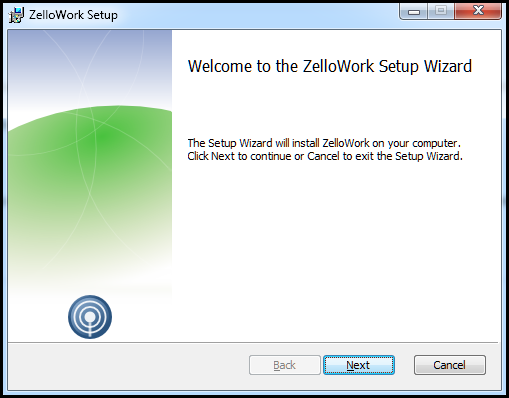
- Click on Next to continue
- Type in the destination folder name
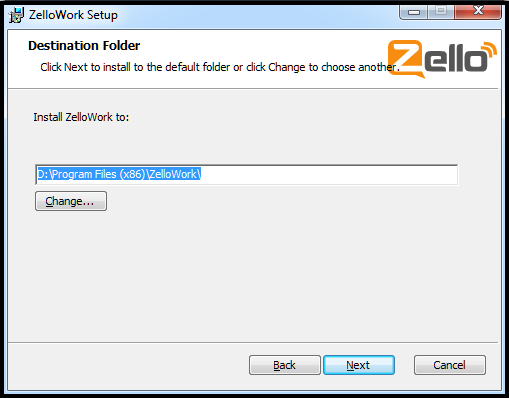
- If you didn't pass the ZELLO_SERVER parameter already, type in the network server address or the location of your On-premise Server. Network server addresses would have the format "networkname " while an On-premise Server would have an address such as "http://10.0.0.33"
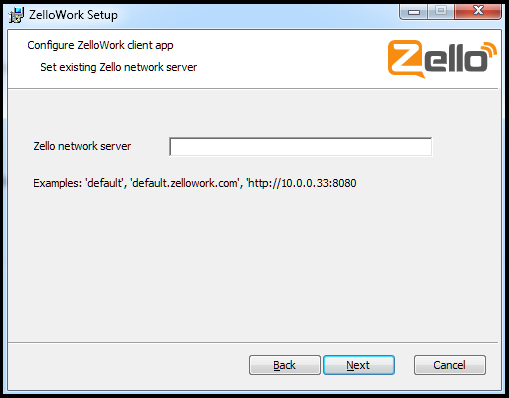
- If you leave the field blank, the configuration wizard will display a second screen, again asking for the network server address or the On-premise Server address
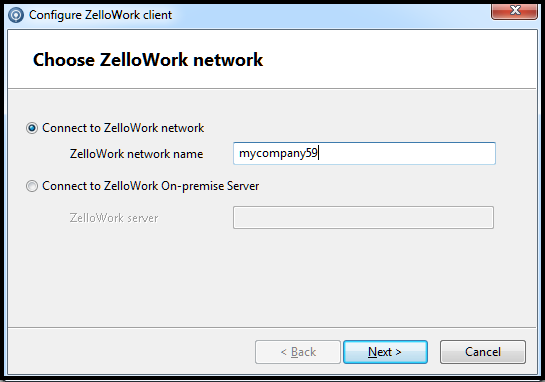
- Type in the appropriate address and finish the wizard to return back to MSI installation
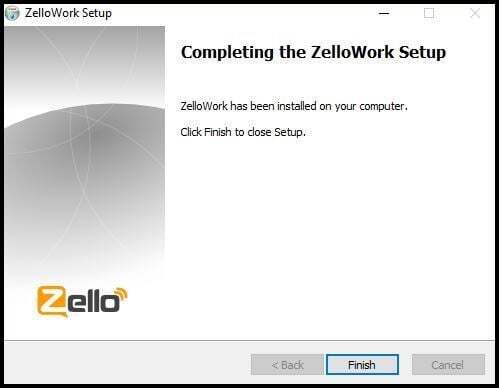
- The Finish screen will display after the installation has completed successfully.