
This article is written for: ✅ Zello Work ❌ Zello Friends & Family.
When Message Vault is enabled, all messages sent over a network—voice, image, text, locations, and dispatch calls—can be accessed through the admin management console. Messages are stored in the cloud for 2 years by default, but admins can change the retention period through the Management Console to 30/60/90 days, 6 months, or 1 year. This makes Message Vault a beneficial option for companies with archival and retrieval policies.
Teams that can't store voice recordings or user identities can still use Message Vault. Anonymized Message Vault keeps timestamps, channels, and transcriptions while leaving out audio, images, and who sent each message.
Why use Message Vault?
Message Vault allows admins to perform the following actions:
- Play voice messages, view images and shared locations, and read text alerts.
- Perform a filtered search for messages. These filters include date, recipient, sender, channel, and message type.
- Download voice messages/images and export related metadata
With Message Vault, network admins can easily satisfy compliance requirements, reconstruct timelines and events, and gain greater insight into their operation.
Message Vault vs. Local History
Zello's Message Vault requires a network subscription of either Plus or Enterprise. It allows admins centralized access to all communications sent across their network, regardless of the device used. Messages will be stored in the cloud for 2 years by default, but the retention period can be adjusted through the Management Console.
If operating on the Core tier, users in your network will retain access to their locally-saved history, but the duration of that storage is dependent on the user's settings and device. History will not be saved in the cloud, and admins will not be able to access their network's history from the console.
Note: If desirable, admins can establish global settings pertaining to users' local history from the management console by following the pathway Settings > [Android/iOS/Desktop] > Local History. These settings will not affect Message Vault.
Using Message Vault
Message Vault can only be accessed through the admin management console.
- Log in to your network at [yournetworkname].zellowork.com
- On the left hand side, click the icon for Message Vault. A list of all messages sent in your network will appear.
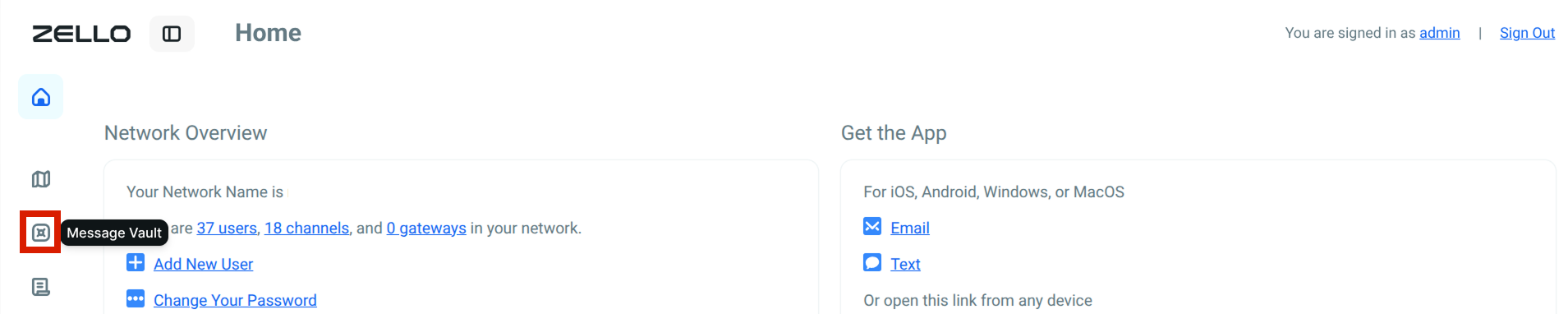
- Use the filters to quickly and easily locate the intended message. Messages can be filtered by start date/time, end date/time, channel name, message source, sender/receiver, or media type.

- Press the blue arrow to play your message audio.

Modifying Message Vault retention period
By default, Message Vault retains all messages sent over a network for 2 years. However, admins can change the retention period in the Management Console. The full range of options is 30/60/90 days, 6 months, 1 year, or 2 years.
Use the following steps to change Message Vault's retention period for your network.
- Log in to your network at [yournetworkname].zellowork.com.
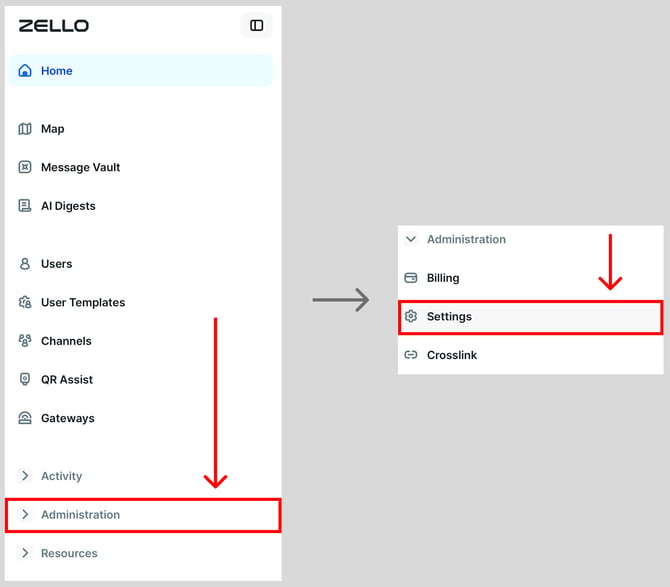
- Select Administration, then select Settings.
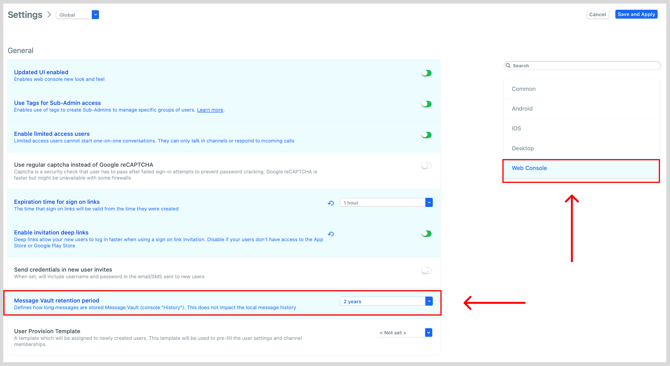
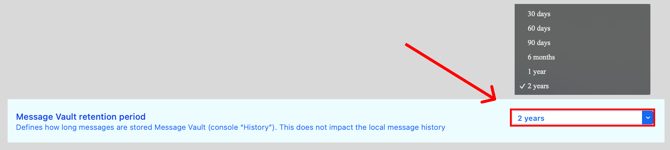
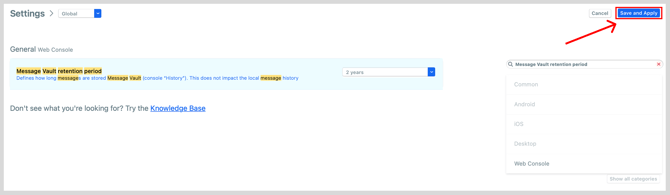
- Select Web Console and then locate the Message Vault retention period setting.
Alternatively, you can use the search bar on the Settings page and search for Message Vault retention period.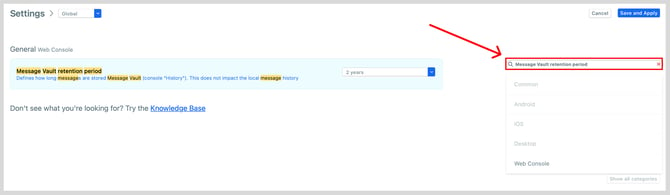
- Use the drop down menu to choose how long Message Vault retains messages. Your options are 30/60/90 days, 6 months, 1 year or 2 years.
- Click Save and Apply.
- When prompted to confirm the change, enter your network name, then click Update Settings.
Note: You will be unable to change the Message Vault retention period again while the change is in progress.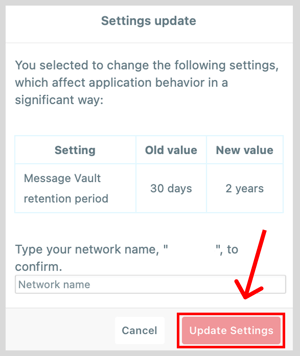
Pricing
Message Vault is included in Zello Work's Plus and Enterprise plans. See our pricing page for more information.