
This article is written for: ✅ Zello Work ❌ Zello Friends & Family.
Admins create user accounts from the Management Console. Every person who communicates on your network should have their own account, for several security and access reasons:
- Every message is tied to an individual account—including emergency alerts. Accurate attribution depends on each person having their own login.
- Permissions are set per account—channel access, console access, templates, and more are assigned account by account.
- Accounts can't be shared. If the same account signs in on two devices, the first device is automatically disconnected. (You can share a physical device between people using the Shared Devices feature—that's different from sharing an account.)
Before you start: sign-in basics
Signing in to Zello Work requires three things: a username, a password, and a network name. Everyone on the network enters the same network name, but each person has a unique username and password.
Three ways to add users
Choose the method that fits how many users you're adding and how similar their setups are:
1. Create users manually in the console (covered below) — Best when adding one or a few users who have unique contacts, settings, or channel assignments.
2. Import users from a CSV — Best for adding users in bulk.
3. Clone an existing user — Best when many users need the same contacts, channels, and settings.
Please note: Once you've added users to the network, no matter how you've added them, consider sending them a SignOn link. This link will ease the onboarding process by prompting new users to install Zello on their device, as well as sign in to their network without entering their credentials.
Create a user manually
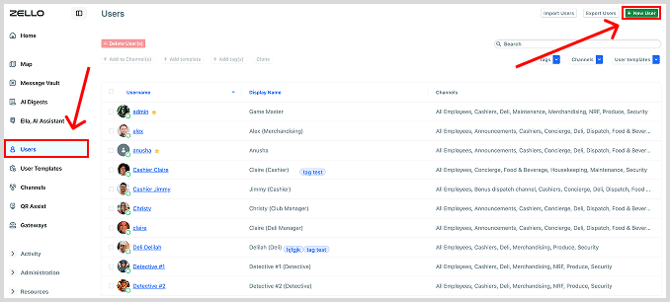
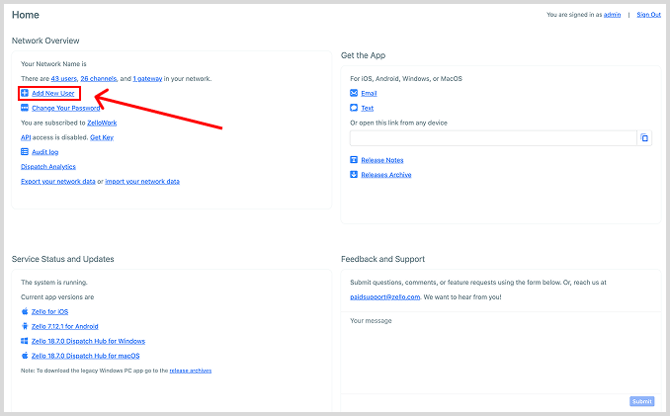
You can start creating a user from two places in the console: the Home/dashboard or the Users tab. Both open the same "new user" form.
- Sign in to your Management Console at [yournetworkname].zellowork.com.
- Open the new-user form from either point:
- From the Users tab: select Users, then click + New User.
- From the Home dashboard: in the Network Overview panel, click Add New User.
- From the Users tab: select Users, then click + New User.
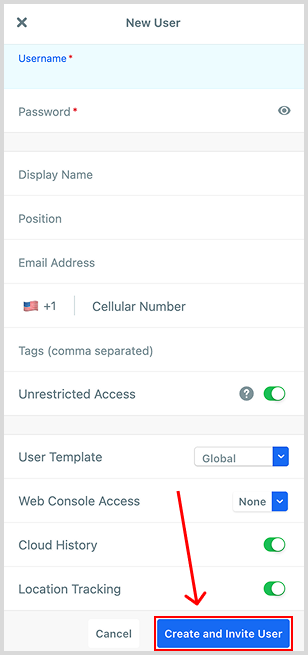
- Enter a username and password. Add any other relevant details for the user's record—such as console access (if the user should be an admin) or a display name. When you're done, click Create and Invite User.
Note: If you are using the Legacy interface for the Management Console, you can also click New > New User from the top navigation bar.

Increase Your Network's User Limit
If you receive this error message when adding a new user:
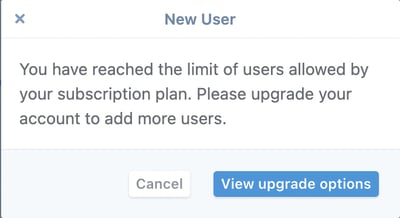
Then it's time to add additional users to your account.
- If you're a trial customer, reach out to [email protected] to request an increase.
- If you pay for your Zello Work subscription via credit card, see this article for help adjusting the number of users on that subscription.
- If you're paying by means other than credit card, contact [email protected] for assistance adjusting the number of users on your subscription.